
You are here:
Use the Client Acquisition Dashboard (Managed Package)
Target high-opportunity leads for immediate action and get insights into leads/referral sources, conversion rates, and trending.

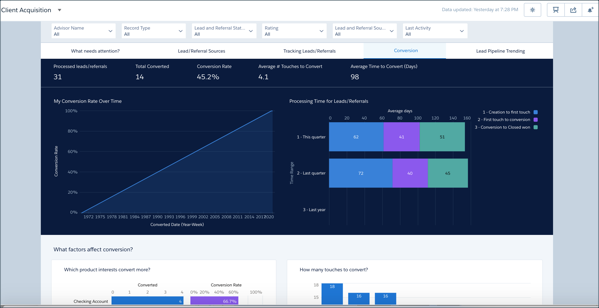
Adjust the Rating and Lead and Referral Status filters at the top to zero in on your hottest leads. Change the time period for the Last Activity filter to get more precise information about how your team is working with leads to close them.
What Needs Attention? Page
Opens to the What Needs Attention? page, which helps identify leads that have stalled or have had no activity for immediate action. Click an element in the Who should I call today? chart and view leads in that category in the following Leads and Referrals Details table. For example, click the bar for the highest amount in By Expected Value to view just the potentially most valuable leads in the details table. Then help move the lead along by rolling the cursor over a name, clicking the disclosure triangle, and selecting an action (New Task, New Event, Log a Call, and so on).
Lead/Referral Sources Page
Combines metrics about lead referral sources and your best referrers to help you identify the best opportunities. Click a section of the Where do leads/referrals come from? chart to view best referrers for that source in Who are my best referrers?. Or click a bar in Who are my best referrers? to see sources for that referrers leads in Where do leads/referrals come from?. Scroll down to get specifics for each lead in the details table.
Tracking Leads/Referrals Page
See what’s happened to leads and how far they’ve proceeded if they haven’t converted yet. Click a bar in Select a created date and then view status of leads from that period in Where are these leads now?. Or click an element in Where are these leads now? to see when leads in that status were created. To expand the time period, select M (month) or Q (quarter).
Conversion Page
Shown previously. Follow the lead conversion process for your team. Chart at top-left shows your conversion rate over time. Top-right chart shows the average days leads spend in stages of the conversion process, for example Creation to first touch. Charts below show products with most successful conversion rates and the effect of the number of touches on conversion. Click a bar for a product to see the number of touches for conversions for that product. To learn about products that take the fewest or most touches to convert, click a bar in How many touches to convert? and view results for each product in Which product interests convert more?
Lead Pipeline Trending Page
Choose a start and end date to trend data about leads between those two dates. The waterfall chart depicts the flow of leads in and out of the pipe during the period you select.
Metrics for Waterfall Chart
- # Start. Number of open leads as of selected start date.
- # New Leads. Number of leads created between selected start and end dates.
- # Converted. Number of leads converted between selected start and end dates.
- # Disqualified. Number of leads disqualified between selected start and end dates.
- # End. Number of open leads as of selected end date.
