You are here:
Activate and Deploy LWC OmniScripts
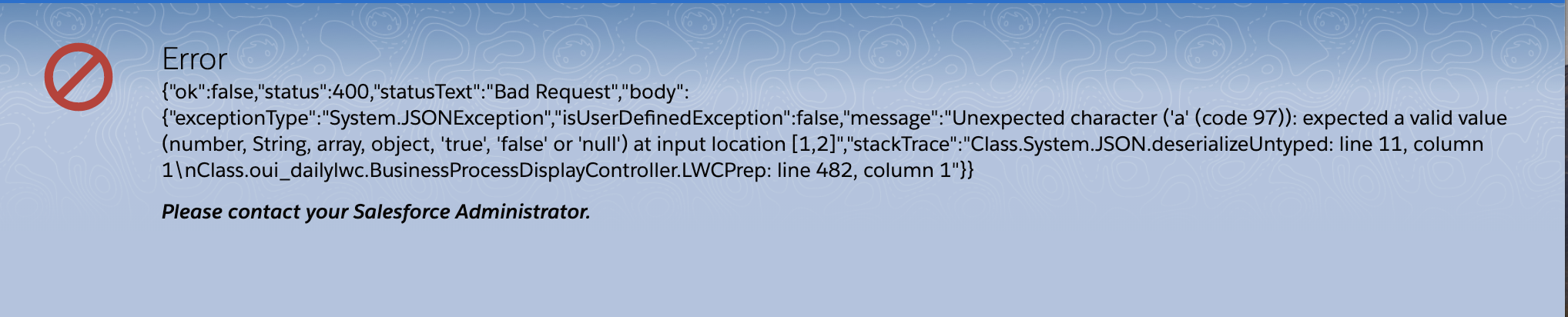
Make OmniScripts available to Experience Sites, Lightning Pages, custom LWCs, and Lightning tabs by activating and deploying the OmniScript. If an error occurs during deployment the OmniScript will deactivate.
If you're upgrading, complete this task to deploy each of your Active LWC OmniScripts.
- From OmniScript, click Activate to activate the OmniScript and deploy the OmniScript automatically.
- (Optional) Click Deactivate, and then Activate to redeploy the OmniScript and apply updates.
- (Optional) Click Deactivate, and then Activate to redeploy the OmniScript and apply updates or resolve a deployment issue.
-
(Optional) Exclusive to the Classic Designer, if there is an issue with
the deployment, redeploy the OmniScript by clicking the Deploy
LWC button in the Script Configuration properties.
 Note Ensure the OmniScript is active, then click the Deploy LWC button to redeploy the OmniScript.
 -
After deploying your OmniScript, launch your OmniScript from one of these
experiences:
Experience Description Lightning pages
Launch an OmniScript from a Lightning page using the standard OmniScript component, the OmniScript's generated LWC, or the Vlocity LWC OmniScript Wrapper component.
Experience pages
Launch an OmniScript from an Experience page using the standard OmniScript component, OmniScript's generated LWC, or the Vlocity LWC OmniScript Wrapper component.
Embedded inside of a custom component
Launch an OmniScript from a custom Lightning web component by embedding the OmniScript's LWC.
Off-Platform
Run OmniScripts off-platform using OmniOut. Available beginning with Vlocity Insurance and Health and Vlocity CME Summer '20.
- (Optional) If an error occurs on the initial load of an OmniScript, in the OmniScript, click Deactivate, then click Activate. This redeploys the OmniScript.
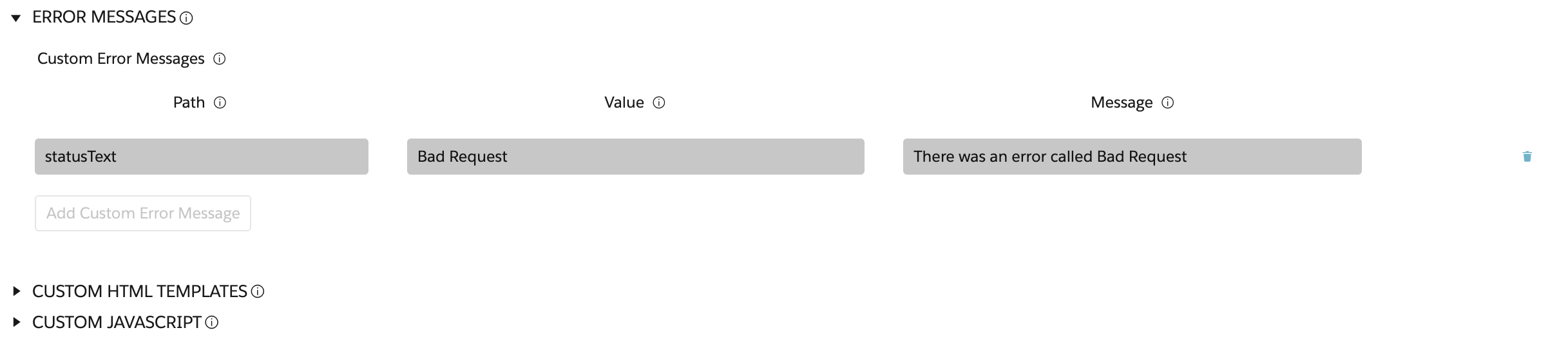
- (Optional) Map deployment errors using the Error Handling Framework.
- (Optional) Click the dropdown arrow, and click Download LWC to view the metadata for the OmniScript.