You are here:
Activate the Lightning Record Pages You Create
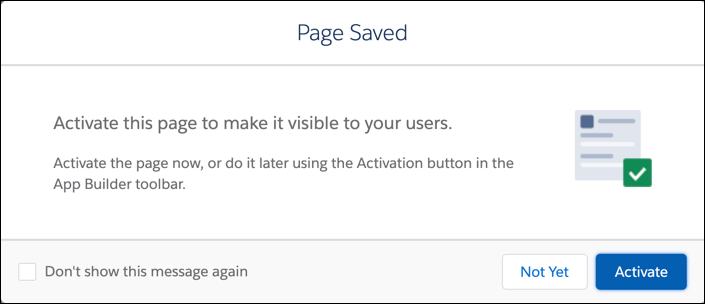
To make Lightning record pages available to your users, activate them. You can activate a page when you save it for the first time or later using the Activation button.
- From Setup, use Quick Find to find and select Lightning App Builder.
- Click Edit next to a record page you created manually.
- On the Record Page, click Save, then click Activate.
- Click App, Record Type, and Profile, then click Assign to Apps, Record Types, and Profiles.
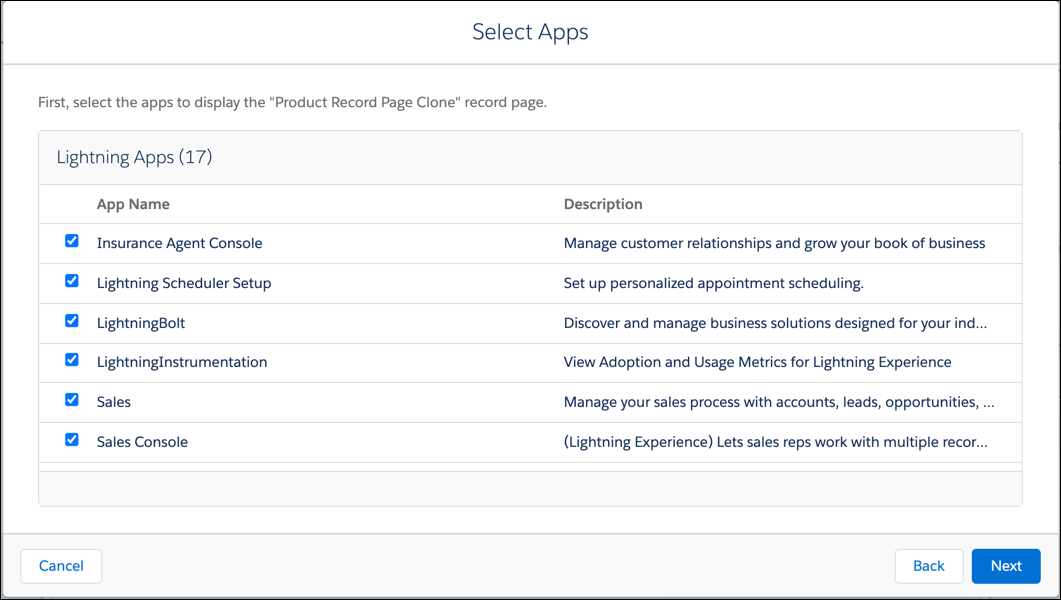
- To activate the record page for all users, select all the Lightning Apps. If you're testing the record page, select only Sales. Then click Next.
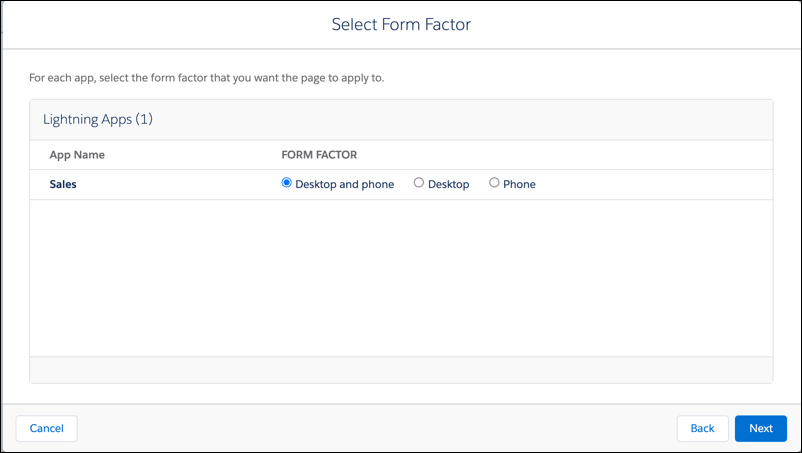
- You don't need to change the selected form factor. Click Next.
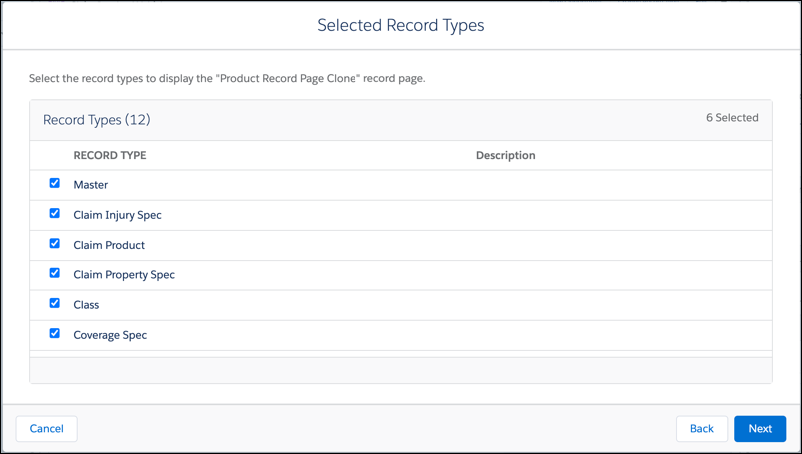
- On the Selected Record Types window, select all the record types you want to appear on this record's page, then click Next.
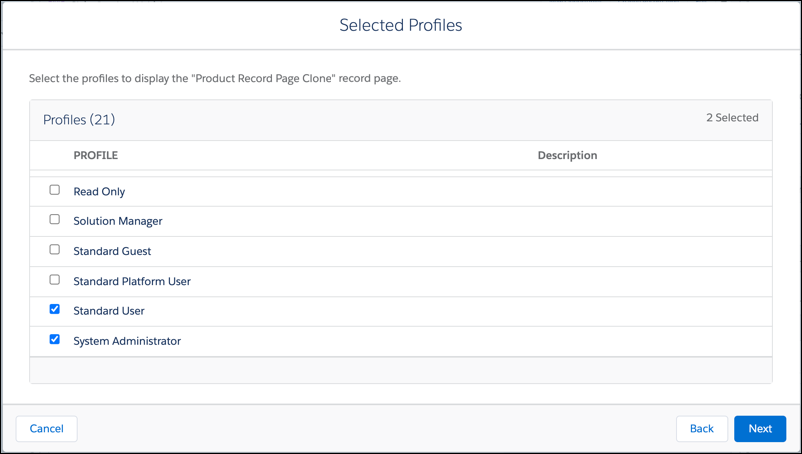
- Select Standard User and System Administrator profiles, and any other profiles needed for your organization. Then click Next.
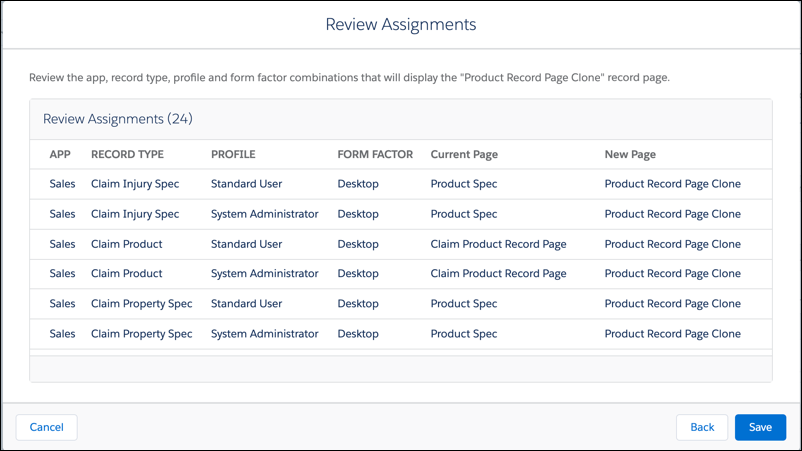
- Click Save.

Did this article solve your issue?
Let us know so we can improve!
