You are here:
Add a New Primary Member Without Any Plans
You can add a new primary member who hasn’t opted for any plans.
-
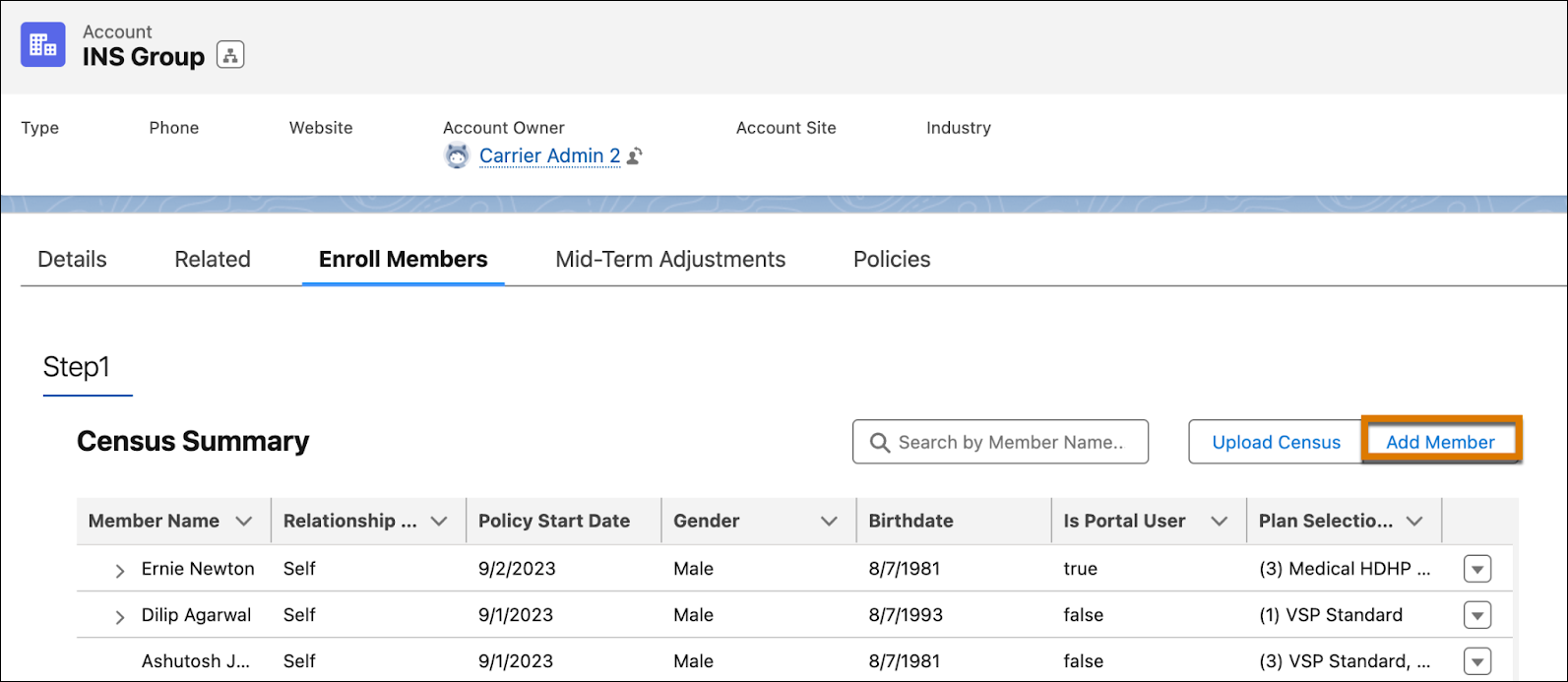
From an Account page, select the tab where you’ve configured the Enrollment Lightning Web Component,, and then click Add Member.
- In the Add Member Plan window, select the Personal Information tab and enter the required personal information.
-
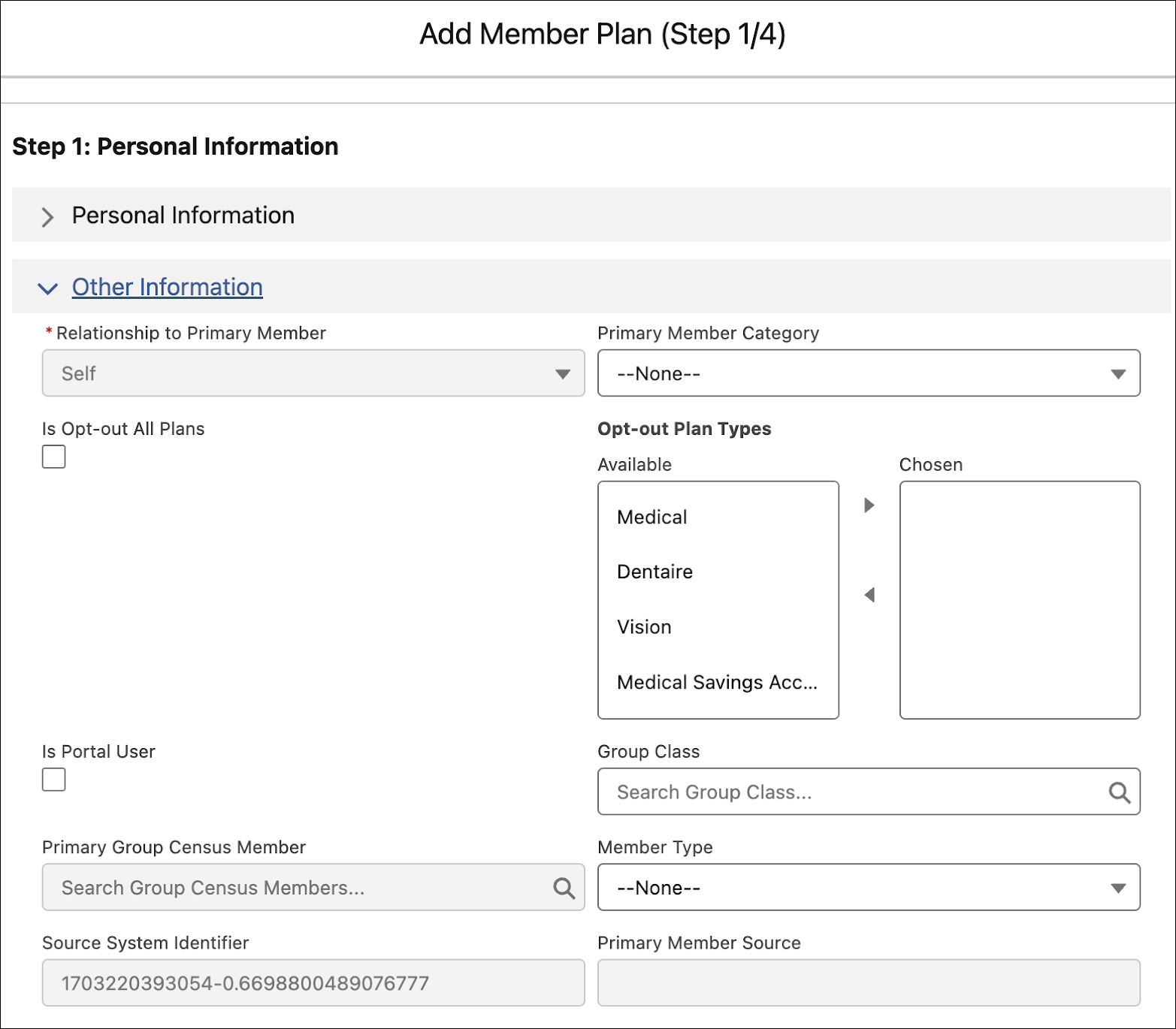
Select the Other Information tab to update the plan selections.
- To opt out the member from a specific plan type, in the Opt-out Plan Types field, select the plan type from the Available section and move it to the Chosen section using the right arrow.
-
Tp opt out the member from all plans, select Is Opt-Out All Plans and click Next. A confirmation message appears.
-
Click Add Member.
The member gets added to the census.
Did this article solve your issue?
Let us know so we can improve!
