You are here:
Copy Data Between Context Nodes in a Pricing Procedure
In a pricing procedure, add the Inter Node Data Copy element to copy numeric or text data from one context node to another. Copy data up and down the hierarchy, and use the copied data in formulas or to look up information from Decision Tables to streamline complex pricing calculations.
Required Editions
| Available in: Lightning Experience |
| Available in: Enterprise, Performance, Unlimited, and Developer Editions of Digital Insurance Platform where Salesforce Pricing is enabled. |
| User Permissions Needed | |
|---|---|
| To add or update the Inter Node Data Copy Elements: | Salesforce Pricing Design Time |
Before you begin, make note of these considerations for using the Inter Node Data Copy element in a pricing procedure.
- You can copy data from a source context node to one or more target nodes.
- You can copy data from only one source node and variable at a time. Make sure that the filter conditions match only one source node in the context.
- From App Launcher, find and select Pricing Procedures.
- Select a pricing procedure or create one.
-
Click
 and add the Inter Node Data Copy element.
-
(Optional) In Group By, search for and select the fields that you want to group the source
and target nodes by.
When you group the nodes by one or more fields, the inter-node data copy applies only to the nodes that have identical values for the group-by fields. If you don’t specify group-by fields, the inter-node data copy applies to all the nodes in the context.
-
Add conditions to select a unique source node.
- Click Add Condition.
- Search for and select a variable.
- Select an operator.
- Enter a comparative value for the operator, if required.
- Similarly, add up to 4 more conditions.
- In Source Variable, search for and select the source node variable whose value you want to copy to the target node.
- In Target Variable, search for and select the target node variable to which the copied value must be assigned.
-
(Optional) Specify a Write Back condition to copy the value only target nodes that match
the condition.
- Search for and select a variable that identifies the target node.
- Select an operator.
- Enter a comparative value for the operator, if required.
- Save your procedure.
- Click Simulate to test your procedure. Enter the input values for your products and click Simulate again.

Consider a scenario where the price of the collision coverage for a car is based on its make and model. For example, a roadster that costs more to repair or replace after a collision has a more expensive coverage than a budget hatchback that is more economical to maintain. In a quote that has the products structured as shown in the image, to calculate the collision coverage, you need the make and model attributes from the parent Auto node along with the Collision node attributes to calculate the price.

Using the Inter Node Data Copy element in your pricing procedure, you can copy the required data from the Auto node to the Collision node. Here’s how you can configure the element to copy the carmaker’s name to the collision node.
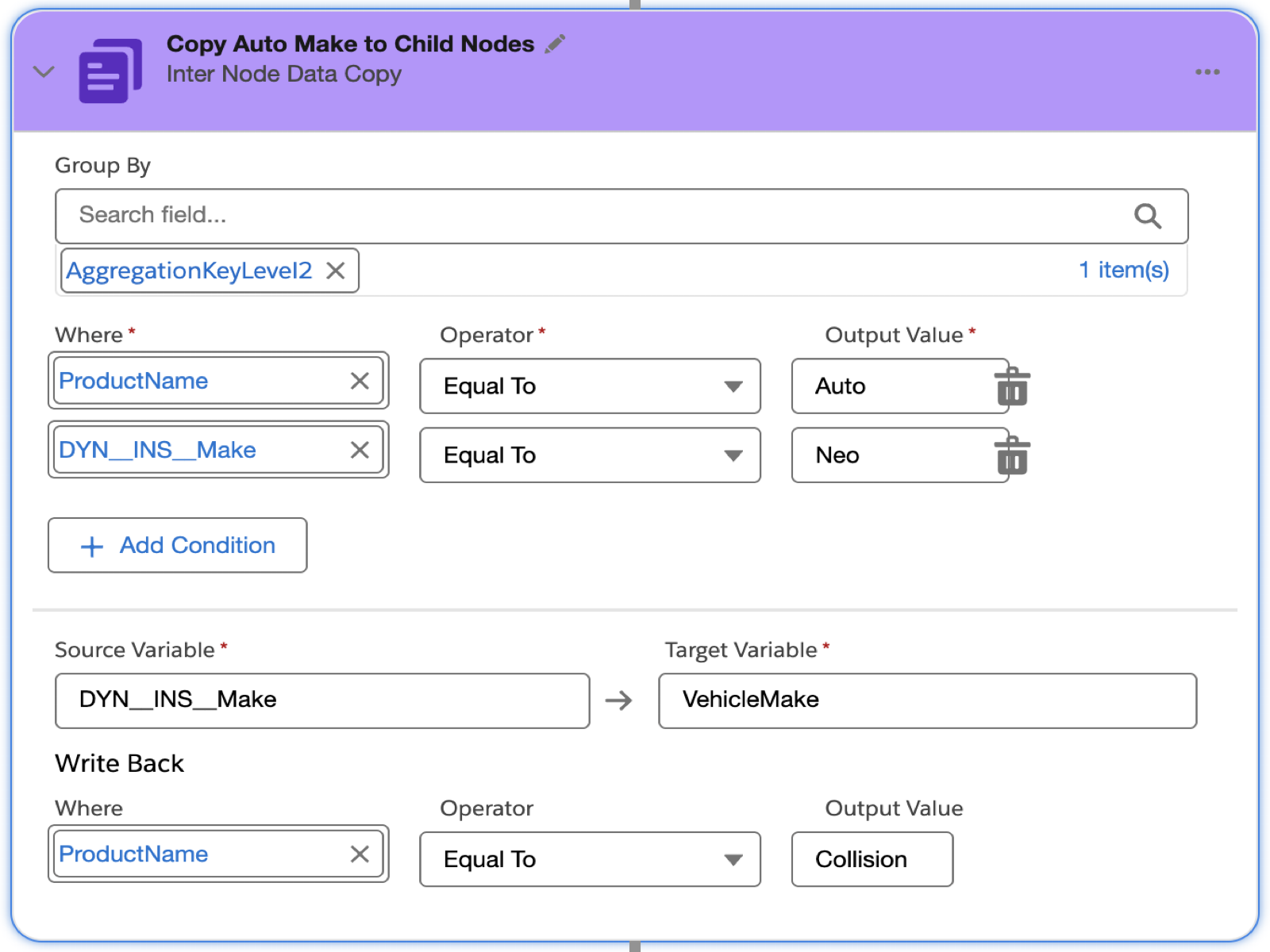
The Group By field restricts the inter-node data copy to the nodes that have the same value for the AggregationKeyLevel2 field: the Auto node at Level 2 and its child nodes. From this set of nodes, the Where conditions select the node with Auto as the product name and Neo as the vehicle make as the source node.
The value of the source variable DYN_INS_MAKE is copied into a target variable called VehicleMake. The last where condition selects the node that has the product name Collision as the destination node for the target variable.
When you run the pricing procedure, the Inter Node Data Copy element copies the vehicle’s make to the Collision node. You can add a similar element to copy the model information to the Collision node.
After copying these details to the Collision node, use them to calculate the cost of the collision coverage. Pass the details as input to a Decision Table to look up a multiplication factor for price calculation. Alternatively, check for a particular make and model in a List Operation element and apply a factor in the price calculation formula.
