You are here:
Insurance Application Suite Renew a Policy Through Email
A week before your policy expires, you receive a reminder email to renew your policy. Here's what an example email looks like:
Here's what an example email looks like:
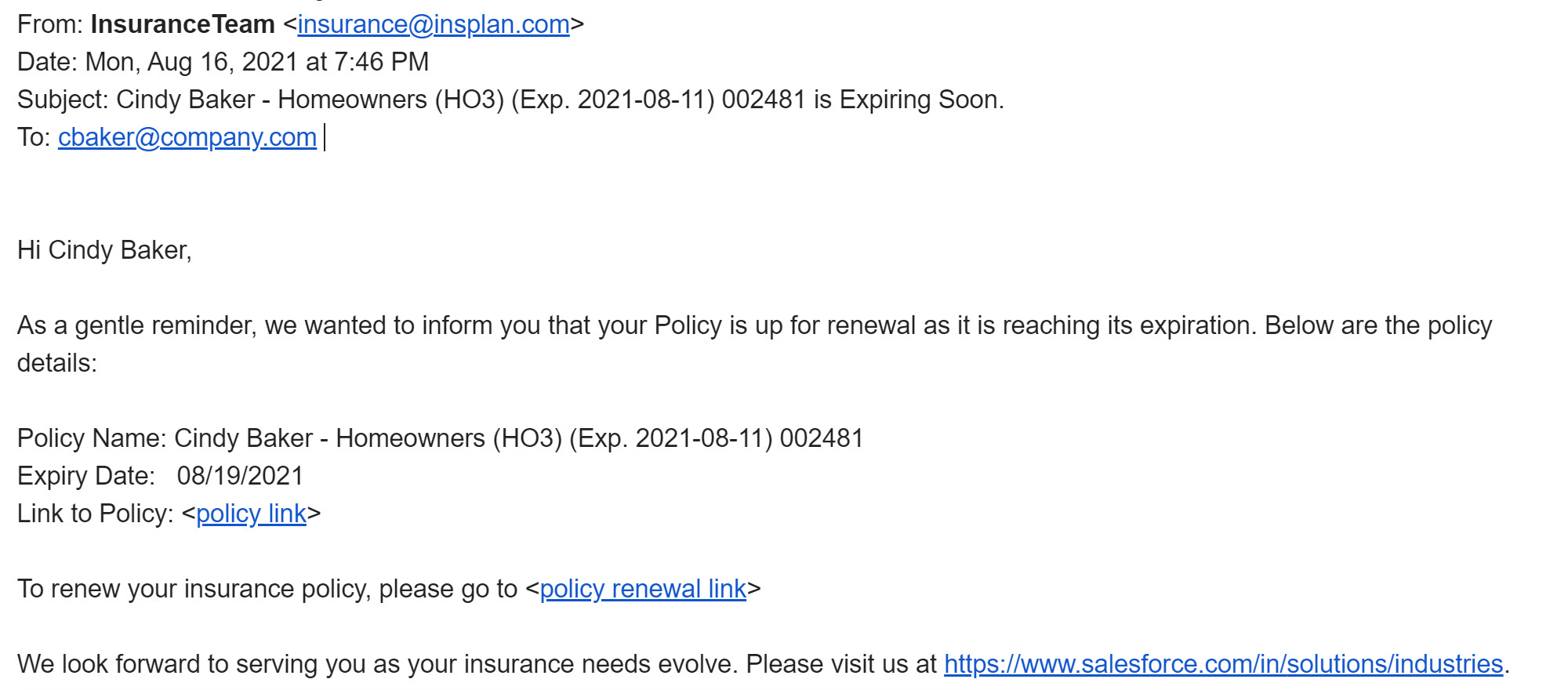
The email has a link to see policy details as well as a link to quickly renew your policy.
- Click the link in the email to renew your policy.
- Modify your coverages, if required, and click Next.
-
That's it! Your policy is renewed. To see the new policy, click
View Policy.
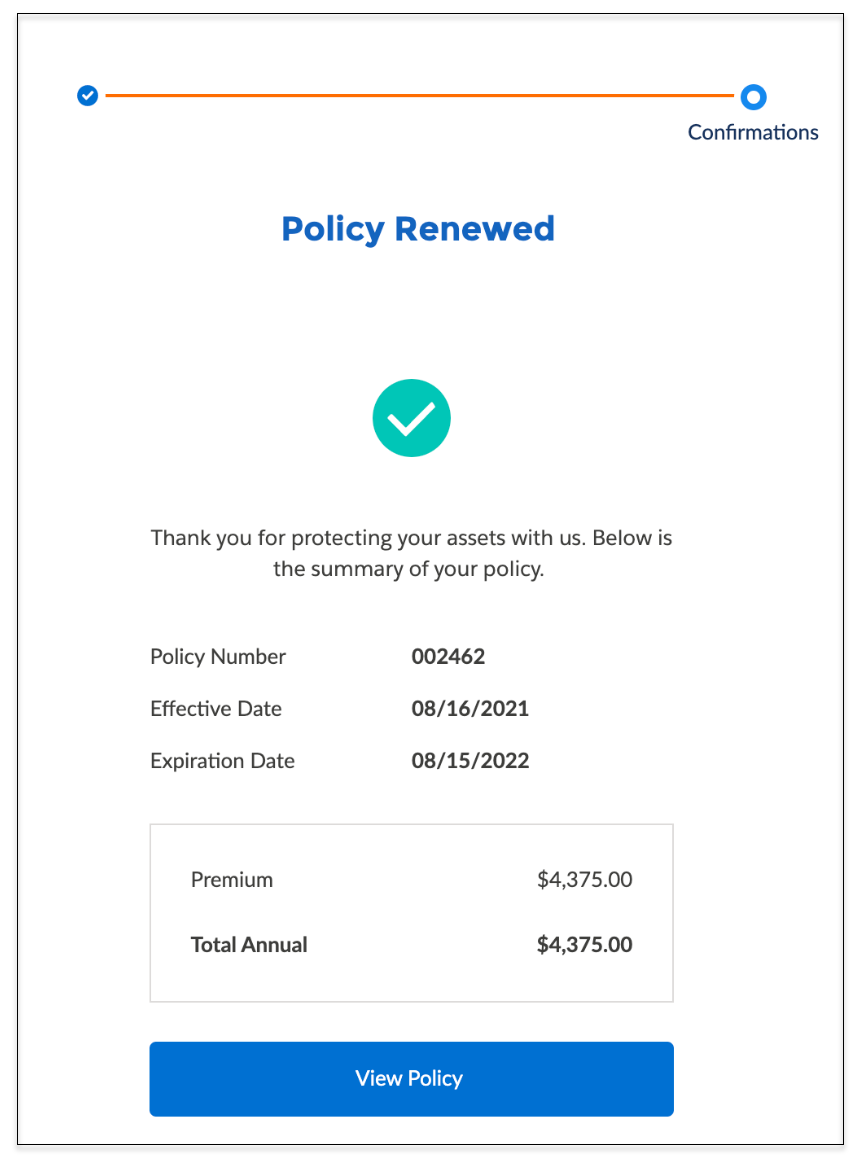
- Results
This email is sent out by the scheduled job PolicyRenewBatch. This job, in turn, calls the Integration Procedure bulkRenewals that checks the renewal date for all policies and then sends out an email to policies that expire within a week from the day the job is run. Schedule the job to run periodically so that all policies that are coming up for renewal can be covered.
Did this article solve your issue?
Let us know so we can improve!
