You are here:
Assign Commission Schedules to Producers
Commission schedule assignments give you control over who gets commissions, how much, and for what. By viewing commission schedule assignments, producers gain insight into how much they're earning as they issue quotes and close deals.
Before You Begin
You can assign commission schedules to producers (as described here) and to insurance products (as described in Assign Commission Schedules to Products). If you assign the same commission schedule to both a producer and a product, any tweaks you make to the producer's commission schedule assignment take precedence.
You can create as few or as many assignments as you want, though you typically need only three or four per producer. If you add multiple assignments, only one can be associated with the same commissionable event, in the same time period. The assignments reflect terms defined in the commission schedule, and also specify unique information for the producer: minimum and maximum payments, and which events trigger the calculation of a commission. For example:
-
Quotes
-
Sales
-
Endorsements
-
Renewals
-
Payments
-
Cancellations, which result in returned commissions ("chargebacks")
-
Reinstatements
Set up events and transaction types that qualify as commissionable events as picklist values in the Commission Schedule Assignment object. From Setup, in Object Manager, go to the Commission Schedule Assignment object. Then add Quote and your custom transaction types (for example, Sold Policy, Changed/Endorsed, and Cancel Policy) to the Commissionable Event Type field's picklist values.
You can tweak assignments over time, for example, raising the maximum commission amount to motivate producers and promote certain products.
If you don't assign commission schedules to any producers, they earn commissions based on product commission assignments, if any exist.
- From the App Launcher, find and select Producers.
- On the Producers list view, click a Producer Identifier.
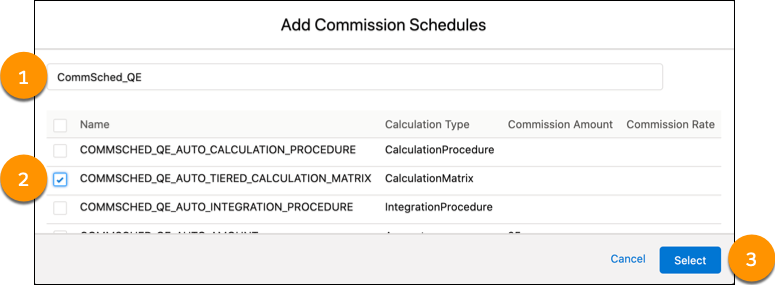
- Click the Commission Schedules tab, then click Add.
- To add a commission schedule:
-
Edit these values to customize the commission schedule for this
producer.
The beginning of the date range for this commission schedule assignment. Use a date on or after the Effective Start Date defined in the underlying commission schedule.
The end of the date range for this commission schedule assignment. Use a date on or before the Effective End Date defined in the underlying commission schedule.
Minimum commission amount.
Maximum commission amount.
Product ID.
The ID of the processing producer.
The production code.
The events that trigger the calculation of a commission for this assignment (for example, Quote, Sold Policy, Changed/Endorsed).
- Click Save.