You are here:
Attribute Rules
Show users and customers exactly the right product attributes and attribute values for the insurance products that you quote, sell, and service.
Attribute rules apply to a whole attribute. To create rules for specific attribute values, use Attribute Value Rules instead.
Types of Attribute Rules
Different types of attribute rules satisfy different requirements.
-
Set Value
Sets a specified value on an attribute when the rule evaluates to true.
User's can't override a value set by a Set Value attribute rule.
Set Value attribute rules are run by the InsProductService:getRatedProducts and InsProductService:repriceProduct services. They're also run by the LWC-based Quote UI when a user adds or updates a quote.
-
Set Default Value
Sets a specified default value for this attribute when the rule evaluates to true.
Users can change this value if they want.
 Note
NoteTo enable default-value override rules for partner or community users, change the Sharing Setting for the Compiled Attribute Override and Attribute Assignment objects to Public Read Only.
Attribute set default value rules are run by the InsProductService:getRatedProducts service. They're also run by the LWC-based Quote UI when a user adds or updates a quote.
-
Message
Displays a message with this attribute when the rule evaluates to true.
Attribute message rules are run by Javascript on the front end.
-
Hide
Hides this attribute from users when the rule evaluates to true.
Attribute hide rules are run by Javascript on the front end.
Examples of Attribute Rules
Here are some scenarios where an attribute rule is a good fit for the product model:
-
Property insurance for a property within a quarter-mile of a fault requires a higher deductible for earthquake coverage.
-
Construction insurance for a wood-frame building has a lower cap for fire coverage.
-
Auto coverage for a business owner policy with a high coverage limit requires the policyholder answer additional questions.
-
A business owner policy with a higher deductible can have higher coverage limits.
-
A business owner policy that covers Valuable Papers requires a higher limit for Media Records Coverage.
-
A limit or deductible amount varies based on whether the user creating the quote is a customer service representative or a captive agent.
As you plan your rule configuration, learn how InsProductService: getRatedProducts takes attribute rules into account. To add a rule to an attribute, follow the steps in Create Attribute Rules.
The Rules icon shows the number of rules applied to an attribute:
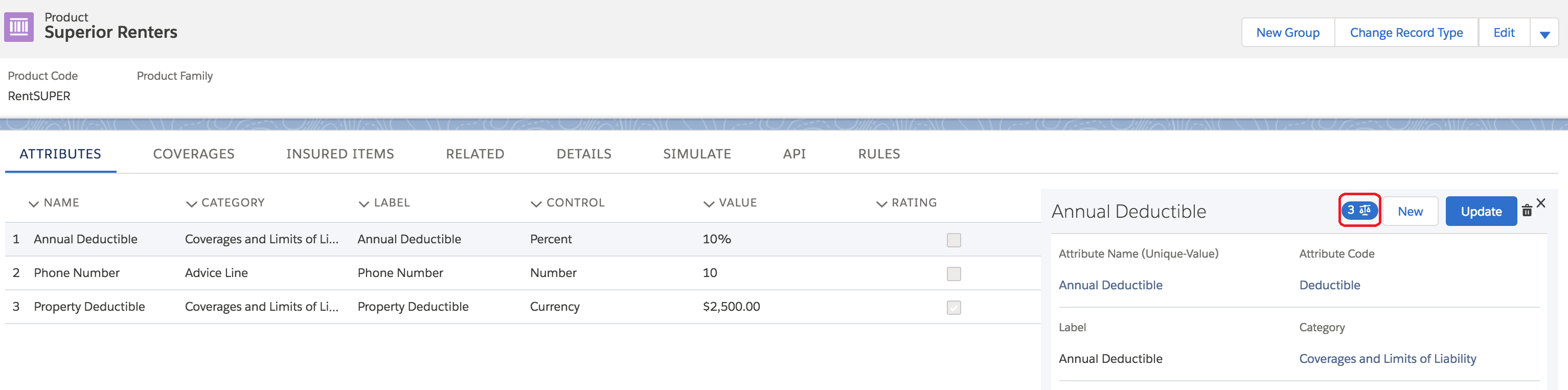
For example, you want to hide an attribute for Specialist Copay if the value of the separate Specialist attribute is No.
Add the rule to the Specialist Copay attribute and reference the Specialist attribute and its value. Use the % character for variables. Your code looks like this: %productCode.attributeCode%="No".
Your completed attribute rule looks like this:
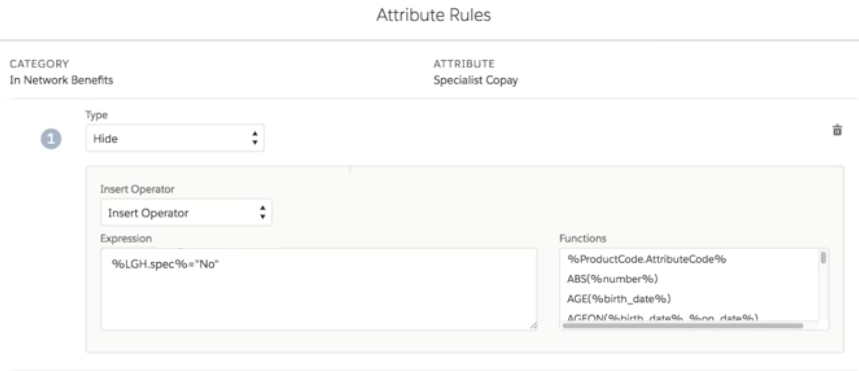
In this example, the Product Code for the Large Group Health product is LGHand the Attribute Code for Specialist is spec, the code in the expression is:
%LGH.spec%="No"If the value for the Specialist attribute is either empty or Yes, the Specialist Copay attribute will display.
If the value for the Specialist attribute is No, the Specialist Copay attribute is hidden.
In products used for commercial quoting, define the Instance Key Formula in a way that creates unique instance keys. For example, for a Vehicle product, use a formula that incorporates unique license or part numbers:
vehicle.vehicleType + " " + vehicle.vehicleLicNum + " " + vehicle.vehicleChassisNum
A well-formed Instance Key Formula ensures that products in a multi-root quote have unique instance key values, and that the attribute rules used for commercial quoting work consistently. Find the Instance Key Formula field on the product Details page.
- Create Attribute Rules
Create attribute rules that define how attributes and their values are shown or hidden from users. - Profile-Based Insurance Rules
Customize your insurance product model internally and across customer channels by using rules tailored to different user profiles.
