You are here:
Authorize Payment for Auto Claims with OS License
Claim approvers, claim handlers, and claim adjusters are all assigned a maximum limit that they can authorize a claim payment for. If the claim amount is over the authorized limit for a particular role, the claim needs to be approved by a claim manager before it can be paid. A guided OmniScript flow simplifies this approval process.
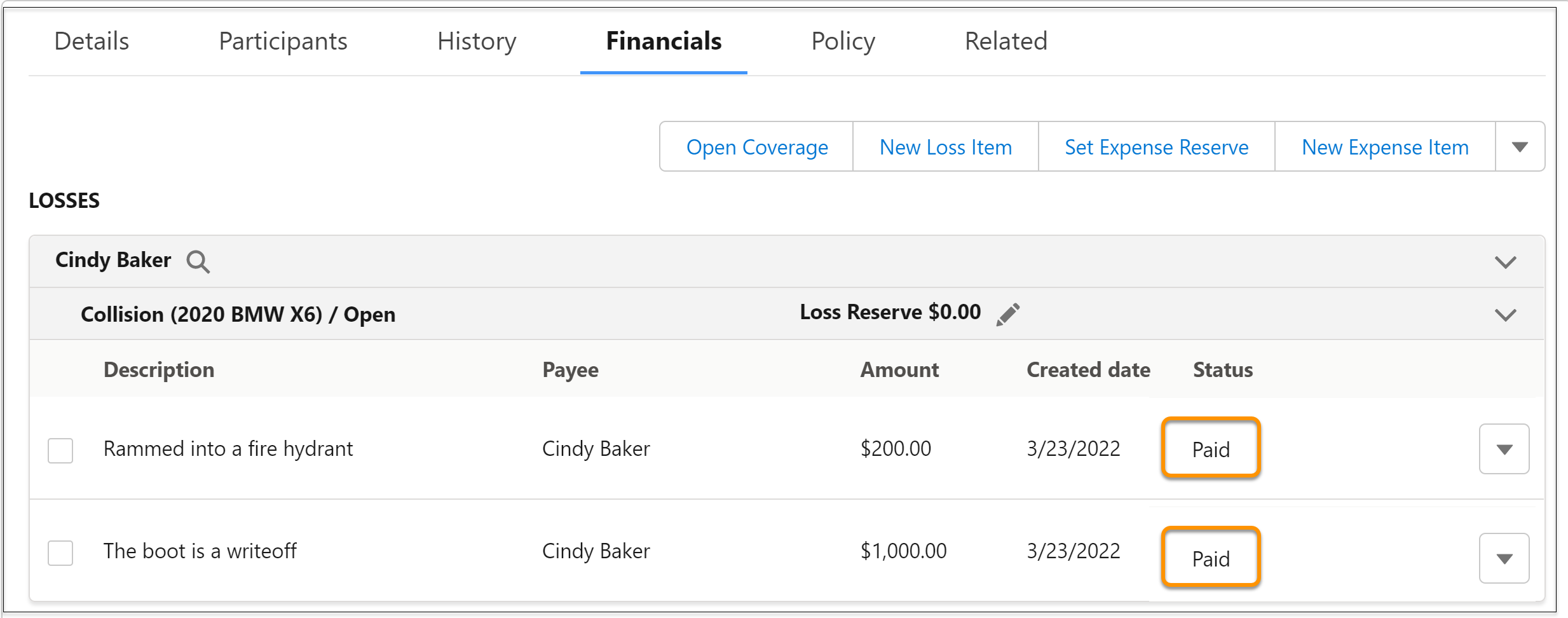
- Navigate to the Financials tab of the claim record.
-
You can now create either a new loss item or a new expense item.
For this example, we're creating a new loss item. Click New Loss Item.
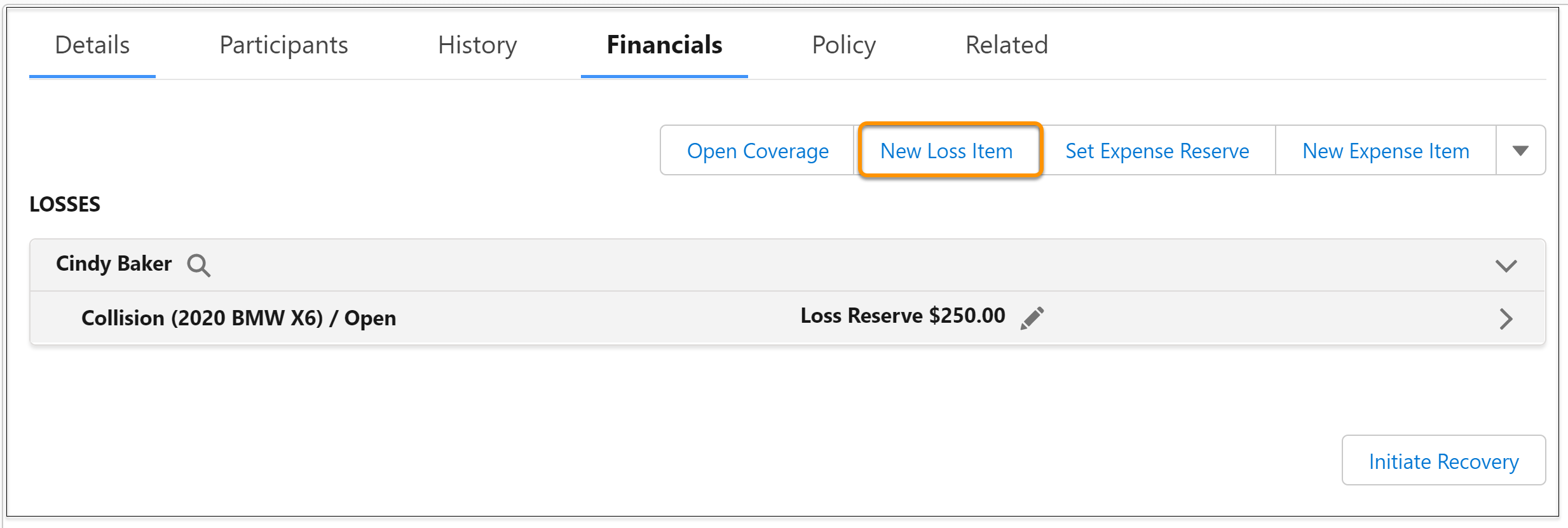
-
Select the coverages for the item.
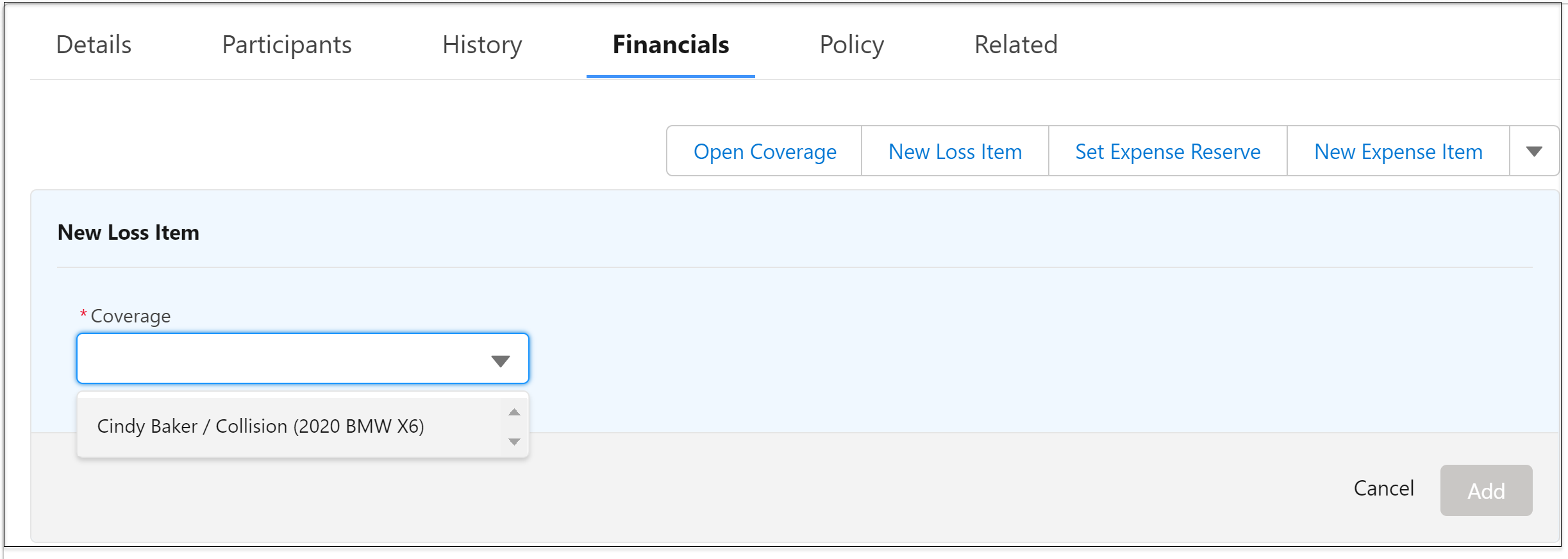
-
Enter details for the coverage and click
Add.
The Adjusted Amount here is automatically calculated by the workflow.
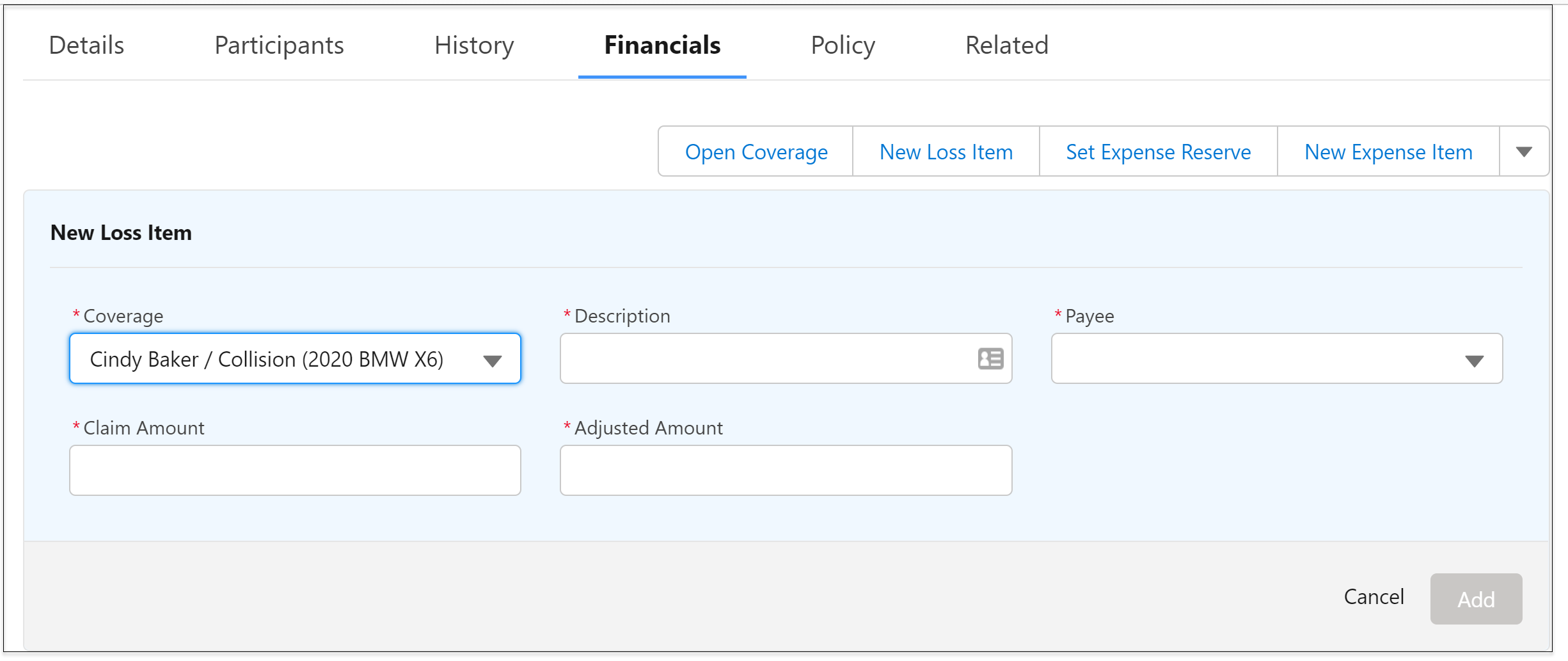
-
To individually pay an item, click Pay on the
loss item.
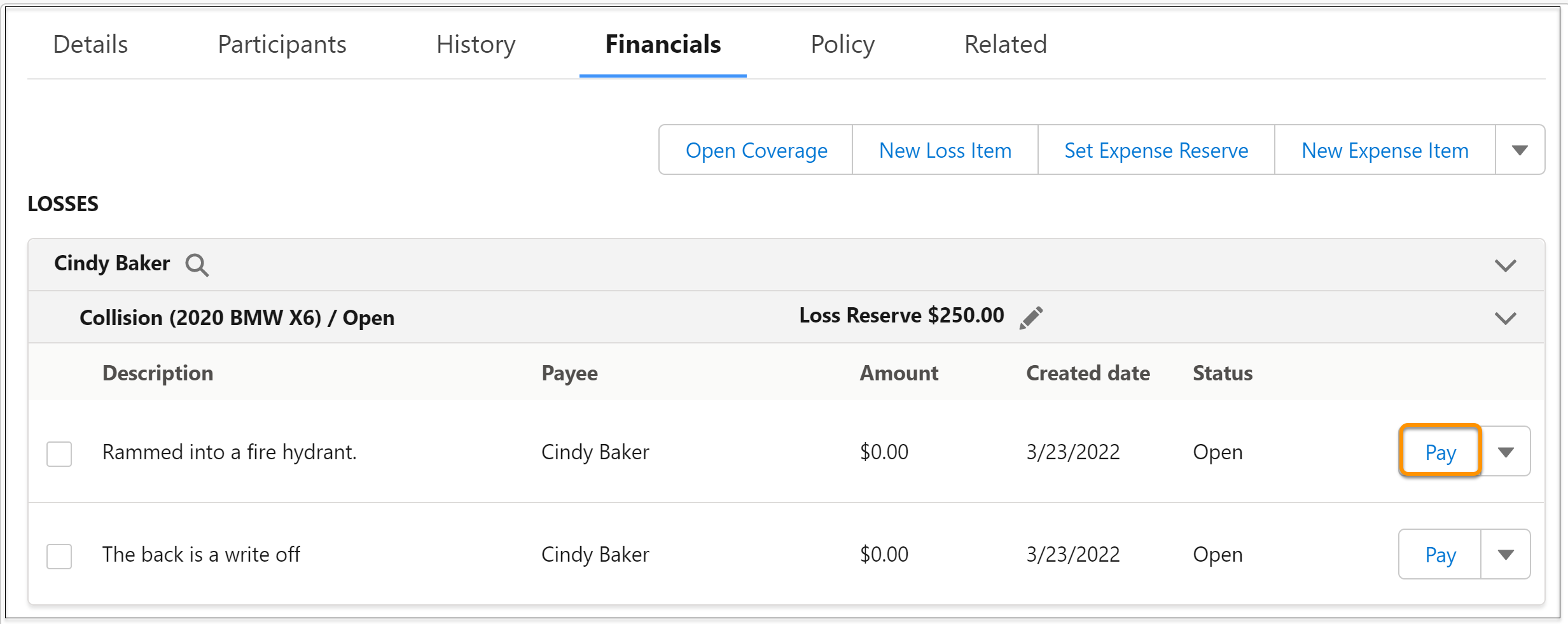
-
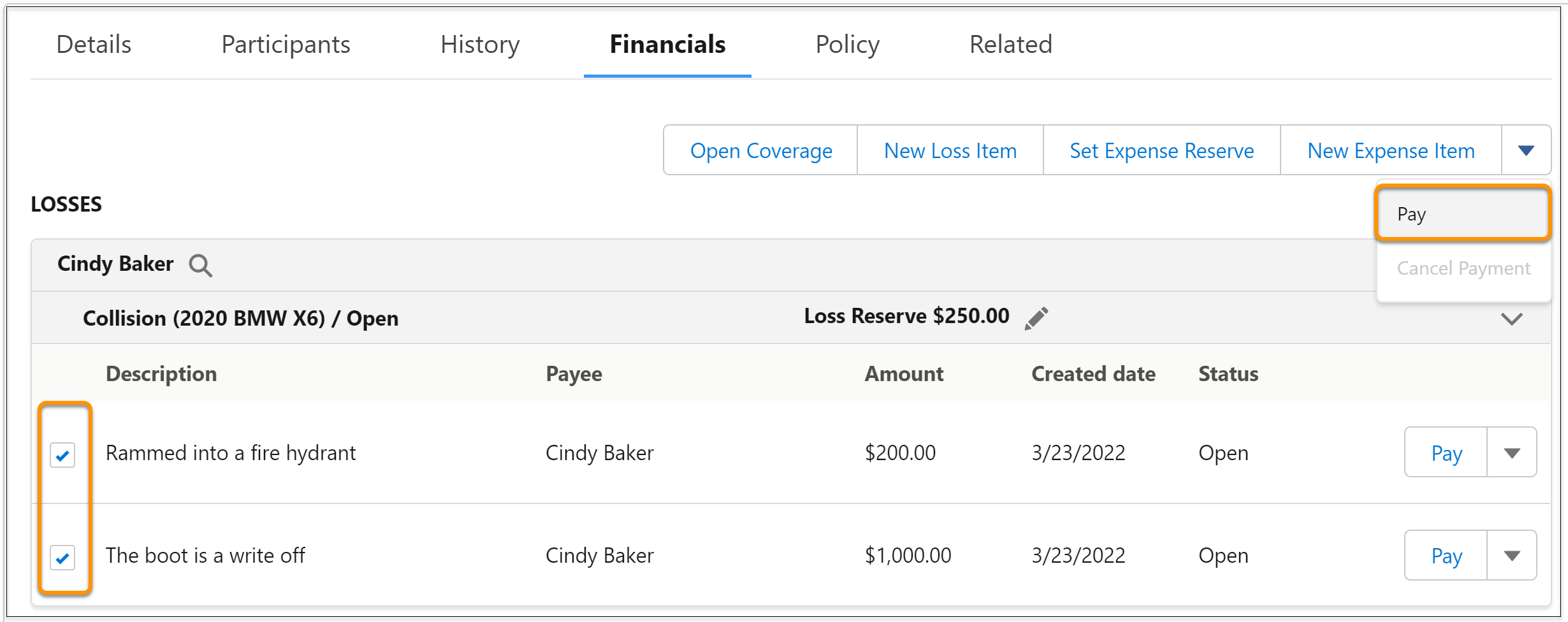
To pay multiple items at once, select them and choose Pay from the
drop-down.
-
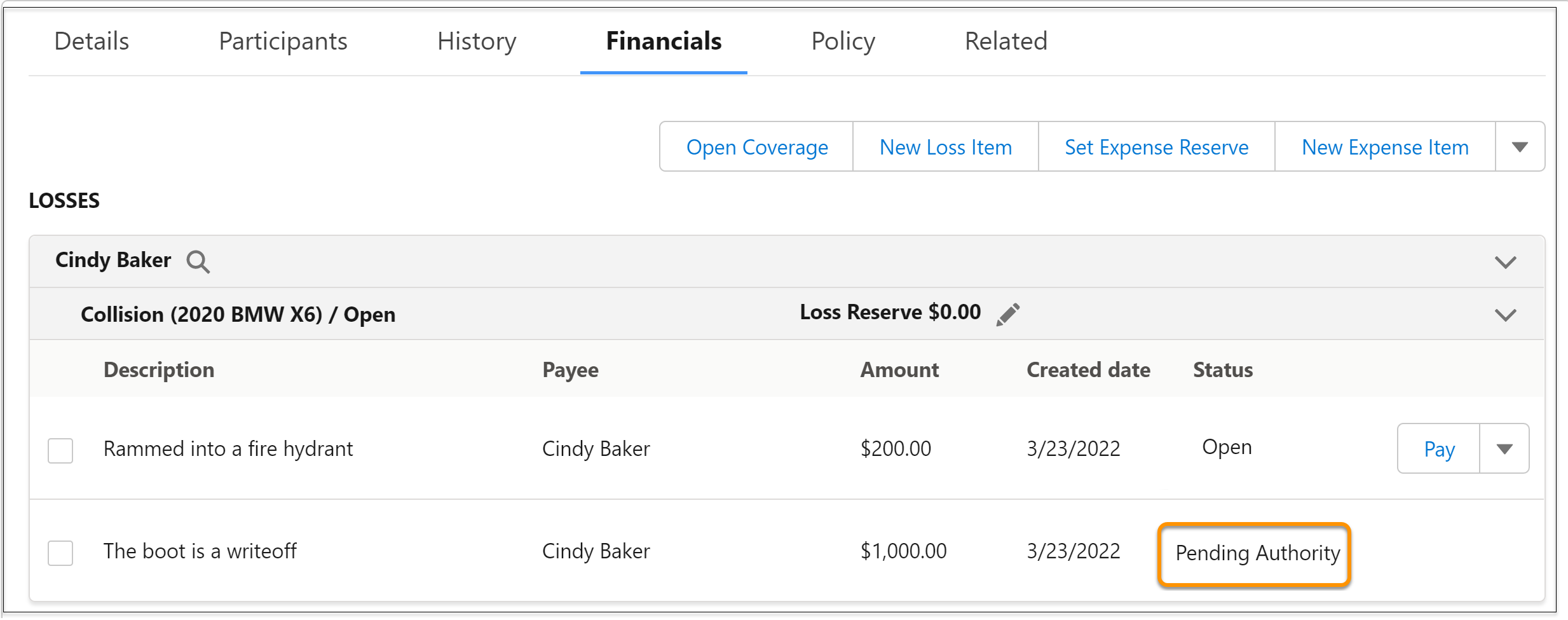
Any amount that exceeds the user's authority is sent for approval and
the status is changed to Pending Authority.
-
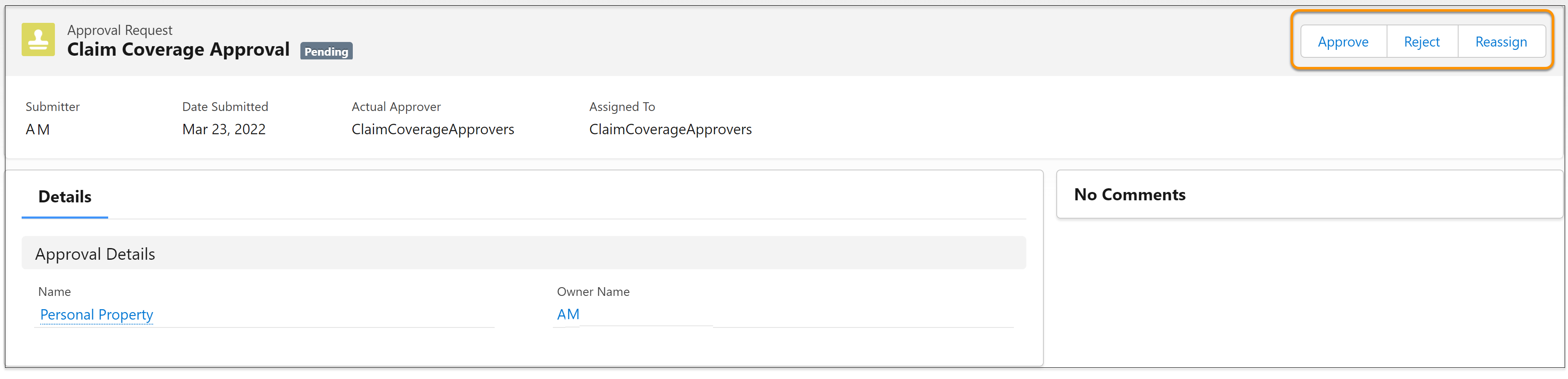
The approver receives an email with a link to approve this claim item.
They are navigated to a page that lets them approve, deny, or reassign
the request.
-
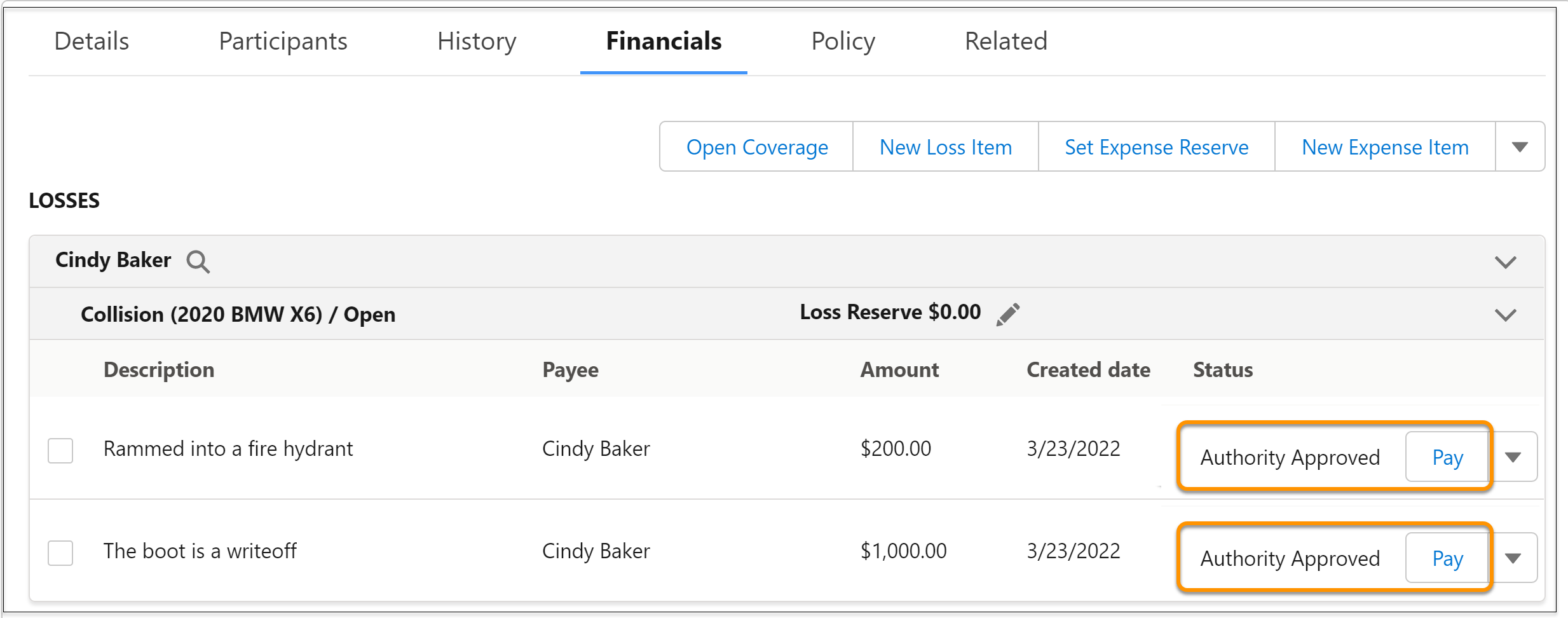
After approval, the status changes to Authority Approved. Now click
Pay.
-
The status changes to paid.
- How Authorize Payment for Auto Claims Works
Understand the workflow for payment authorization, and the levels of claim users and their authorities.
Did this article solve your issue?
Let us know so we can improve!
