You are here:
Auto Quote from Policyholder Site
Policyholders can follow a guided flow to quickly create quotes from Auto insurance.
For details of the quoting flow for Commercial Auto products, see the Commercial quoting flow.
All our screenshots are currently in Lightning style. Your spin may look different because it's using the Newport style in the Broker Portal and Customer Portal.
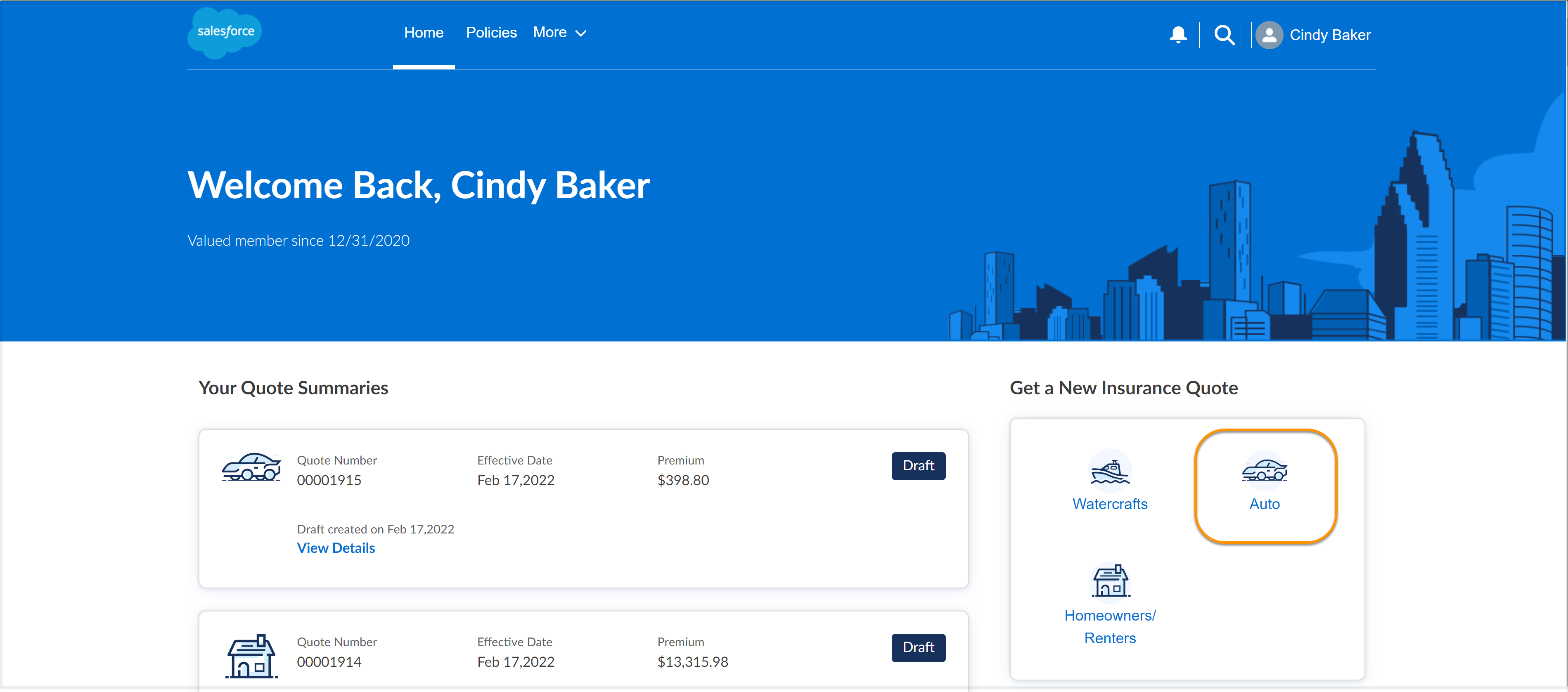
- From the policyholder site, click Auto.
- Click Next.
-
Some of your details are already filled in but make sure you check them.
Select a Start Date for the policy and click
Next.
 Tip
TipTo navigate through this flow quickly using seed data, click Autofill at the bottom of the form.
- Select the drivers you want to insure and click Next. To add more drivers, click New.
- Select relevant options for drivers to avail a discounted rate and click Next.
-
To add details of the vehicles you want to insure, click
New.
When you're done, click Next.
- You see a quote for your vehicle. To modify coverages, click Customize coverage details.
-
Click Edit Auto Driver. Now select the map driver or
drivers to the vehicles as primary or driver only.
When you're done, click Next.
-
That's it! Your quote is created and you get a confirmation. To see the
summary of quote details, click View Quote.
You can see the created quote on your Home page as well.
Did this article solve your issue?
Let us know so we can improve!
