You are here:
Auto Quote UI
Follow a user-friendly workflow and create a quote from the Lex console, which is built with Lightning Web Components.
For details of the quoting flow for Commercial Auto products, see the Commercial Quote Business Process.
All our screenshots are currently in Lightning style. Your spin may look different because it's using the Newport style in the Broker Portal and Customer Portal.
-
To create a new quote, do not go to the Quote page. Instead, go to the
Opportunities page and choose the Opportunity you're creating the quote for.
 Note
NoteBefore you create a quote on an Opportunity, go to the Details tab and make sure that the Opportunity has a pricebook assigned.
If the Opportunity doesn't have a pricebook:
- Click into the Pricebook field.
- Enter Standard and click the magnifying glass to search for the Standard Pricebook.
- Choose Standard Pricebook.
- Click Save.
-
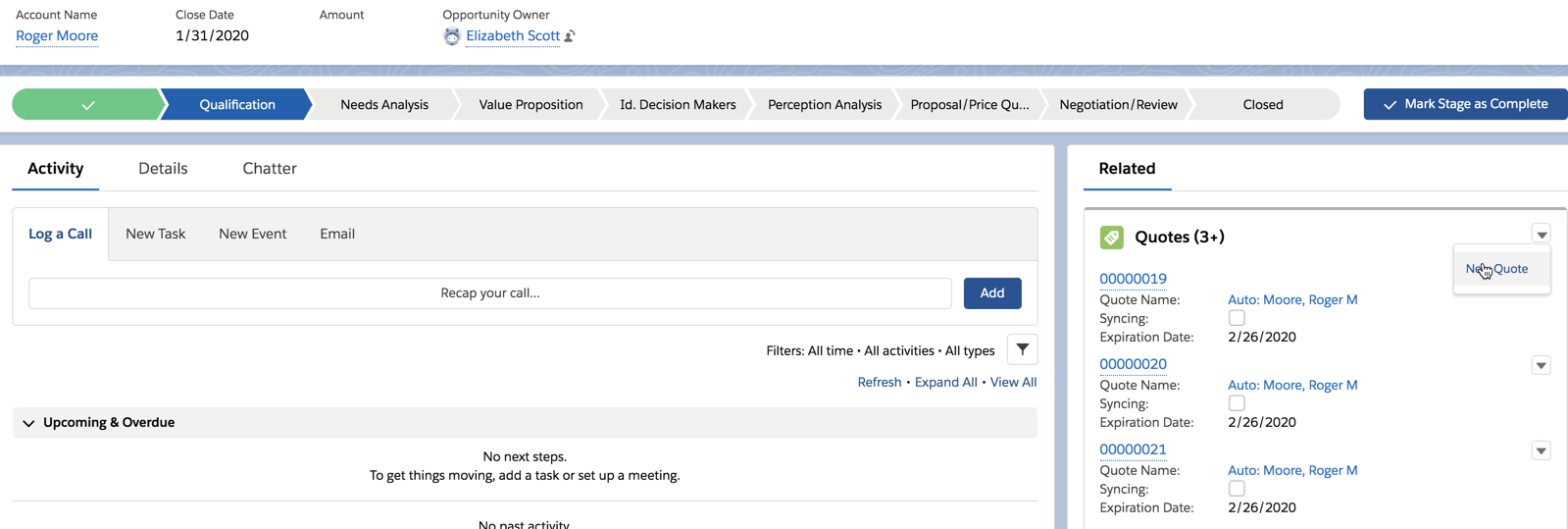
On the right pane, in Quotes, click the carat and choose New Quote.
-
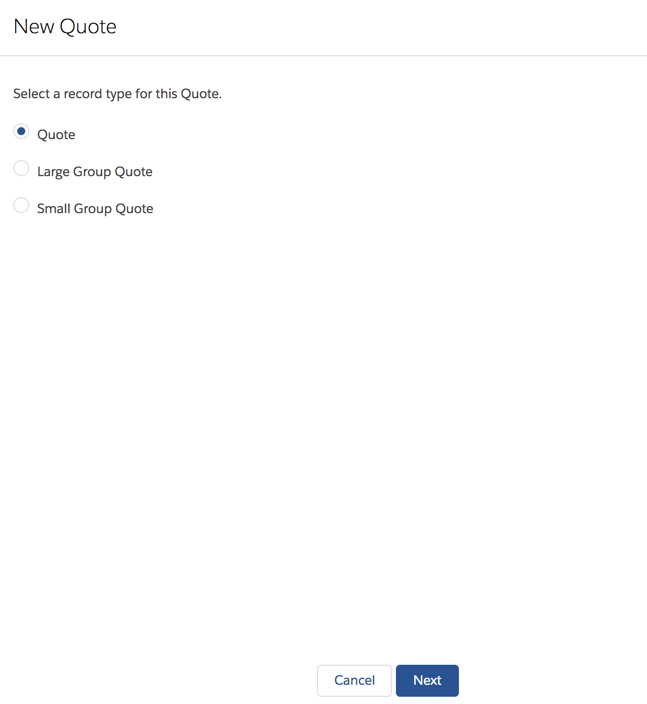
Select Quote for all Auto quotes and click
Next.
-
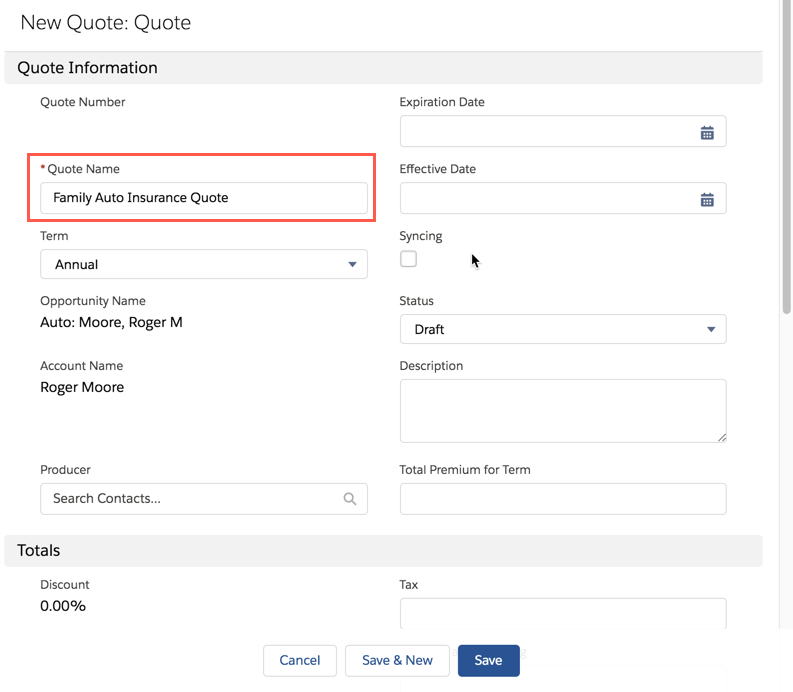
On the New Quote: Quote window, enter a name for this quote, then click
Save.
Do not enter any other information here. Any info you enter here will mess up your quote as you create it on the Vlocity Quote UI.
-
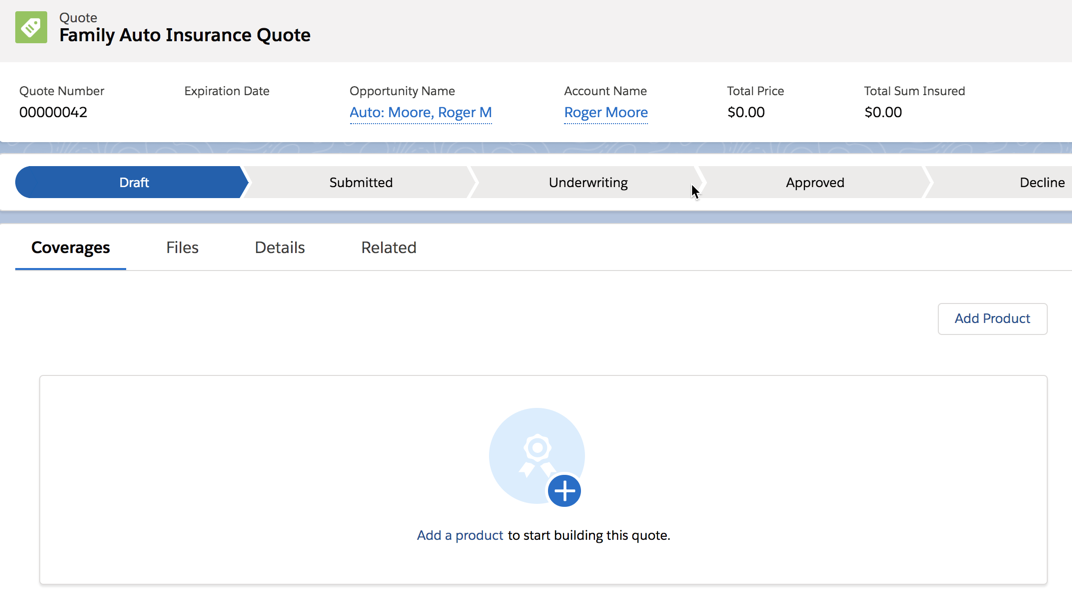
Now, navigate to the Quote page. On the Quote list view, choose the quote you just
created.

-
On the quote, click Add Product to start building the
structure of your quote based on a product model.
-
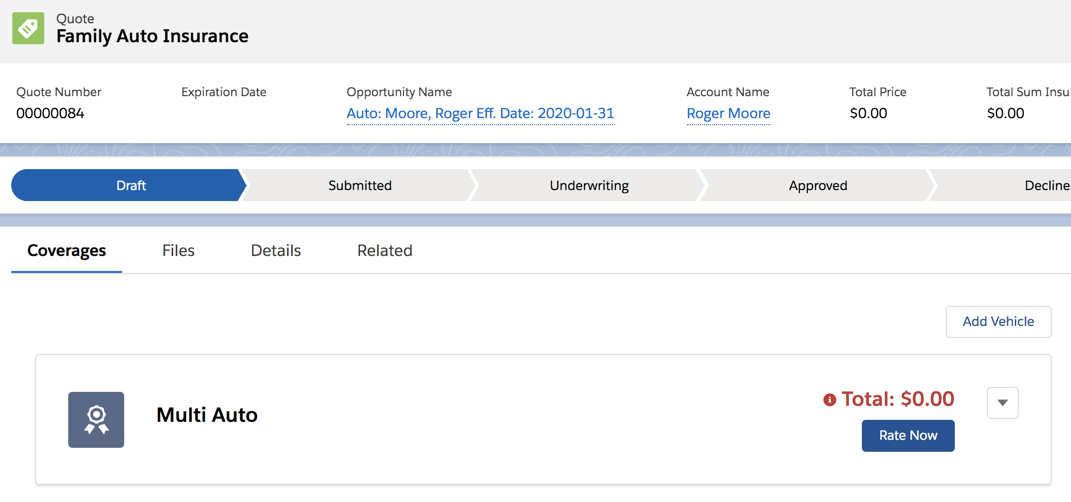
For this quote, we chose the Multi Auto product. The Total is $0 and colored red
because it hasn't been rated yet. But we're not rating this quote yet.
Click Add Vehicle to add a car to this quote.
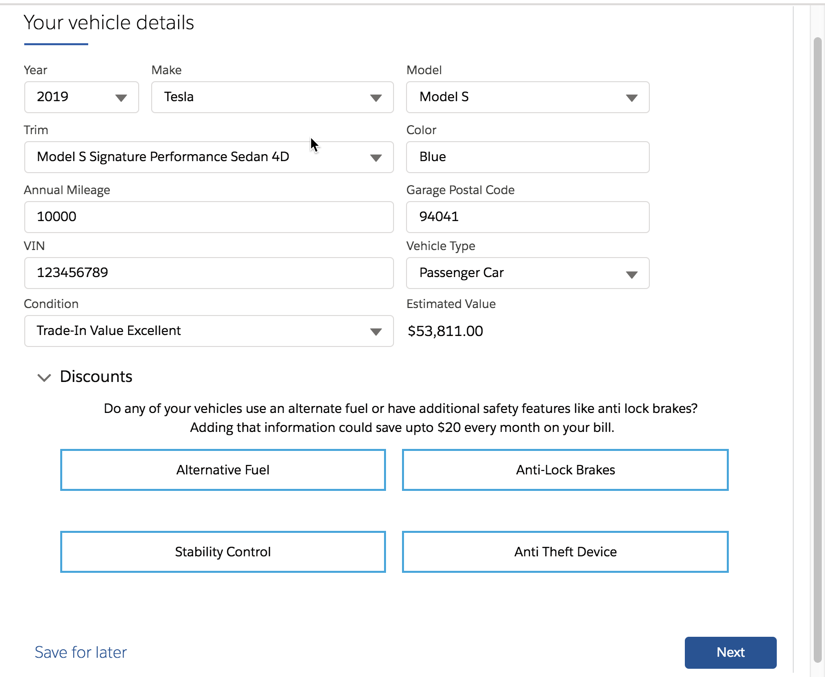
In the Auto line of business, we've integrated an OmniScript and extended our out-of-the-box Lightning Web Component to hook the OmniScript up to the Add Vehicle Button. (Out of the box, Vlocity Insurance provides a standard form connected to this button.)
This OmniScript connects to Kelly Blue Book to provide the Estimated Value of vehicles automatically.
-
All the fields and selections on this form correspond to attributes on the Vehicle
insured item spec in the product model.
Fill out the form and click Next.
-
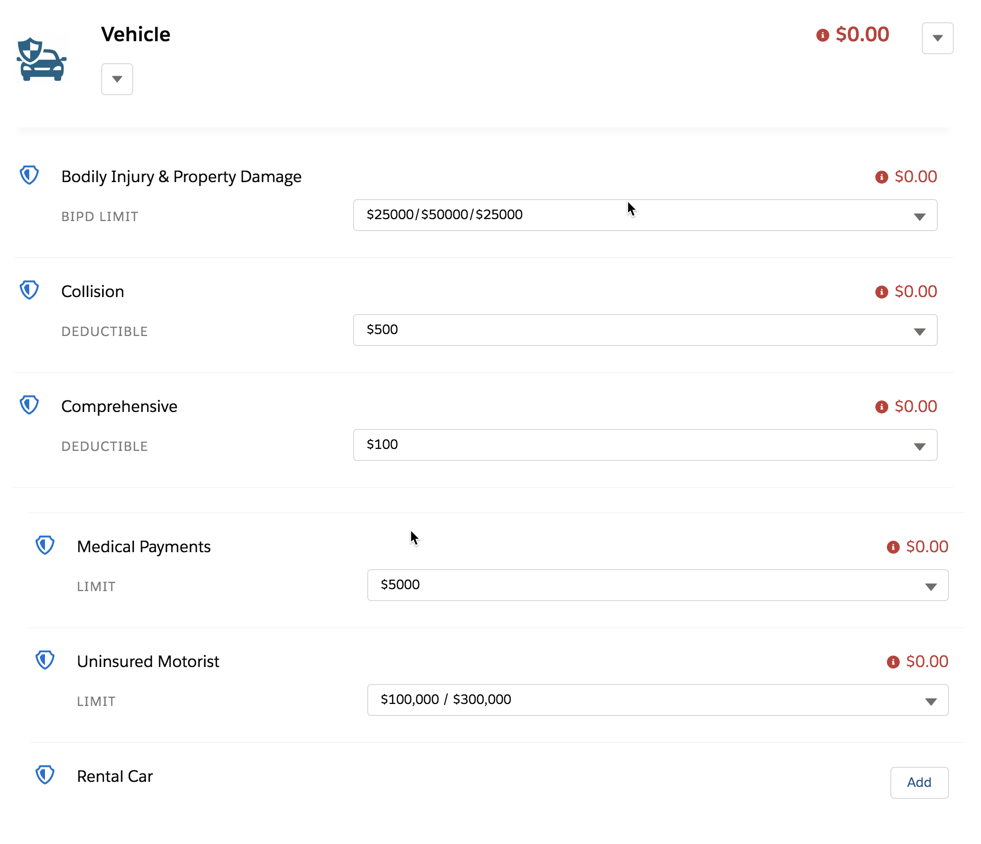
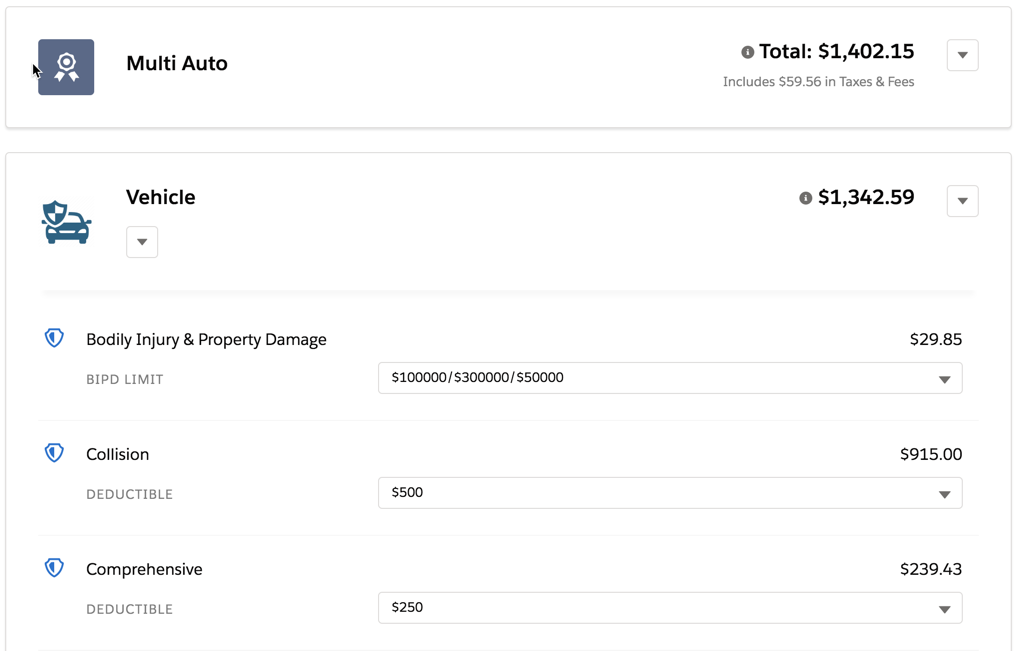
The Vehicle appears as a child of the Multi Auto insurance product. Click the
Vehicle bar to open all the coverages for this
vehicle.
You can change attribute values on required coverages, and select any available optional coverages by clicking Add.
-
After you've configured coverages for the vehicle, you can click Rate
Now on Multi Auto.
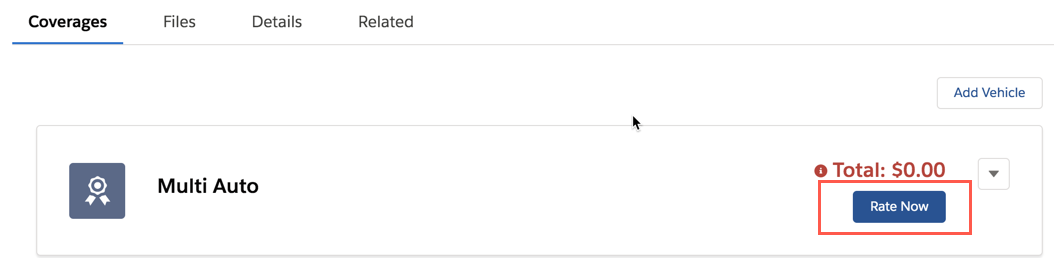
Vlocity uses the rating procedure defined for Multi Auto, and returns a Total premium with any applicable taxes and fees. It also includes the price for the vehicle and prices for each coverage.
-
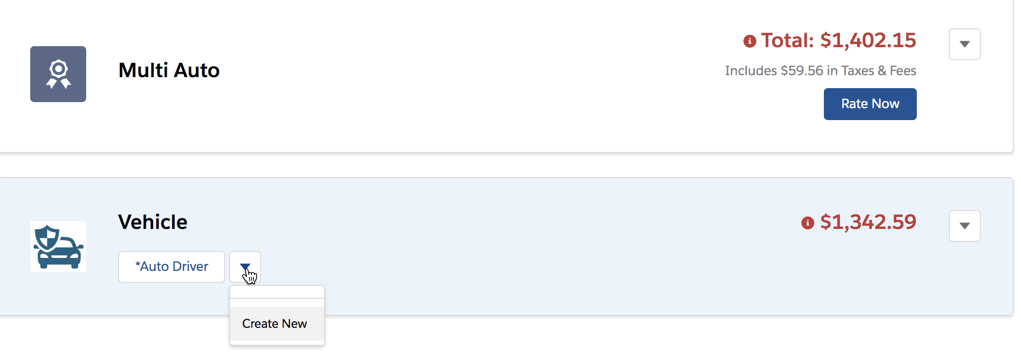
Next, add drivers to your vehicle. Click the carat under the Vehicle and choose
Create New.
-
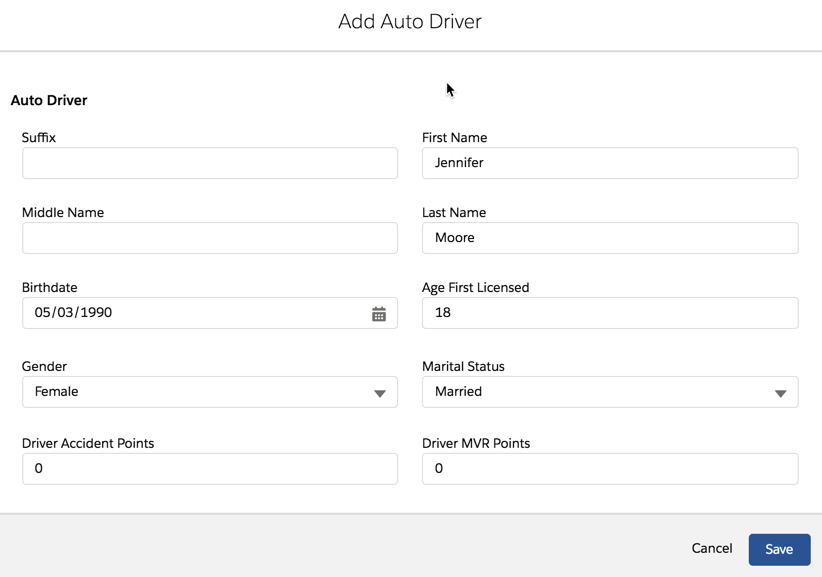
The Add Auto Driver form comes standard with the Vlocity Insurance
Lightning Web Components.
Fill out the form and click Save.
-
Drivers are added as children of the Vehicle, and grandchildren of the Multi Auto
insurance product.
Click Rate Now after you've added all the drivers to the vehicle. The rating procedure returns prices with the driver information included.
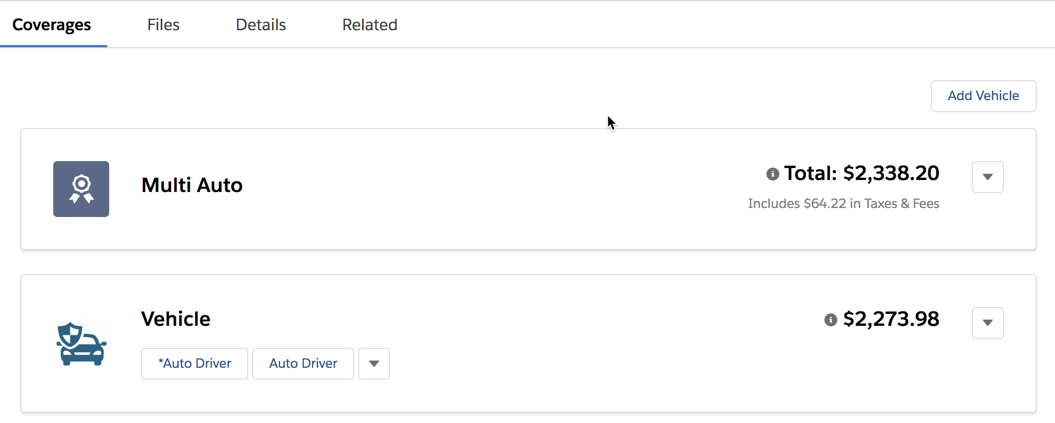
You can add multiple vehicles to a quote, and you can add different drivers to each vehicle. Vlocity uses the multi-instance product model to correctly rate the quote.
