Loading
Insurance
Table of Contents
Select Filters

          No results
          No results
          Here are some search tips

          Check the spelling of your keywords.
          Use more general search terms.
          Select fewer filters to broaden your search.

          Search all of Salesforce Help
          Business Owners Quote UI Flow

          Business Owners Quote UI Flow

          You can create and modify quotes directly on the Quote UI (also called the Lex Console), which is built with Lightning Web Components.

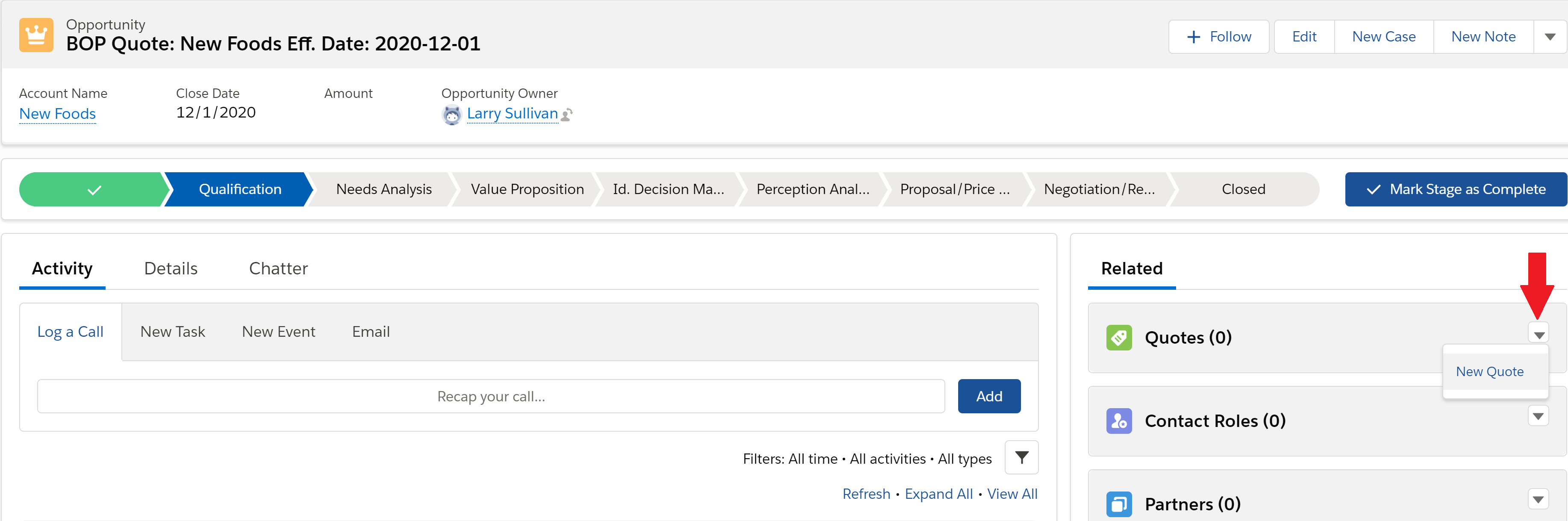
          1. To create a new quote, we don't start on the Quote page. Instead, we go to the Opportunities page and choose the Opportunity we're creating the quote for.
            Important
            Important

            Before you create a quote on an Opportunity, go to the Details tab and make sure that the Opportunity has a pricebook assigned.

          2. On the right pane of the Opportunities page, in the Quotes panel, click the carat and choose New Quote.
            Illustrates the screen to get a Business Owners quote.
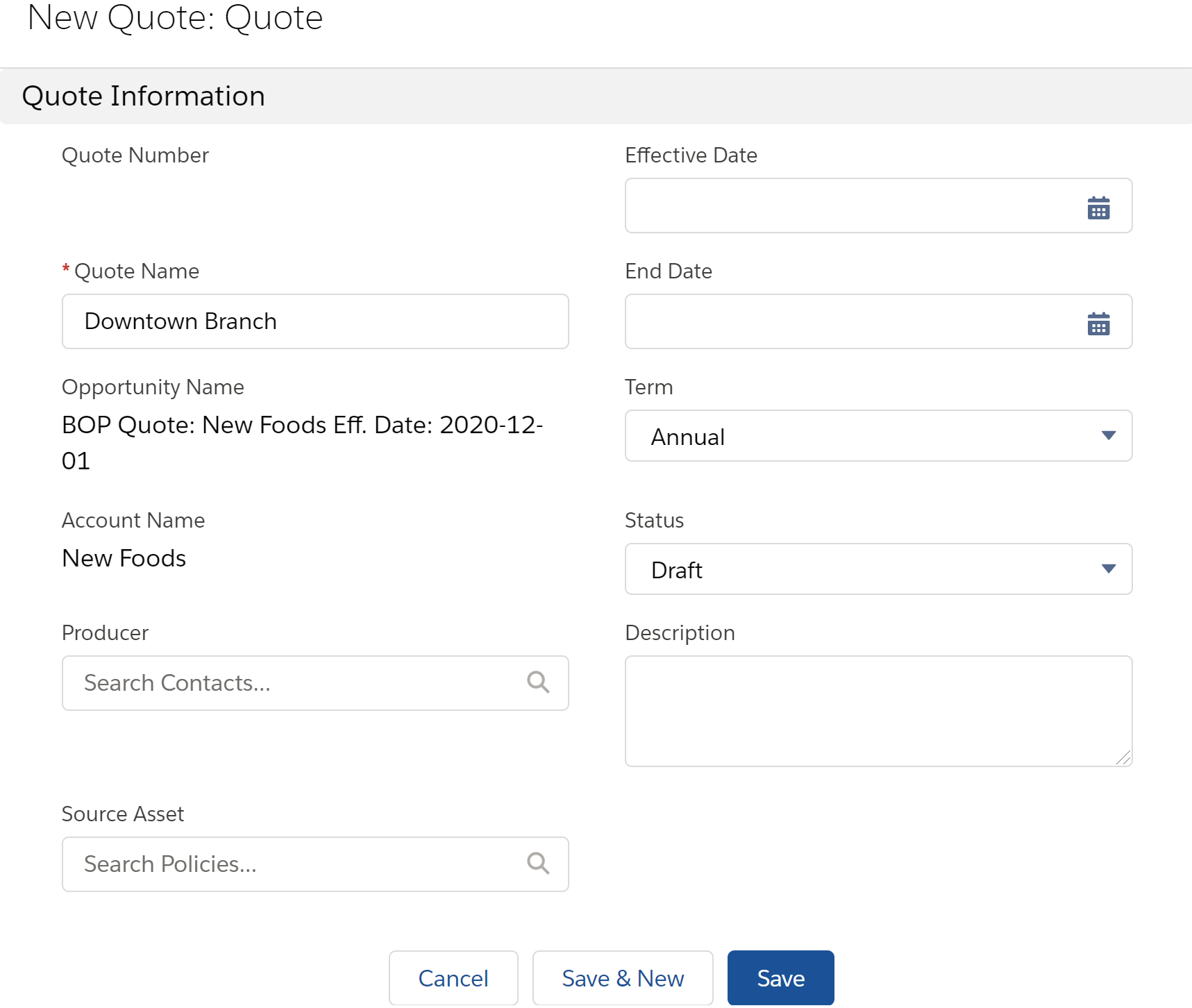
          3. On the New Quote: Quote window, choose Quote.
          4. On the New Quote: Quote window, enter a name for this quote, then click Save.

            Do not enter any other information here. Any info you enter here will mess up your quote as you create it on the Vlocity Quote UI.

            Illustrates the screen to enter quote information.
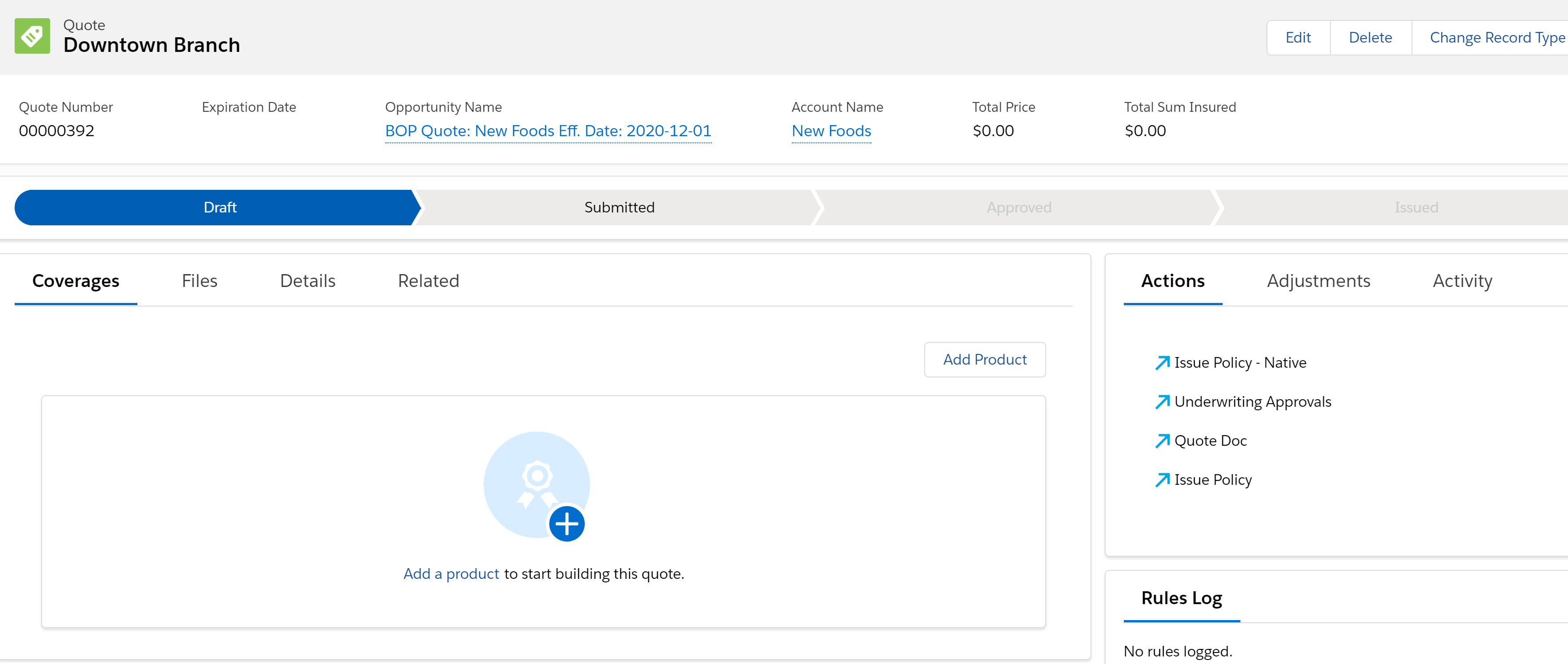
          5. Now navigate to the Quote page. On the Quote list view, choose the quote you just created.

            On the Coverages tab of the quote, click Add Product to start building the structure of your quote based on a product model.

            Illustrates the screen to add a product to the Business Owners quote.
          6. For this example, we choose the Superior Business product. Click Add.
            Illustrates the screen to select a Business Owners product.
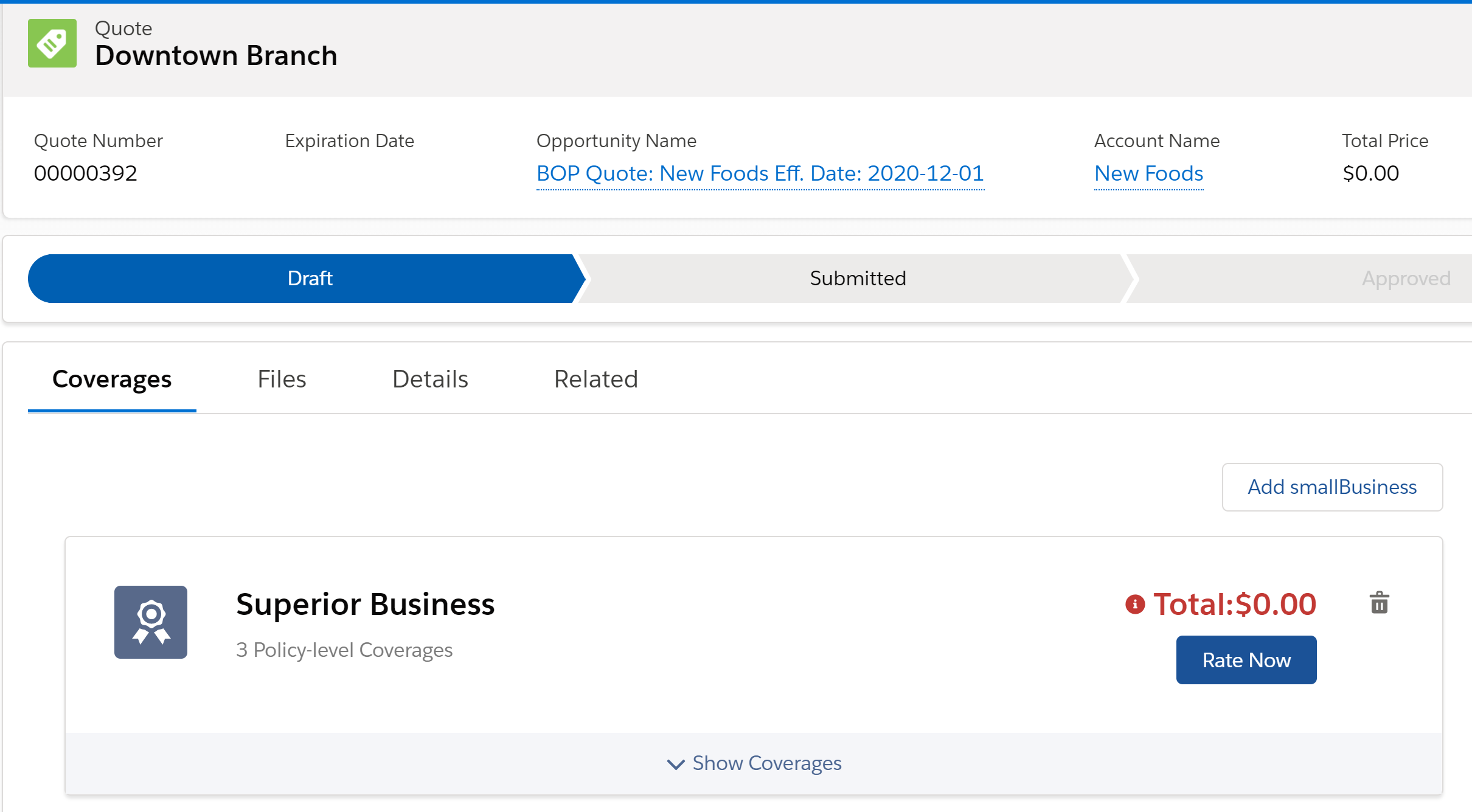
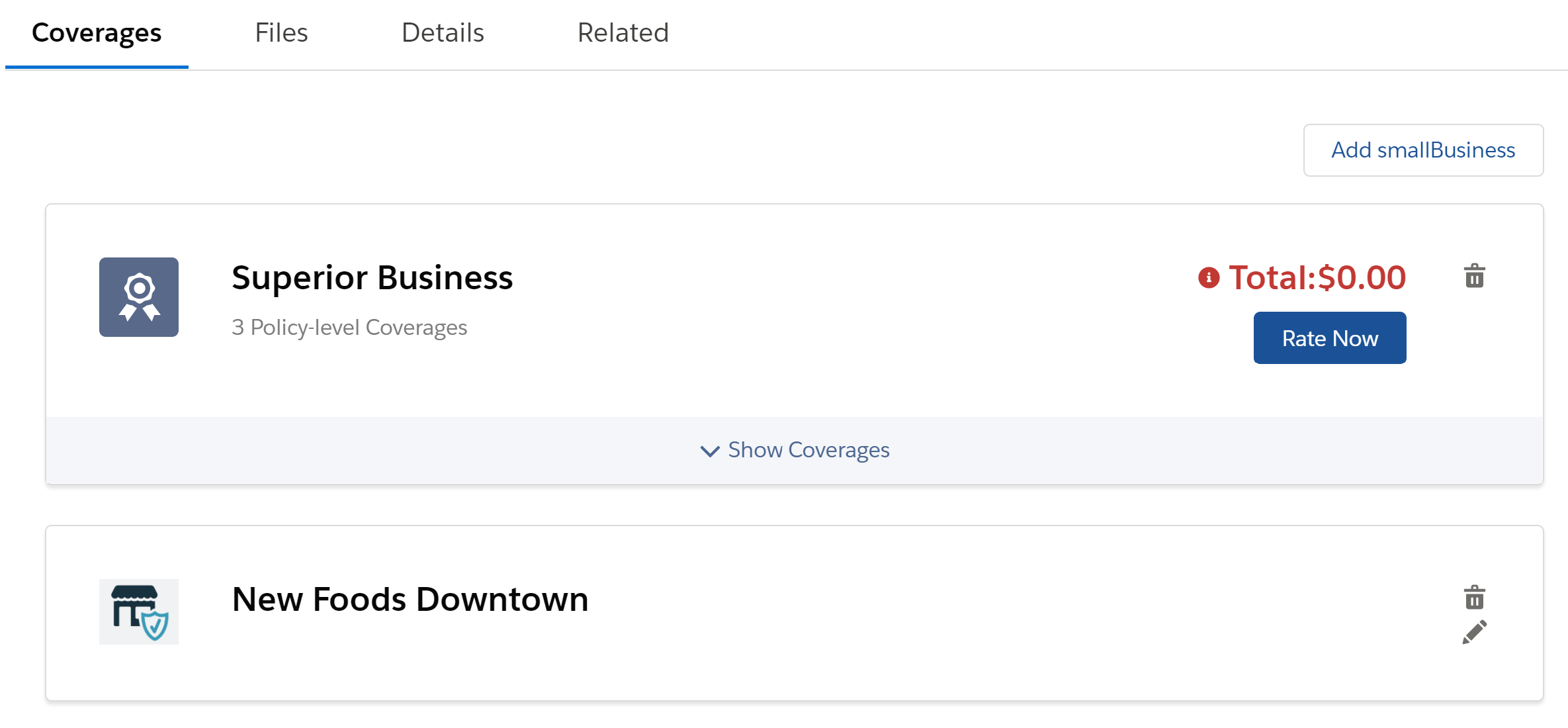
          7. The Superior Business product appears on the Coverages tab. The premium Total is $0 and colored red because it hasn't been rated yet. But we're not rating this quote yet. First we need to add an insured item.
            Illustrates the screen to add an insured item to the Business Owners quote.
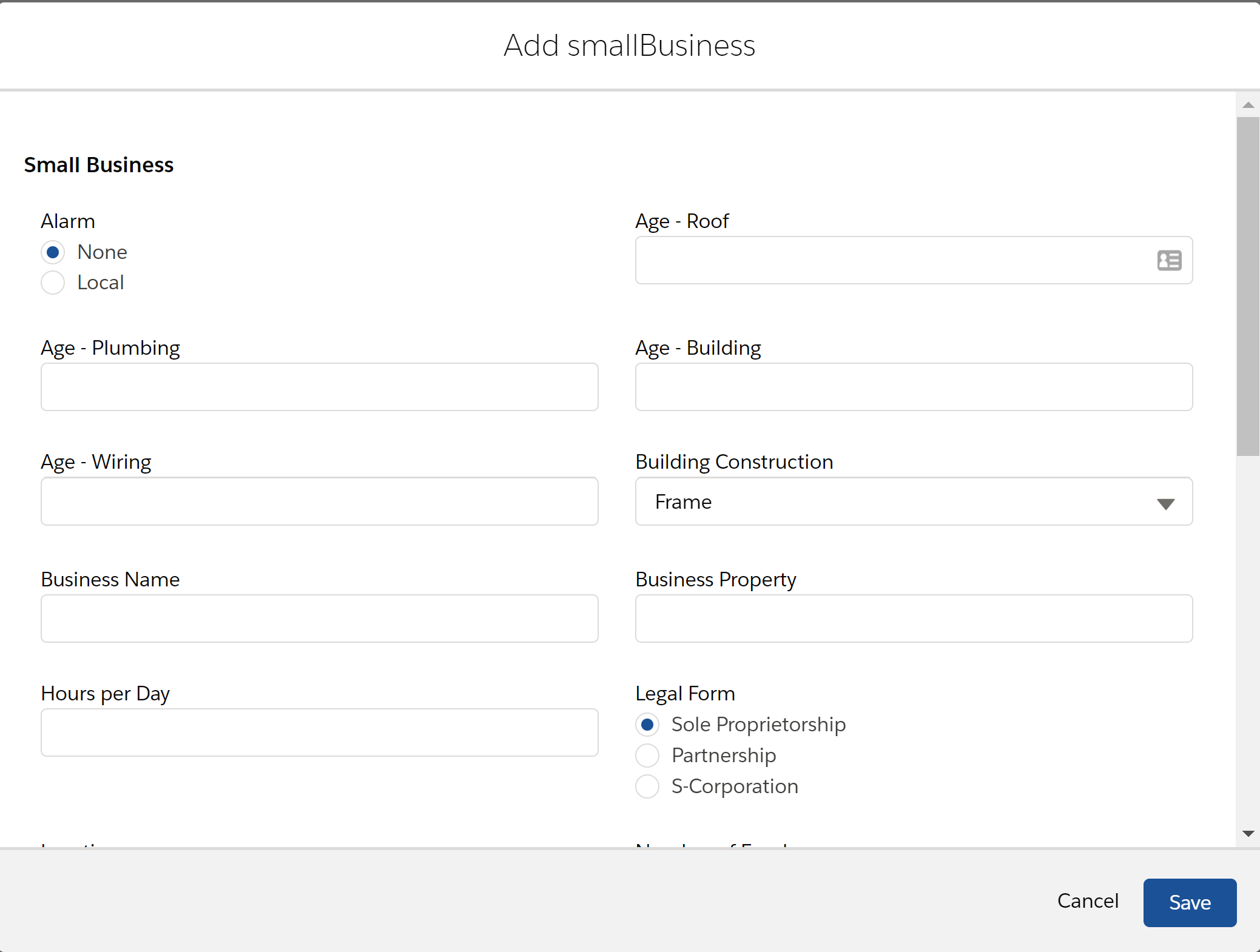
          8. Click Add smallBusiness.

            All the fields and selections on this form correspond to attributes on the smallBusiness insured item spec in the product model.

            Illustrates the screen to add small business details.
          9. Fill out the form and click Next.

            The smallBusiness appears as a child of the Business Owners insurance product.

            Illustrates the Business Owners quote with the insured item.
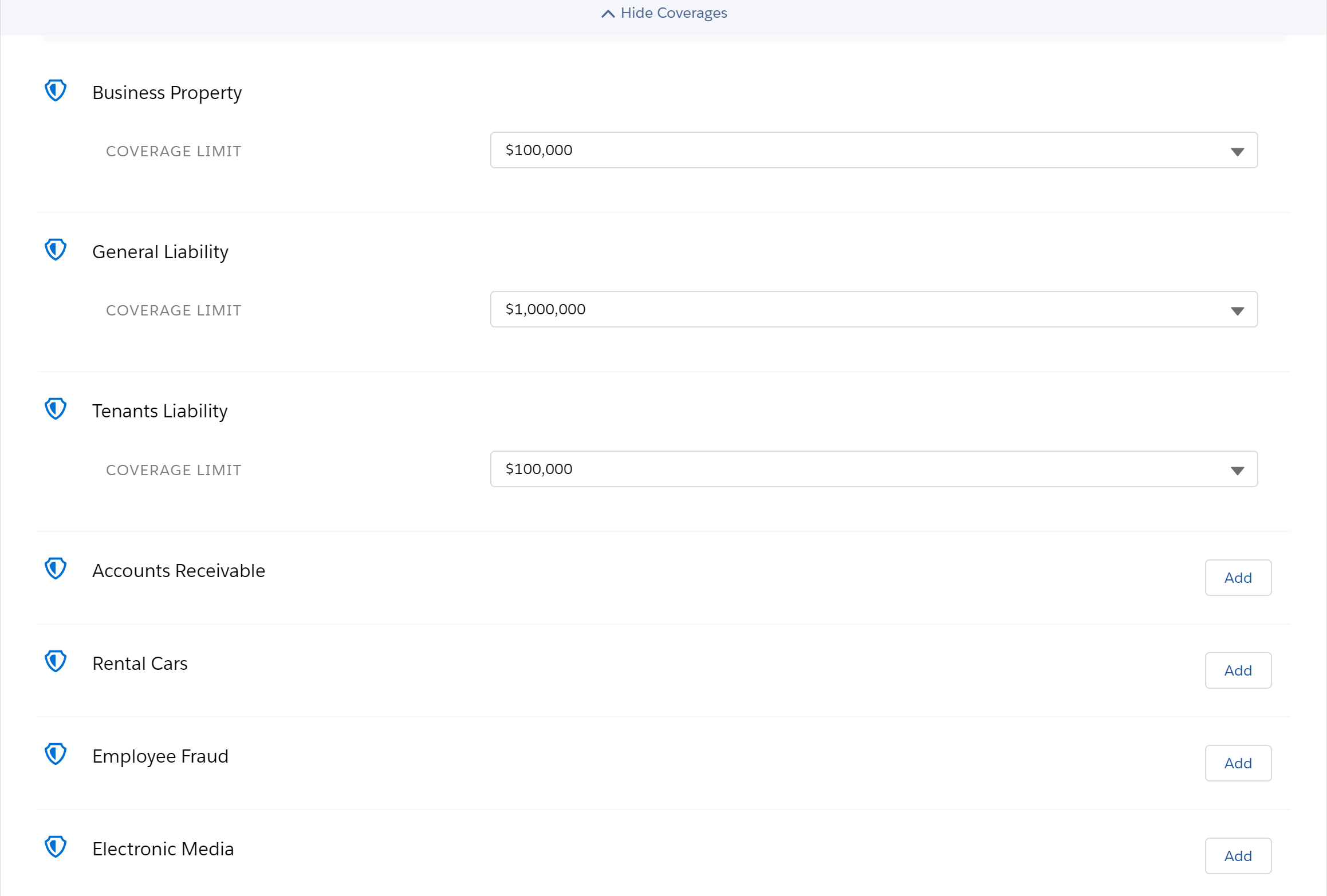
          10. Click the Show Coverages bar to open all the coverages for this property. You can change attribute values on required coverages, and select any available optional coverages by clicking Add.
            Illustrates the screen to modify Business Owners coverage.
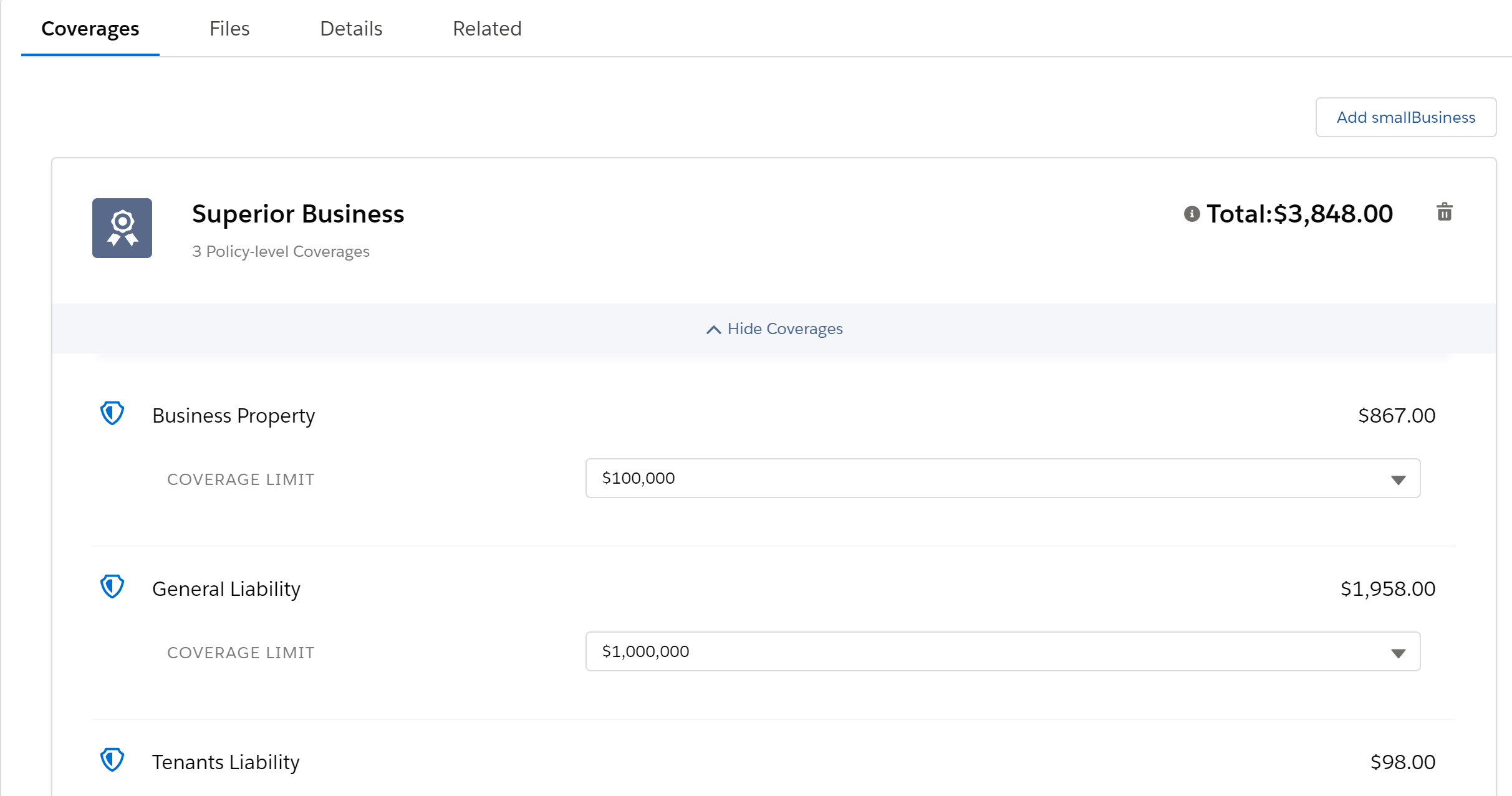
          11. After configuring coverages, click Rate Now.

            The workflow uses the rating procedure defined for Business Owners Policy and returns a Total premium with any applicable taxes and fees. It also includes the prices for each coverage.

            Illustrates the screen with the total premium.
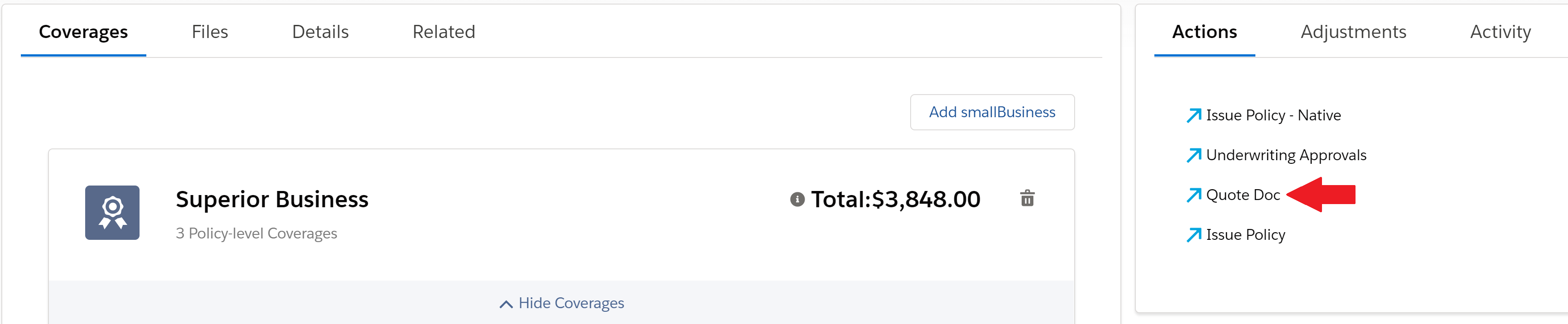
          12. Finally, quote documents can be emailed to the prospective customer. Click Quote Doc on the Actions panel.

            After you've clicked the button you won't see the message being sent but rest assured that is! The email with the quote details is sent to the email address listed in the opportunity for this quote.

            Email quote documents
           
          Loading
          Salesforce Help | Article