You are here:
Claim Coverages and Claim Financials
Claims adjusters have quick access to tools that take a claim through processing to its resolution.
Opening Claim Coverages and Setting Reserves
Claim coverages are opened systematically through product rules that run at the end of the FNOL flow. Claim coverages can also be opened by claim adjusters on existing claims. For example, if two vehicles are involved in a car accident, both a Collision and Property Damage claim coverage can be systemically opened with initial FNOL information. But an injury like whiplash can take days to appear and get diagnosed in a driver or passenger. So the claims adjuster opens the Bodily Injury coverage on the existing claim later.
Claims adjusters open coverages on the Financials tab. They're required to enter a loss reserve amount when they open a coverage on a claim. They have the option to enter an expense reserve amount when they open a coverage, or can do so later by clicking Set Expense Reserve. They can change reserve amounts anytime by clicking the pencil icon next to the amount.
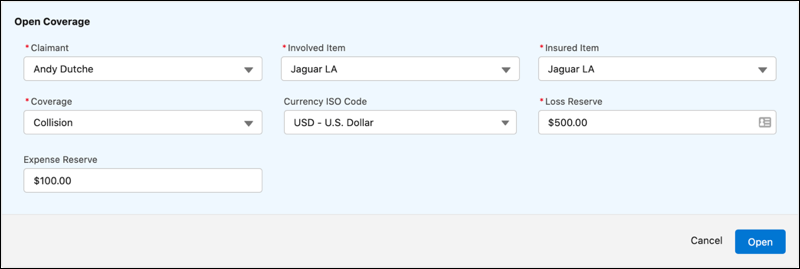
To learn more, see Open Coverages on a Claim.

The process of opening a claim coverage includes selecting the policy coverage to use to cover the loss. The Coverage field on the Open Coverage form shows the list of policy coverage records that exist for the insured item. For example, a Jaguar vehicle has Collision coverage on an auto policy. If the Jaguar is damaged in a car accident, the claims adjuster opens a claim coverage on the policy's Collision coverage. To learn more about how modeling works, see Create Claim Product Models.
Payment Details for Losses
Claims adjusters enter payment details when they intend to issue a payment for an item or injury involved in a claim.
To track these details, claims adjusters use the New Loss Item form on the Financials tab.
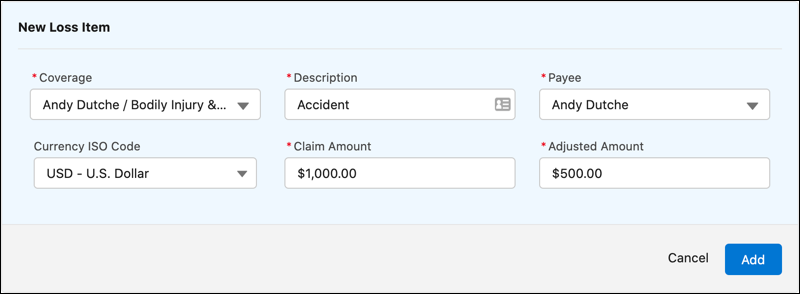
To learn how administrators can configure the payment detail form, see Customize the Claim Loss Payment Detail Form.
To learn how to record payment details, see Add Claim Loss Payments.
Expenses
Claims adjusters can add, edit, and delete expenses for open coverages as needed.
On the Financials tab, claims adjusters can click New Expense Item to add an expense.
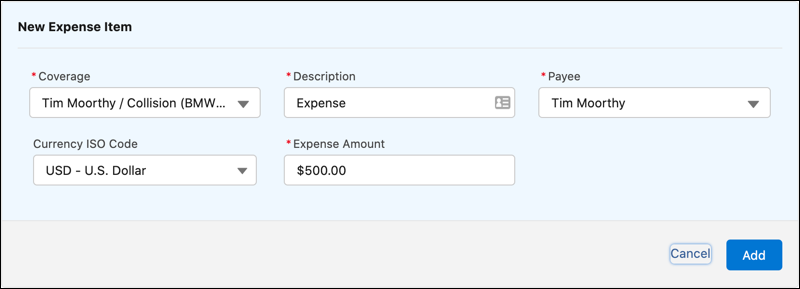
To learn how, see Add Claim Expense Payments and Take Action on Expense Payments.
Claims Financials in Multiple Currencies
In orgs with multiple currencies and advanced currency management enabled, claims adjusters can specify currency denomination when they set reserves, enter new losses and expenses, and make payments.
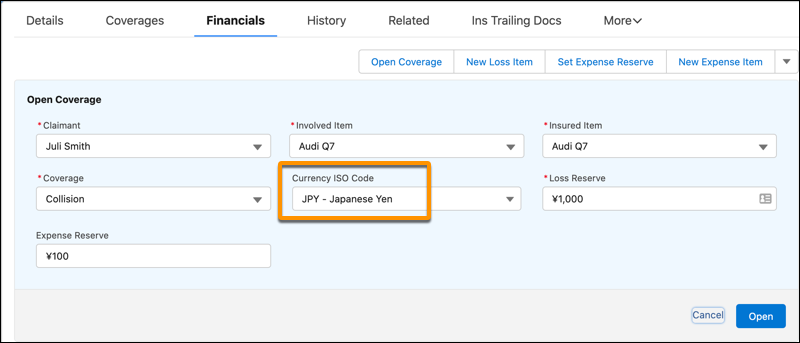
A functional hierarchy governs the display of default currencies and the way the system handles currency conversion.
Here’s the logic underlying the display of default currencies:
-
Claim records default to the currency of the policy on which the claim is created. The user who creates a claim can specify a different currency.
-
Claim coverages default to the currency of the claim on which they’re created. The user who opens the coverage can specify a different currency.
-
Loss and expense items default to the currency of the claim on which they’re created. The user who enters the loss or expense can specify a different currency.
-
A payment record is created in the currency of the claim coverage payment detail record that initiates the payment. Payment detail records can be grouped into the same payment as long as all the payment details use the same currency.
The Financial Summary user interface uses this currency conversion logic for display:
-
The Financial Summary converts payment amounts using the exchange rate that was active on the date the payment was made. For example, suppose a payment in euros (EUR) is made for a US dollar (USD) claim on March 20. The Financial Summary consistently displays the Payment in USD using the EUR:USD exchange rate from March 20, regardless of which day a user views the Financial Summary.
-
The Financial Summary converts reserve amounts using the current date’s exchange rates. For example, suppose claim coverage reserve is in Euros (EUR) on a US dollar (USD) claim. A user who views the Financial Summary on March 20 sees reserve amounts in USD that reflect the March 20 EUR:USD exchange rate. If the user views the Financial Summary again on March 25, the Financial Summary shows the reserve amounts in USD that reflect the March 25 EUR:USD exchange rate.
The Policy Terms Standing user interface uses this currency conversion logic for transactions:
-
For a deductible, the policy term's currency is converted into the payment detail's currency before a payment adjustment is applied. For example, a 5,000 EUR payment can get issued on a USD policy with a $500 deductible. If the EUR:USD exchange rate is 1:1.17, the system applies the deductible to the payment as 428 EUR, resulting in an adjusted payment amount is 4,572 EUR. But the policy terms are adjusted to reflect the full usage of the $500 deductible.
-
Limits work similarly. The system converts the payment amount into the policy term currency before tracking the consumption of the limit. For example, a 1,000,000 Japanese yen (JPY) payment can get issued against a $100,000 limit. If the USD:JPY exchange rate is 1:100, only $10,000 is tracked against the limit.
Here's the currency conversion logic used for reserve adjustments:
-
If a payment currency differs from the reserve currency, the system converts the payment amount to the reserve currency before applying the claim coverage reserve adjustment. For example, a 10,000 Japanese yen (JPY) payment can get issued against a $100,000 loss reserve. If the USD:JPY exchange rate is 1:100, a reserve adjustment of only $1,000 is created and the new loss reserve is $99,000.
See Salesforce Help for details about using multiple currencies and advanced currency management:
Payments on Claim Coverages
Claims adjusters can use a full slate of financial actions, from initial payments, through approval processes and payment issuance, to payment cancellations. Flexible configuration options support the unique workflows that apply when a claim is open, pending approval, approved, or paid.
On the Financials tab, users can:
-
Quickly identify what's open, pending approval, approved, or paid.
-
Choose from a list of payment actions tailored for each status. Approval requests and payment cancellation processes kick off automatically.
-
Take action on a single payment detail, or on several at once.
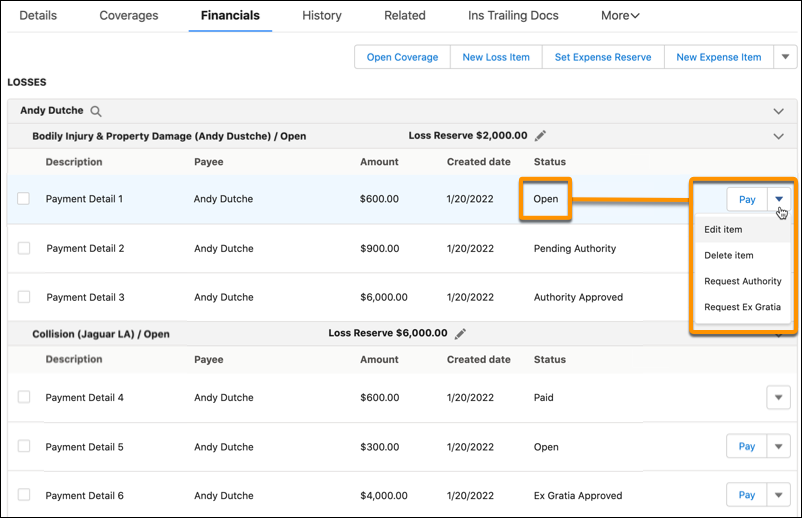
To learn how administrators can configure payment actions, see Configure Payment Actions Based on Claim Payment Status.
To learn how to process a payment, see Take Action on Loss Payments.
To learn how to use a payment authorization workflow to route requests for financial approval to the appropriate supervisors and managers, see Build Business Processes for Payment Authorizations.
Financial Summary
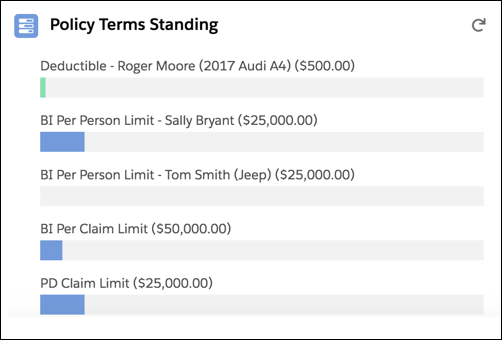
Claims adjusters can monitor financials using charts that answer key questions: What are the losses worth and how much of the reserve is left? How much has been spent on loss and expenses payments? How do claim recoveries impact financial exposure? How much of the deductible or limit has a policyholder consumed?
The Financial Summary panel of a claim answers these questions at a glance. It includes the:
-
Financial Summary chart.
-
Policy Terms Standing chart.
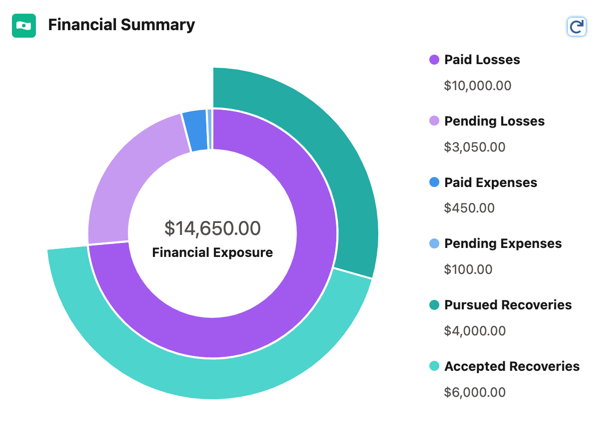
The Financial Summary chart shows:
-
Pending Losses
The total of all loss reserves or unpaid loss payment details on the claim, whichever is greater
-
Paid Losses
The total of all loss payments on the claim that have been issued to the recipient
-
Pending Expenses
The total of all expense reserves or unpaid expense payment details on the claim, whichever is greater
-
Paid Expenses
The total of all expense payments on the claim that have been issued to the recipient
-
Pursued Recovery
If your org tracks claim recoveries by using the Claim Recovery object, the recovery amount being pursued for this claim. See Track Claim Recoveries.
-
Accepted Recovery
If your org tracks claim recoveries by using the Claim Recovery object, the recovery amount accepted for this claim. See Track Claim Recoveries.
-
Financial Exposure
The amount at the center of the chart, calculated as:
Paid Losses + Pending Losses + Paid Expenses + Pending Expenses - (Pursued Recovery if applicable + Accepted Recovery if applicable)
NoteYou can configure chart settings to control how estimated and actual recovery amounts impact the overall financial exposure calculation. The calculation can include estimated recovery amounts, actual recovery amounts, or both. See Configure the Claim Financial Summary.
The Policy Terms Standing chart shows the financial status of policy terms for this claim.
Several different definitions of policy terms are available out of the box including limits, deductibles, copay, and coinsurance. These terms are configured as power attributes and added to coverage specs or root products. To learn more about policy terms, see Policy Terms as Power Attributes.
