You are here:
Configure Actions for Claim Participant Roles
Customize actions that apply to each claim participant role. For example, show the Refresh Credit Score action for all claimants, and the OFAC Search action only for first-party claimants.
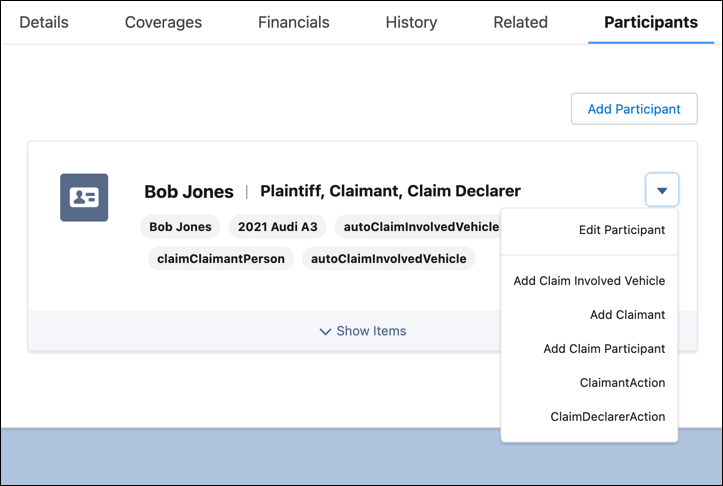
After users add claim participants to a claim, the action dropdown for each participant shows the actions configured for that participant's roles.
- From the App Launcher, find and select Vlocity Actions.
- Click New.
-
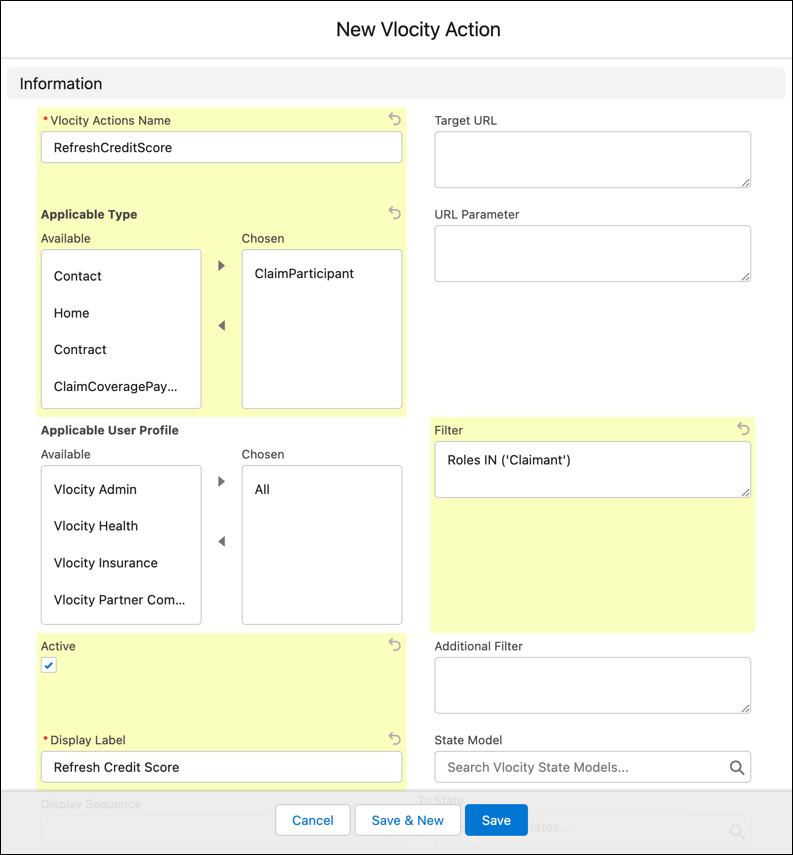
Enter a name and configure other settings for the action.
Vlocity Actions Name
The name of the action.
Applicable Type
Select ClaimParticipant.
Applicable User Profile
Select All.
Active
Select this checkbox to make this action active and available.
Display Label
The label to show users for this action.
Filter
The claim participant roles that display this action. Enclose values with spaces in single quotes and separate multiple values with commas.
Format: Roles IN (<role>,<role>,<role>)
Example: Roles IN ('First Party Claimant','Third Party Claimant')