You are here:
Configure History Timelines with Insurance History LWC
You can configure the Insurance History Lightning web component (LWC) to display a timeline of quote, claim, or policy activity in a single, chronological feed that's easy to scan and drill into. See essential activity at a glance and expand content like notes and emails to dive into more detail.
With a compact History timeline, you can:
-
Simplify daily CSR tasks or support detailed file reviews and audits.
-
Easily access quote, claim, or policy content including emails and approvals, with deeper details and related work tasks just a click away.
-
Gain an understanding of the quote, claim, or policy lifecycle with readily available information on key events such as assignments, payments, status changes, and more.
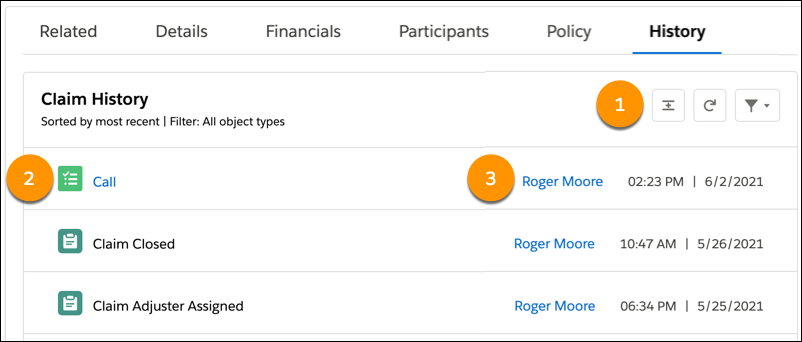


Your org includes a DataPack for building a History tab for claims. But you can use the Insurance History LWC for other objects in a Salesforce managed package extension, and then incorporate a History tab into records such as policies and quotes.
How to Configure a History Timeline
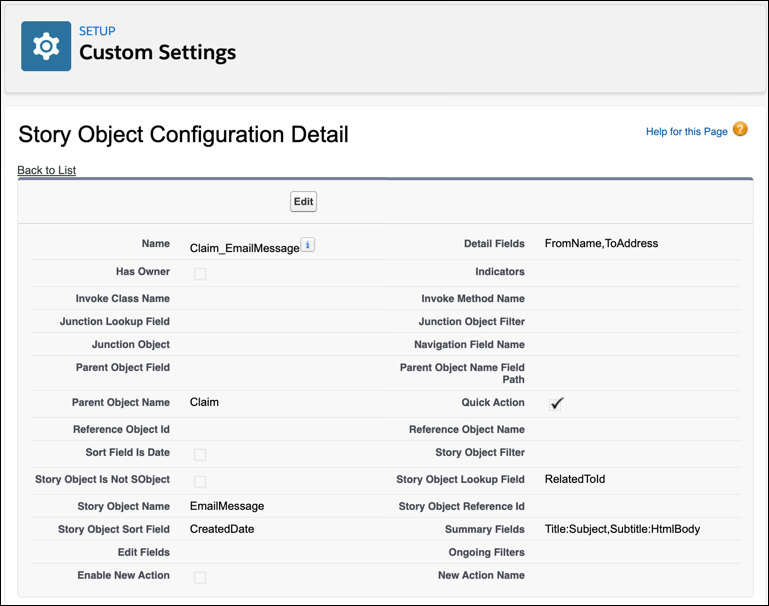
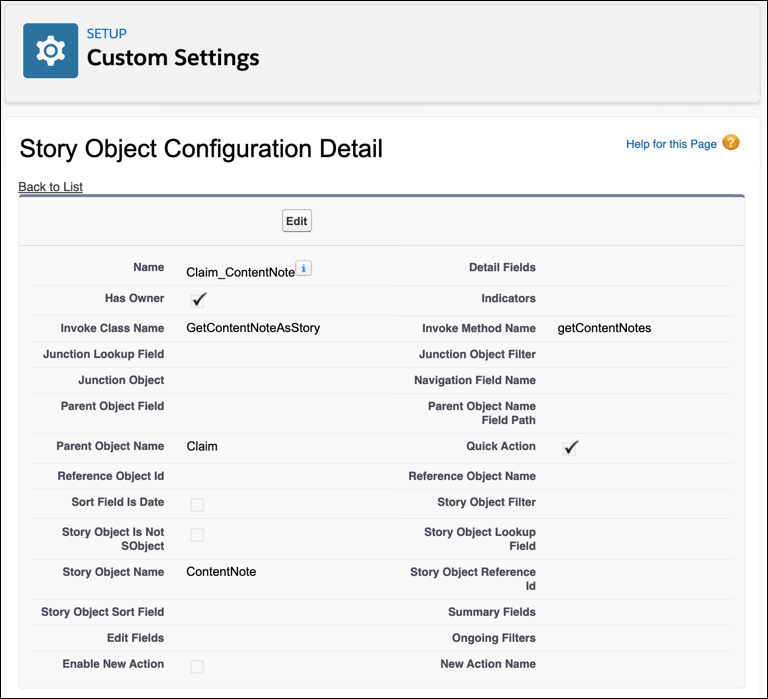
Your History timeline configuration can reference objects such as tasks, emails, and events directly through the Insurance History story object. You can also reference an Apex class for more complex objects like notes, documents (different versions of content), and approvals (process instance steps).
Here's an example of a story object setting that references an email object directly.
Here's an example that references an Apex class.
Story object settings define these fields on the Insurance History LWC.
Field |
Description |
|---|---|
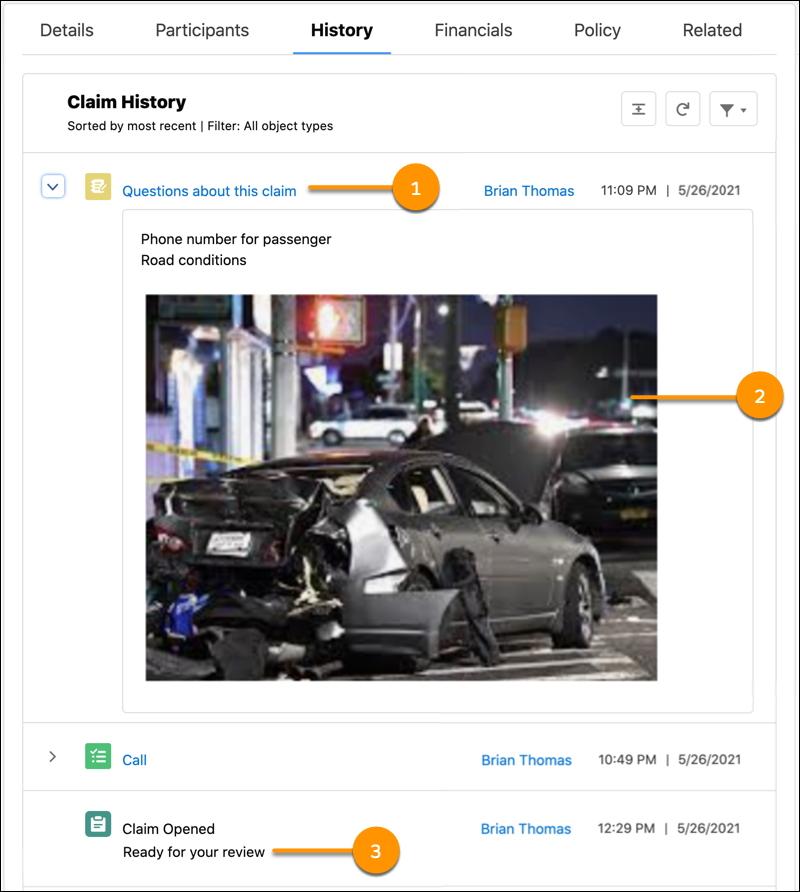
Title |
Required The first line in the History item. If Title returns a record ID, it appears as a link so that you can drill into record details. If Title isn't defined or if it returns a null value, History shows the object name as the Title (for example, simply Task). |
Title_Highlight |
A short text field that appears right after Title. You can use it to provide context or guidance (for example, "For your approval"). It remains visible even in collapsed view. |
Subtitle |
A long, untrimmed, richly formatted text field. It's used for comments and descriptions. Use Subtitle or Detail in a story object setting, not both. |
Detail |
A long, trimmed, richly formatted text field. It's for data that can be truncated within a History line item. |
Here's how Title (1), Subtitle or Detail (2), and Title_Highlight (3) appear on a History tab. Use Subtitle to show complete content (recommended), or Detail to truncate content.
After you decide what to include in your history timeline:
- Configure the Story Object for a History Timeline
You configure your History timeline by configuring settings on the story object. You can add a new set of data to the story object configuration, or edit an existing one. - Configure History Tracking Entries
You can track granular details as the quote, claim, or policy evolves through its lifecycle by writing records to the Vlocity Tracking Entry object. Then you can configure this Tracking Entry object in the story object to return results to the History timeline. - Add the History Tab to Records
Add the History tab to records to make it available to users.
