You are here:
Configure Networks on a Root Plan Spec
You can add existing provider networks to root plan (product) specs. Based on how you've configured the coverage specs on the root plan spec, you can map each provider network to specific coverage specs.
Before You Begin
-
Configure all the provider networks you want to use.
 Note
NoteMake sure that all provider networks you want to use are set to Active.
-
Make sure that the coverage specs contain attributes with the Attribute Group Type set correctly.
Later, when an insurance agent or customer service rep is quoting a plan, they can see the networks that are attached to the root plan spec. The agent working on the quote can configure attributes specific to each network on each coverage in a plan.
By the time you get to mapping provider networks to plan specs, you've already completed most of this workflow:
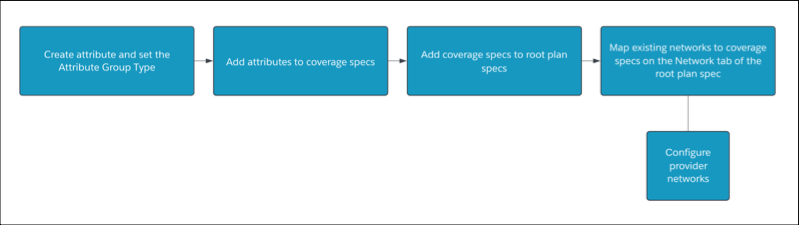
The most common examples of Attribute Group Types are In-Network and Out of Network, often used for health plans. When you map provider networks onto root plan specs, Attribute Group Types = Tiers. For example, you can associate a configured provider network to the In-Network tier.
- On the root plan (product) you want to configure networks on, go to the Network tab.
- Click Add Network.
- Select a Network.
- Under Product, choose the coverage spec you want to attach this network to.
-
Under Jurisdiction, choose the jurisdiction (location)
that this network will be effective in.
Note
This field is mandatory because large group quotes use Jurisdiction to find applicable provider networks.
-
Under Tier, select the tier that this network applies
to.
Tier = the Attribute Group Type you choose when you configure an attribute on the Attribute Designer.
- Enter a Start Date when this network configuration goes into effect.
- (Optional) Enter an End Date for when you want this network configuration to stop working.
