You are here:
Configure Pay, Edit, and Delete Payment Actions
Configure your org with custom settings for Pay, Edit, and Delete payment actions. These settings specify which payment details statuses show each payment action.
For example, you configure a custom setting so that the Pay button appears only for payment details that are Open or Approved.
Payment Action |
Custom Setting |
Description |
|---|---|---|
Pay |
PayButtonDisplayStatuses |
Issue payment on the payment detail record. Configure the PayButtonDisplayStatuses custom setting to show the Pay button only for payment detail records with certain statuses, such as Open or Approved. |
Edit |
EditButtonDisplayStatuses |
Edit values in a payment detail record. Configure the EditButtonDisplayStatuses custom setting to show Edit item in the payment action dropdown menu only for payment detail records with certain statuses. For example, let users edit unpaid payment detail records, not paid ones. |
Delete |
DeleteButtonDisplayStatuses |
Delete a payment detail record. Configure the DeleteButtonDisplayStatuses custom setting to show Delete item in the payment action dropdown menu only for payment detail records with certain statuses. For example, let users delete unpaid payment detail records, not paid ones. |
- From Setup, in the Quick Find box, enter Custom Settings, and then select Custom Settings.
- Next to Insurance Configuration Setup, click Manage.
- Click New.
-
Configure a custom setting for the Pay, Edit, or Delete payment action.
-
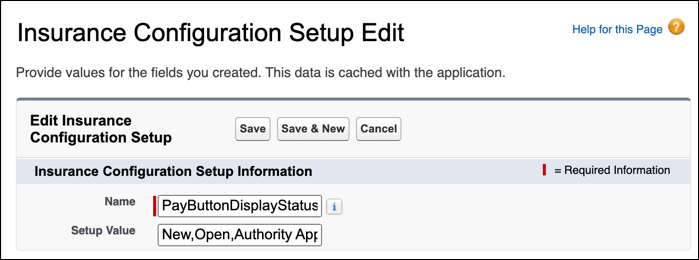
For Name, enter a descriptive name based on which button display statuses you're configuring. For example, to configure display statuses for the Pay button, enter PayButtonDisplayStatuses.
-
For Setup Value, enter the payment detail statuses that show this payment action. Separate values with a comma. For example, for PayButtonDisplayStatuses, enter New,Open,Authority Approved,Ex Gratia Approved.
-
The setup value must be the API name of the status.
-
Use the provided list of default API names for these statuses: New, Open, Paid, Payment Pending, Cancelled, Stopped, Voided, Closed W/O Pay. There are no restrictions on defining the API name if you plan to create a status other than the ones covered in this list.
-
-
-
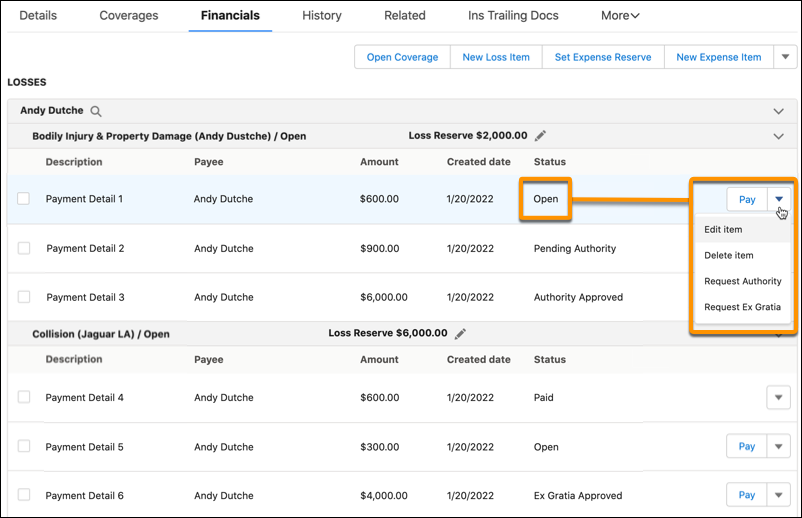
Confirm that the user interface lets users click the new payment action for the correct payment detail statuses.
If a claim's Financials tab doesn't show the action for the correct statuses, clear the session cache and reload the page.
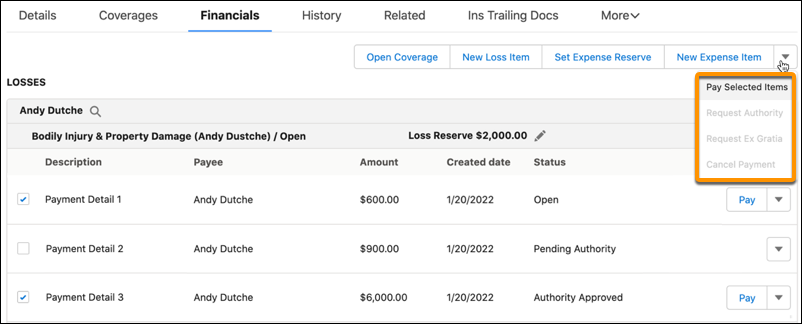
Make sure that individual payment details show the action for the correct statuses, and that the action dropdown at the top of the page shows the action only if it applies to all the selected payment details.