You are here:
Configure the Request Ex Gratia Payment Action
Configure a Request Ex Gratia payment action to streamline requests for ex gratia payments. When users click Request Ex Gratia, the action invokes an integration procedure that changes a payment detail status to Ex Gratia Requested. The action also invokes an approval process. For approved requests, a custom setting lets the limit class allow payments to post if they're over the limit.
Before You Begin
Get a head start with the Vlocity Actions DataPack for Payment Actions. It includes a PaymentDetailRequestExGratiaAction Vlocity Action that you can customize or use as a template. See Download and Import Vlocity Actions DataPack for Payment Actions.
Your configuration includes:
-
A business process, typically an approval process, to run when users click Request Ex Gratia.
-
An integration procedure that updates the status of a payment detail record, and that launches your approval process.
-
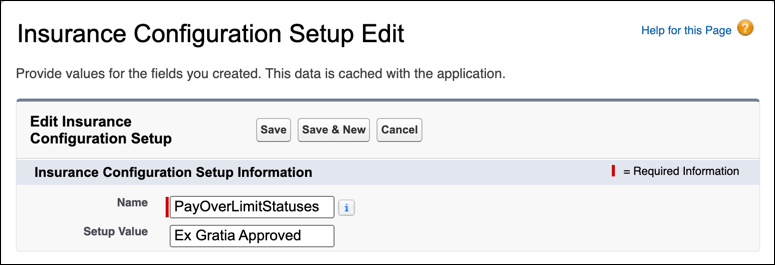
A custom setting called PayOverLimitStatuses that specifies which payment detail statuses let the limit class allow payments to post if they're over the limit.
-
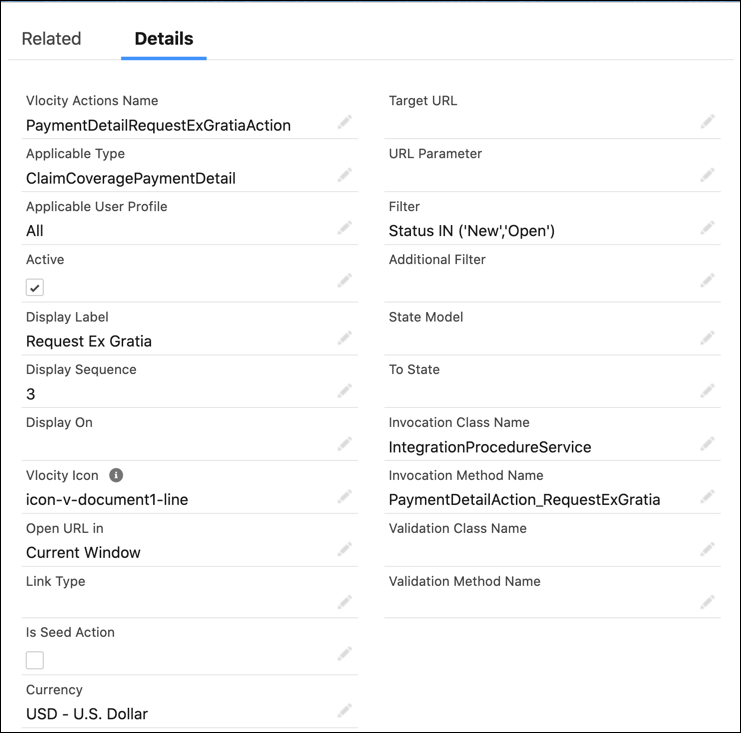
The PaymentDetailRequestExGratiaAction Vlocity Action, which calls your integration procedure. This action also specifies which payment detail statuses show the Request Ex Gratia payment action.
- Configure a business process, typically an approval process, to run when users click Request Ex Gratia.
-
Create an integration procedure that:
-
Accept as inputs either
PaymentIdfrom the Claim Payment Summary object orItemIdfrom the Claim Coverage Payment Detail object.Format the JSON structure like this:
{ "itemIds": [ { "Id": "0l25c000000CalvAAC" }, { "Id": "0l25c000000CalvAAC" } ] } -
Updates the status of a payment detail record to a value such as Ex Gratia Requested.
-
Launches your approval process.
-
- From Setup, in the Quick Find box, enter Custom Settings, and then select Custom Settings.
- Next to Insurance Configuration Setup, click Manage.
- Click New.
- Configure a custom setting called PayOverLimitStatuses.
- From the App Launcher, find and select Vlocity Actions.
- Click PaymentDetailRequestExGratiaAction.
-
Enter details about the payment action.
-
Confirm that the user interface lets users click the Request Ex
Gratia payment action for the correct payment detail
statuses.
If a claim's Financials tab doesn't show the action as expected, clear the session cache and reload the page.
Make sure that individual payment details show the action, and that the action dropdown at the top of the page shows the action only if it applies to all the selected payment details. Also confirm that the approval process launches as expected for the new action.