You are here:
Create Attribute Value Rules
Use Attribute Value Rules to determine if and when an attribute value is visible to users.
Attribute value rules are only applicable for attributes that have multiple discrete values, like currency and text dropdowns. Attribute Value Rules apply to a specific value on one attribute.
You can create the following types of attribute value rules:
-
Hide
Hides this attribute value from users if the rule evaluates to true.
The color of the Rules icon indicates whether a rule has been applied to an attribute. If the Rules icon next to the attribute value is black, there are no rules defined. If the Rules icon is blue, one or more rules are assigned to the attribute value.
- Click the Rules icon on your attribute value.
- Click the Add a Rule link.
- In the Type field, choose Hide.
-
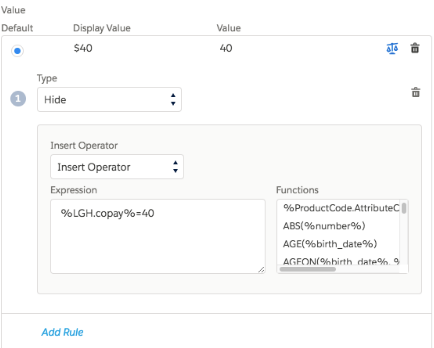
Enter the rule in the Expression field.
For example, you want to hide an attribute value of $40 when the value of the Copay attribute (a different attribute in this product) equals 40.
Use the % character to create variables. The formula for this example looks like this:
%productCode.attributeCode%="40".If the Product Code for the Large Group Health product is
LGHand the Attribute Code for Copay iscopay, the code in the expression looks like this:When the rule evaluates to true, the $40 attribute value is hidden from users.