You are here:
Customize the Claim Expense Payment Detail Form
Each line of business can involve different processes and data entry requirements. Account for these differences by configuring payment detail processes at the coverage spec level. Corresponding payment detail forms can then guide claims adjusters through expected interactions logically and consistently.
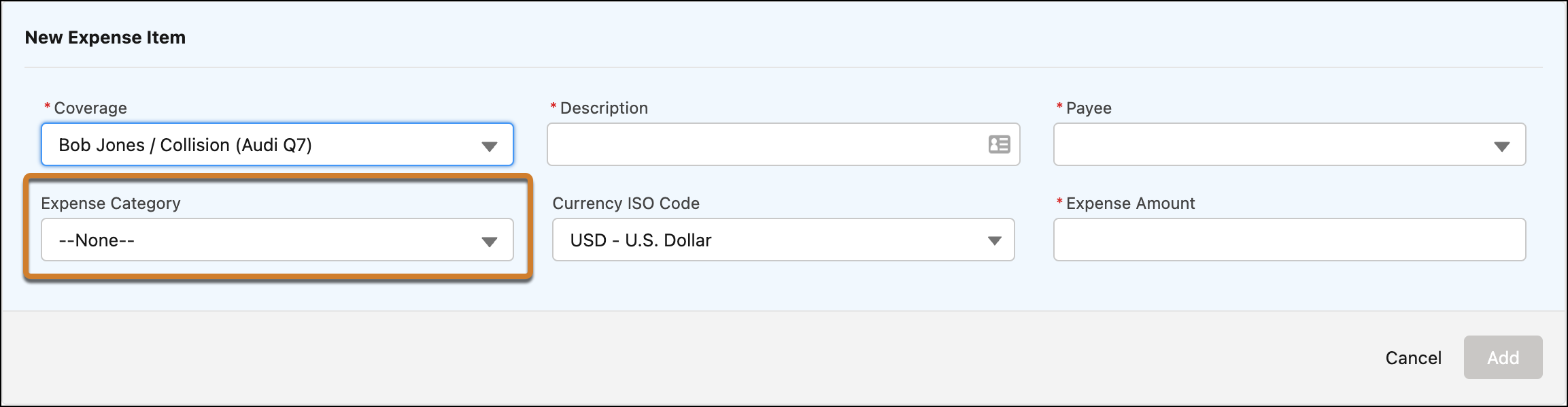
The Claim Expense Item form sends users through a logical flow of information, showing:
-
Description and Payee, along with Benefit Type if it's part of the coverage spec. Don't include these fields in custom field sets.
-
Custom fields configured in custom field sets.
-
Expense Amount.
If a coverage spec has attributes that use the Benefit Type field, the form displays a Benefit Type picklist.
Customizing the form involves:
-
Configuring a custom field set on the Claim Coverage Payment Detail object.
-
Using the Insurance Configuration Setup custom setting to associate the custom field set with a coverage spec.

Don't edit the default Claim Coverage Payment Detail field set.
-
Review your coverage specs and decide which ones require custom fields on the expense payment detail form.
Note the coverage codes. You enter these codes when you link custom field sets to the coverage specs.
- From Setup, in Object Manager, find and select Claim Coverage Payment Detail.
- Click Field Sets, then click New.
- Enter a label and description.
-
Drag fields to the field set list.
 Note Description, Payee, Benefit Type and Expense Amount fields are added by default to the form at runtime.
 - Click Save.
- In the Quick Find box, enter Custom Settings, and then select Custom Settings.
- Select Insurance Configuration Setup. Click Manage, then click New.
-
Enter setting details and save changes.
Name
Enter ClaimCoverageExpense: followed by a coverage spec code. For example, for a Rental Car coverage, enter ClaimCoverageExpense:autoRental .
Setup Value
Enter the name of the custom field set to associate with the coverage spec.
After you've completed configuration tasks, the expense payment detail form shows the custom fields associated with the selected coverage.