You are here:
Large Group Rating
Rating for large groups is based on the rating procedure defined on the plans included in the quote. Rating procedures are created in the Business Rules Engine as Expression Sets.
For more information on how to set up Expression Sets in the Business Rules Engine, see Create an Expression Set.
Limitations
Large Group Rating only supports Expression Set as the Rating Procedure type. When you set up the rating procedure for your rating process:
- Set the Rating Procedure Type field of the product to Expression Set and the Rating Procedure Name field to the name of the Expression Set.
- Associate the Data Mapper bundle to the rating fact product. The Data Mapper must be OmniDataTransform type, which is Omnistudio on core object.
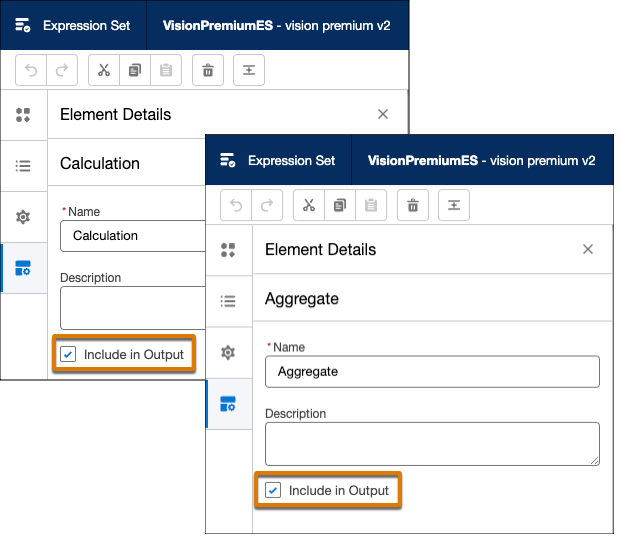
- Include at least one calculation and one aggregation step in the Expression Set, each with the Include in Output option selected.
- Verify that there’s an active version of your expression set
with a Start Date after the
effectiveDatepassed into the flow from the quote.

- Set Up an Expression Set For Large Group Rating
Use an Expression Set as the rating procedure for large group plans. - Rate a Large Group Quote on the Lightning Web Component
With the help of the Large Group Quote LWC, you can rate large group quotes as many times as needed during the quoting process. Some large group quote rating processes occur asynchronously and take a few minutes to complete. But don’t worry - a bell notification lets you know when the rating process finishes. - Large Group Rating Error Handling
Large group quoting uses flows to rate member-based plans asynchronously. When errors occur during an asynchronous process, it’s a little more challenging to identify and resolve the errors than in synchronous rating scenarios. - Clean Up Asynchronous Rating Data
Keep your org from getting bogged down with outdated and unnecessary large group enrollment and quoting rating data by using custom settings and a scheduled batch job.
Set Up an Expression Set For Large Group Rating
Use an Expression Set as the rating procedure for large group plans.
- From the App Launcher, find and select Business Rules Engine (or Expression Sets if the Expression Sets tab is enabled).
- Create a new Expression Set and Expression Set version.
- Open the new Expression Set version in the Expression Set Builder.
-
Include at least one calculation and aggregation
step, each with the Include in Output option selected.
- Add any other elements you need.
- Set the Start or End Date (or both) and the Rank of the Expression Set version.
- Save and activate the Expression Set.
Rate a Large Group Quote on the Lightning Web Component
With the help of the Large Group Quote LWC, you can rate large group quotes as many times as needed during the quoting process. Some large group quote rating processes occur asynchronously and take a few minutes to complete. But don’t worry - a bell notification lets you know when the rating process finishes.
You can rate up to 30 summary-based plans with up to 150,000 members at a time or you can rate up to 30 member-based plans with up to 3,000 members at a time. If you need to rate more than five member-based plans in a quote, don’t use the Rate All Plans button. Instead, rate the first five plans individually by using the Rate Plan button for each plan. Wait for the rating to complete on those five plans, then start rating the next set of up to five plans by using the Rate Plan button.
When you adjust a quote by adding, modifying, or removing a coverage, the total premium value turns red. Use the Rate Plan button to initiate the rating process for the selected plan. Or, use the Rate All Plans button to rate all the plans included in the quote at once.

When you initiate a rating process, a progress notification appears at the top of the LWC.
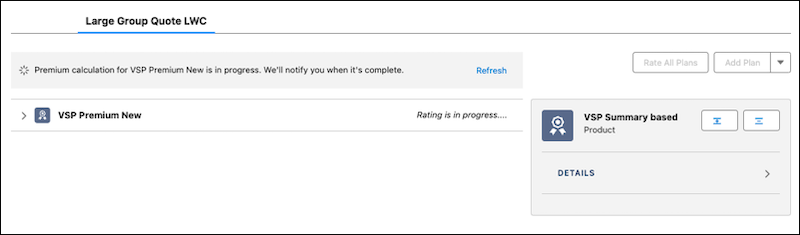
A bell notification alerts the user when the rating process finishes and includes important status messages.
Possible Rating statuses returned include:
- Completed
- Canceled
- Pending
- Error
While the rating request is pending, the quote record stores the rating request and batch job Id associated with it as JSON in the Calculate Price Data field on the Details tab.
You can use the JSON to help you locate and identify the batch job in Monitor Workflow Services. From here you can Cancel the Run of any pending jobs if needed.
Large Group Rating Error Handling
Large group quoting uses flows to rate member-based plans asynchronously. When errors occur during an asynchronous process, it’s a little more challenging to identify and resolve the errors than in synchronous rating scenarios.
An asynchronous rating request for large group quotes uses two flows: Generate Census Rating and Finish Processing Census Rating. If an error occurs in either of these flows, the rating request status is set to Error.
Insurance Rating Request Process
Let’s say you have a census with 2,500 census records. Each record represents one family. To rate this census, large group quoting uses one Insurance rating request and one batch framework request. The batch framework request splits the census records into smaller batch job parts for faster rating and error resolution. In this example, each batch job is configured to process 100 members, so this census of 2,500 records is divided into 25 batch job parts.
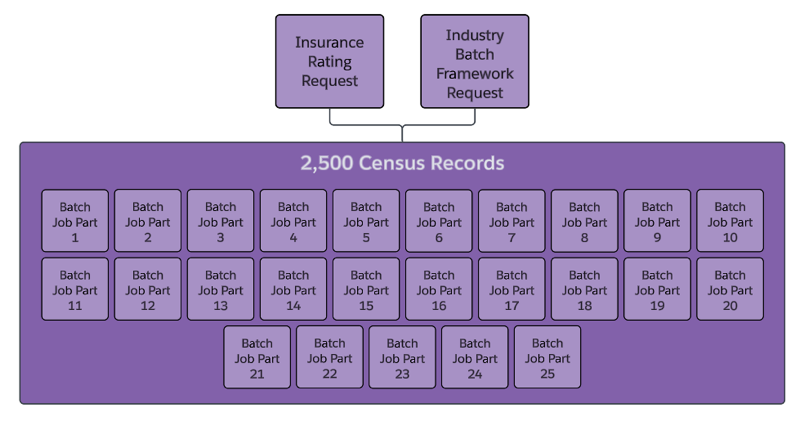
Each batch job part is processed sequentially and processing continues even if there’s an error in a batch job. Let’s say that Batch Job Part 16 has an error. The batch job processing continues and completes the remaining batch job parts, and creates one error event for the entire batch job.
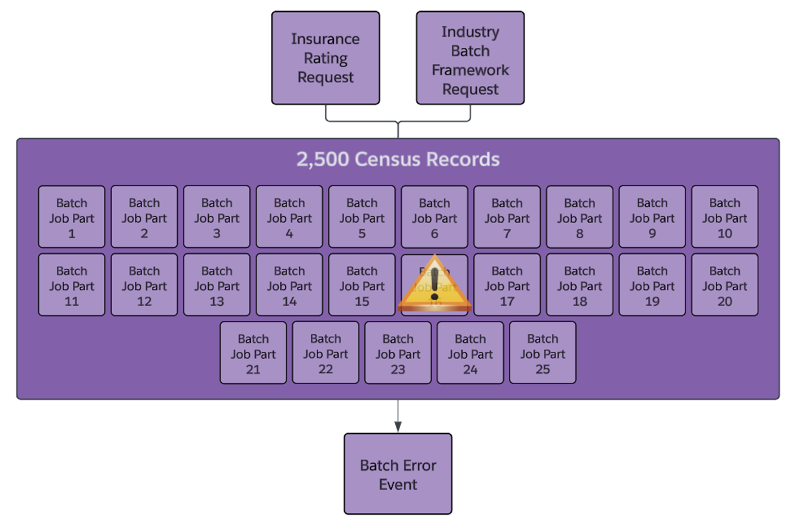
The Insurance Rating Request status is set to Error, and the user receives a bell notification alert that their rating request wasn't completed. The user can check the census input and try initiating the rating request again. If the rating request continues to complete with errors the user can generate an error CSV from the Large Group Quote LWC.
Common Asynchronous Rating Errors
The most common errors in asynchronous census rating come from incorrect or incomplete input in the group census. But flow configuration and exceptions can also cause asynchronous rating errors. Reviewing the batch job status can help you locate where in the rating process the error happened.
Reviewing the batch job status can help you locate where in the rating process the error happened.
| Batch Job Status | Where the Error Happened |
|---|---|
| Completed with errors | The Generate Census Rating flow |
| Completed | The Finish Processing Census Rating flow |
| In Progress | The batch job is stuck, or the org could have reached its processing limit. |
While the rating request is in progress, the quote record stores the rating request and batch job ID associated with it as JSON in the Calculate Price Data field on the Details tab. You can use the JSON to help you locate and identify the batch job in Monitor Workflow Services. If the batch job status is In Progress use the Cancel the Run button to cancel the job.
Generate a Quote Error CSV
Quickly generate and view a list of rating request errors for large group quotes with the click of a button.
Your users can generate an Error CSV file if a rating request doesn't complete successfully. If rating request errors occur during the batch job processing that's kicked off by the Generate Census Rating flow, the Error CSV contains separate rows for each member name or ID that wasn't rated.
When a rating request completes with errors, your users can generate an Error CSV file.
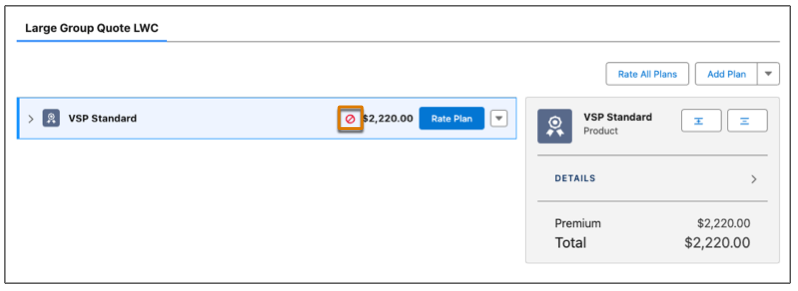
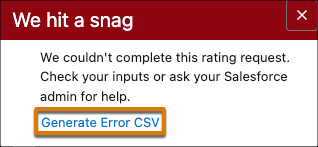
Click the error icon ( ) that appears next to the plan price and then click Generate Error CSV.
A CSV file summarizing the errors is created and attached to the quote record in the Notes & Attachments section on the Related tab. The user receives a toast message letting them know the CSV generation is complete.
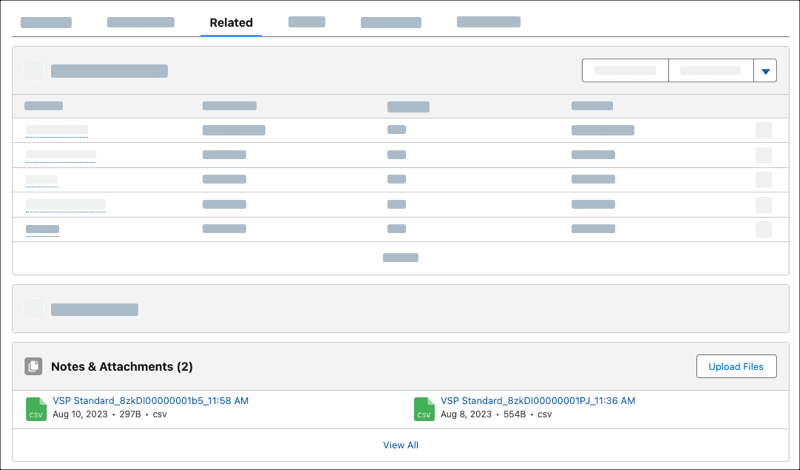
The CSV file name format of "(PlanName)_ + (InsuranceRatingRequestId)_ + (CSV generation time)" uniquely identifies the plan and rating request associated with the errors to help users locate and correct issues more easily.
If the errors occur during post-processing performed by the Finish Processing Census Rating flow, the Error CSV contains only one row with this error message:
"We couldn't complete the Post Rating Process Action. Check your inputs or ask your Salesforce admin for help."
The most common cause of this error is that none of the census members are in the group class assigned to the plan. To learn more, read Add Group Classes to Large Group Quotes.
Clean Up Asynchronous Rating Data
Keep your org from getting bogged down with outdated and unnecessary large group enrollment and quoting rating data by using custom settings and a scheduled batch job.
Asynchronous Rating Data Clean Up Custom Settings
Use these custom settings to specify rating data purge limits. Use the default values, customize them to fit business needs, or even decide not to use them.
| Custom Setting Name | What it Does | Default Value | Additional Info |
|---|---|---|---|
RatingRetentionDayCount
|
Sets the number of days that the data is retained. | 10 | If these criteria are true, increase the value: Rating output must be stored for a long time. Enrollment and quoting processes use the rating output to generate product JSON. Enrollment and quoting processes require storing prices at the member level. |
RatingPurgeQueryLimit
|
Sets the maximum number of records each batch job processes. | 100 | If there are more eligible requests than the RatingPurgeQueryLimit, the remaining requests are processed in the next scheduled run of the batch job. |
RatingPurgeBatchSize
|
Sets the number of purge requests processed in a single batch run. For example, if there are 20 eligible requests and a RatingPurgeBatchSize of 2, 10 batch jobs are created and processed. Each batch job handles two requests sequentially and the standard Salesforce Apex governor limit applies to each job. |
5 | Decrease the value if you frequently process large censuses for member-based rating (more than 6,000 members per census). Set the |
Schedule the InsRatingRequestPurgeScheduler Batch Job
Schedule the batch job to purge rating data in two ways; from Setup or by using the Developer Console.
If you schedule the Apex job from Setup, search for and select InsRatingRequestPurgeScheduler in the Apex Class field.
Or use the Developer Console to call the System.schedule, which schedules batch jobs. Here’s an example of an expression that runs the InsRatingRequestPurgeScheduler job every day at 11 PM:
vlocity_ins.InsRatingRequestPurgeScheduler scheduler = new vlocity_ins.InsRatingRequestPurgeScheduler();
//Batch execute every day 23:00
String scheduleExpression = '0 0 23 * * ?';
//Batch execute at midnight Sept. 3rd. 2042
//String scheduleExpression = '0 0 0 3 9 ? 2042';
System.schedule('Insurance Rating Purge Batch', scheduleExpression, scheduler);
Check the Batch Status
To check the status of a scheduled job, go to Setup → All Scheduled Jobs. To check the status of a job that started, go to Setup → Apex Jobs.
