You are here:
Member Enrollment Through the Policyholder Site
If you are an employee of a group associated with a Census in an Active Contract that has the User Community Activated, you have access to a nifty policyholder digital Experience Site. You can log into the site and perform multiple tasks, including enrolling yourself into a policy of your choice.
When the contract for your enrollment is created, you see the option to enroll yourself and any dependents into various plans.
- To begin, navigate to the policyholder Home page and click Start Enrollment.
-
Next, review your information and check the details of your dependents. You can't make any changes to your information here but you can change dependent details.
Select I confirm that the above mentioned details are accurate and agree for legal use on policy and click Next.
-
Select who you'd like to include in medical plans. For this example, we're going to select the employee and family. Select the family members.
Now select a medical plan to enroll in and click Add to cart. If you don't If you don't want to enroll in any medical plans, select Opt out of Medical Plans and then click Add to cart.
- Select who you'd like to include in dental plans. For this example, we're going to select the employee only.
- Select a member option for the vision plan. For this example, we're going to select the employee and spouse.
- Now select members for life plans. For this example, we're going to select the employee only.
- Now select any additional plans. These are optional plans available only for the primary member. When you're done, click Add to cart.
- Review the plans you've chosen and select I have reviewed the policies and accept these as my final selection. Click Next.
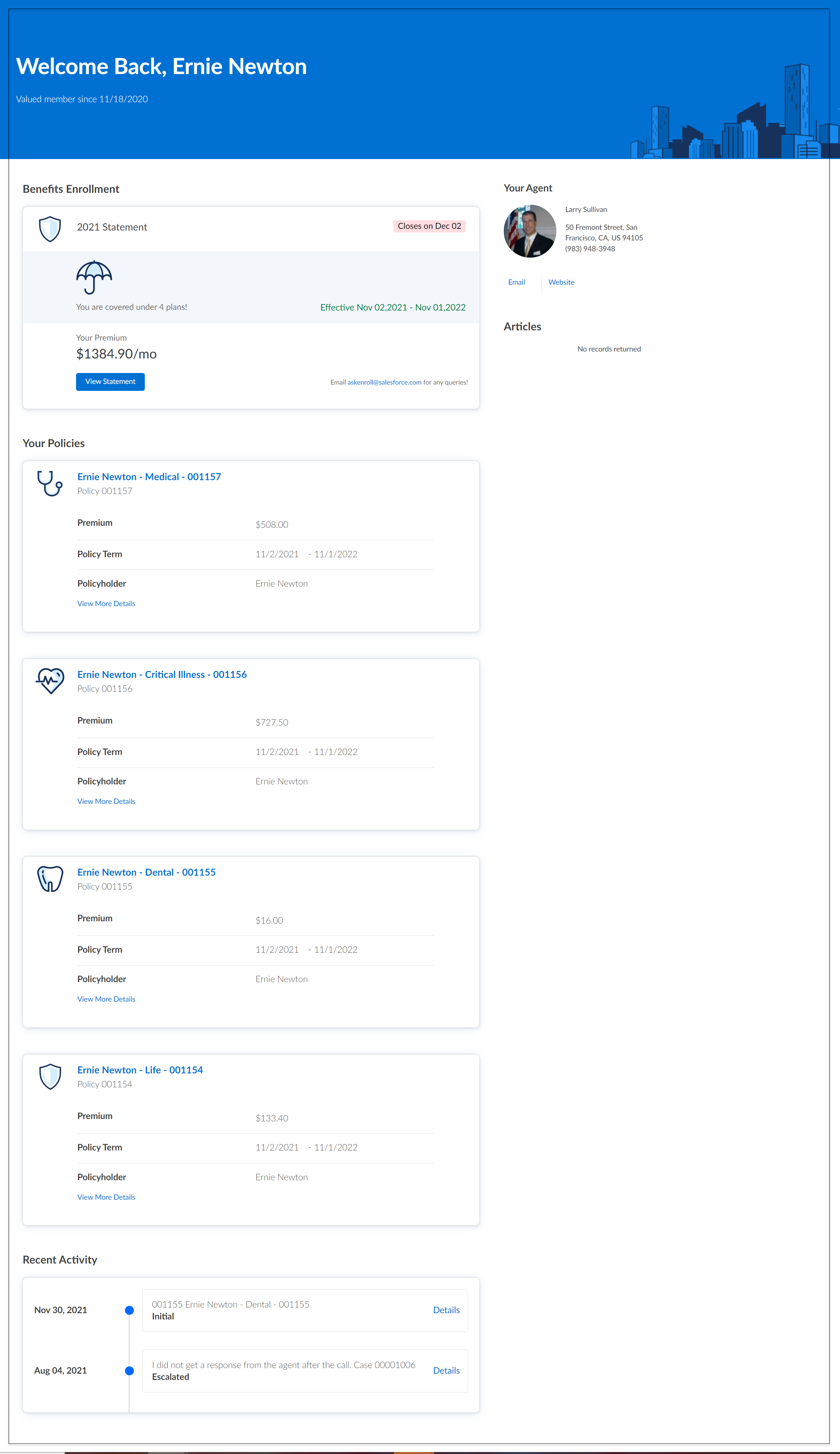
- You're done! You see a summary of your plans and monthly premium. To go back to the Home page and see your policies, click Next.
Did this article solve your issue?
Let us know so we can improve!
