You are here:
Process Dynamic Images During Client-Side Document Generation
Using image tokens in a Microsoft Word or Microsoft PowerPoint document templates, you can now insert dynamic images in generated .docx and .pdf files. With dynamic image tokens you can insert images such as product images, barcodes, pie charts in your document. An image token format is {{IMG_<imagetokenname>}}, for example, {{IMG_header}}.
Why: You can use a single image, multiple images, and loop images. Image tokens can be placed anywhere within a document template, such as in paragraphs, tables, and text boxes. Use a token in a header or footer or within a repeating content section to pass an array of images. The height and width of the images can be defined in an Omnistudio Data Mapper Transform.
Where: This feature is available to all customers (new and existing) who upgrade to Summer '22.
Who: To design document templates, users need DocGen Designer or Contract Admin permissions. To generate documents, runtime permissions are needed.
How: To insert dynamic images into a generated document, first store the images in the Salesforce org. You can store the images in Static Resources, the Files, the Documents tab, or the Notes and Attachments of an object. Create custom text fields in the object. Map the uploaded images to the custom fields using the image API names. Add image tokens in the document template, provide data mapping in the Data Mappers (Extract and Transform), and then generate the document with dynamic images.
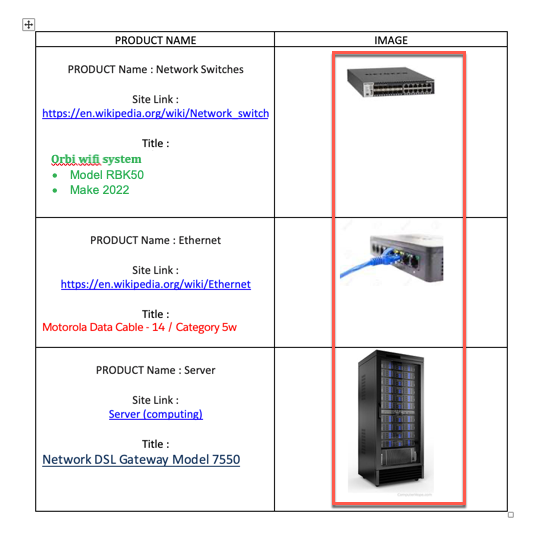
The image shows an example of a Word document with a list of products, their names, and their images. For each product, a dynamic image is inserted.