You are here:
Property Quote UI
Follow a user-friendly workflow and create a quote from the Lex console, which is built with Lightning Web Components.
All our screenshots are currently in Lightning style. Your spin may look different because it's using the Newport style in the Broker Portal and Customer Portal.
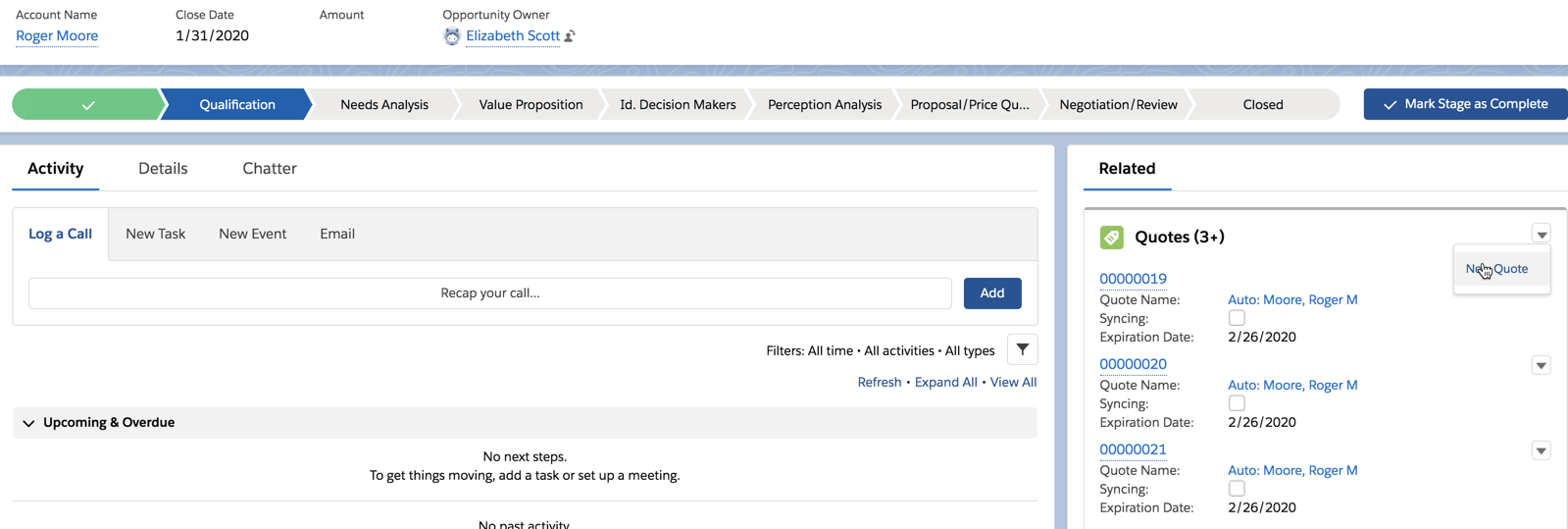
- To create a new quote, do not go to the Quote page. Instead, go to the Opportunities page and choose the Opportunity you're creating the quote for.
- On the right pane, in Quotes, click the carat and choose New Quote.
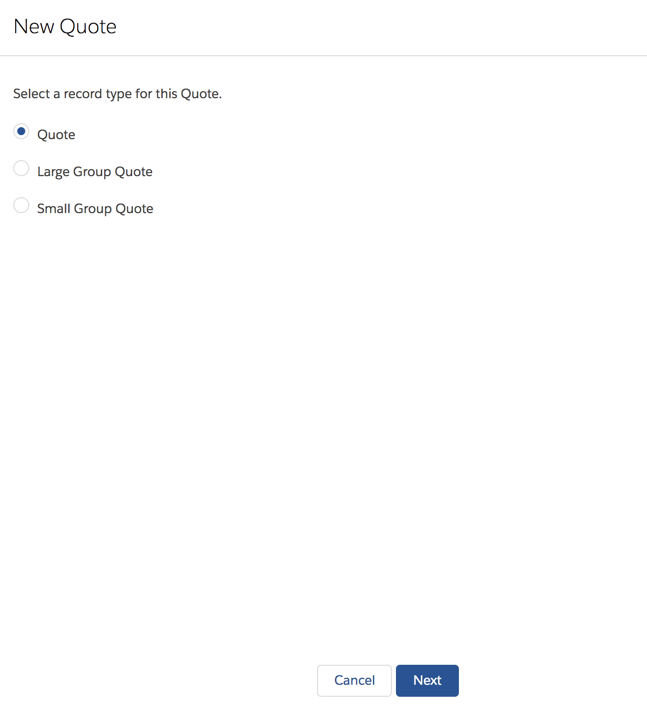
- Select Quote and click Next.
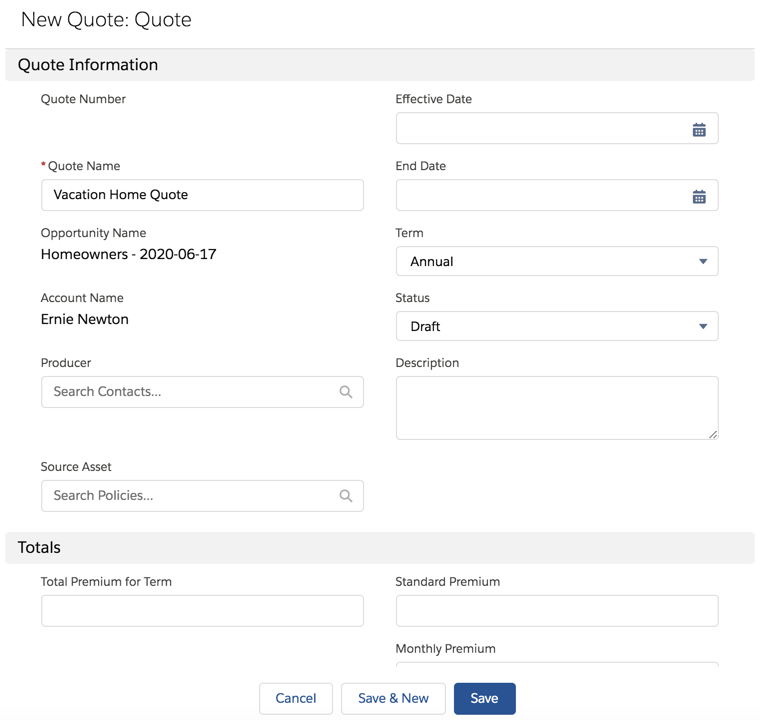
- On the New Quote: Quote window, enter a name for this quote, then click Save.
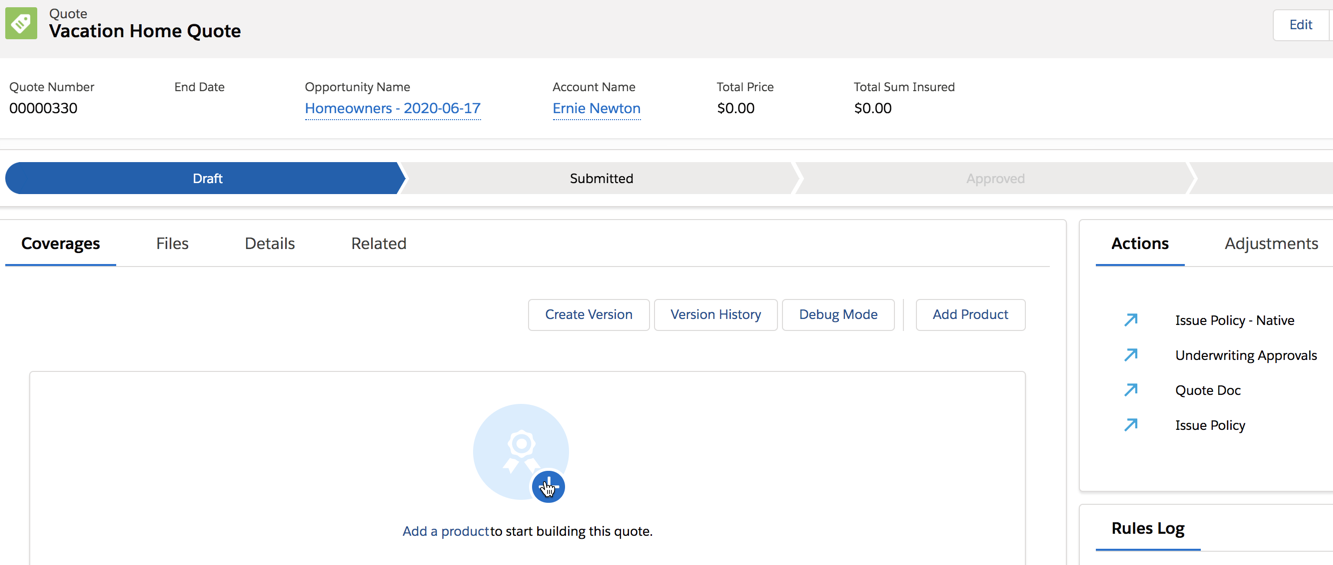
- Now, navigate to the Quote page. On the Quote list view, choose the quote you just created.
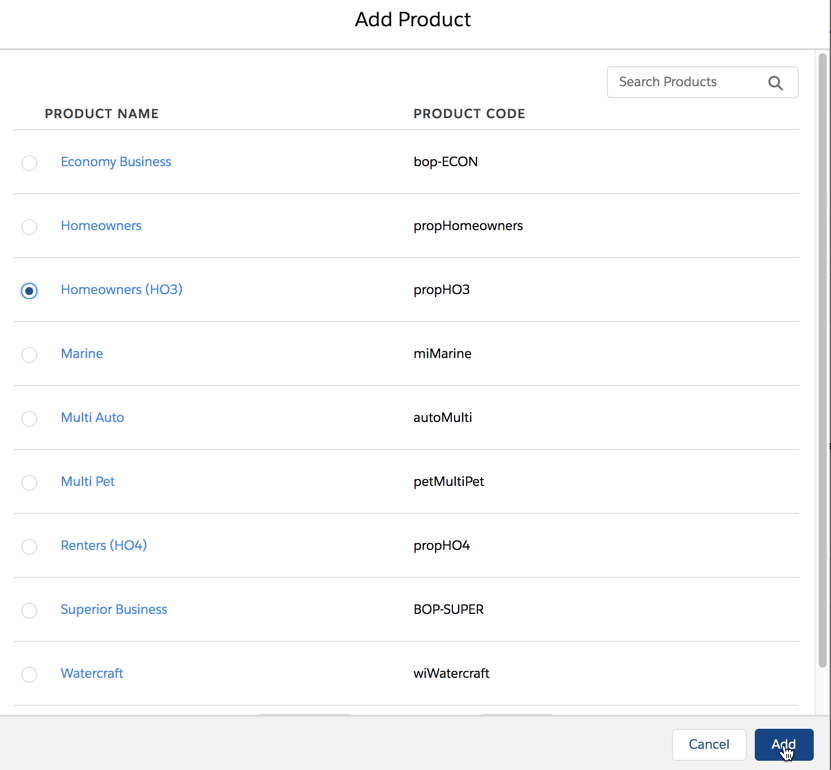
- On the Coverages tab of the quote, click Add Productto start building the structure of your quote based on a product model.
- For this example, we've selected the Homeowners product. Click Add.
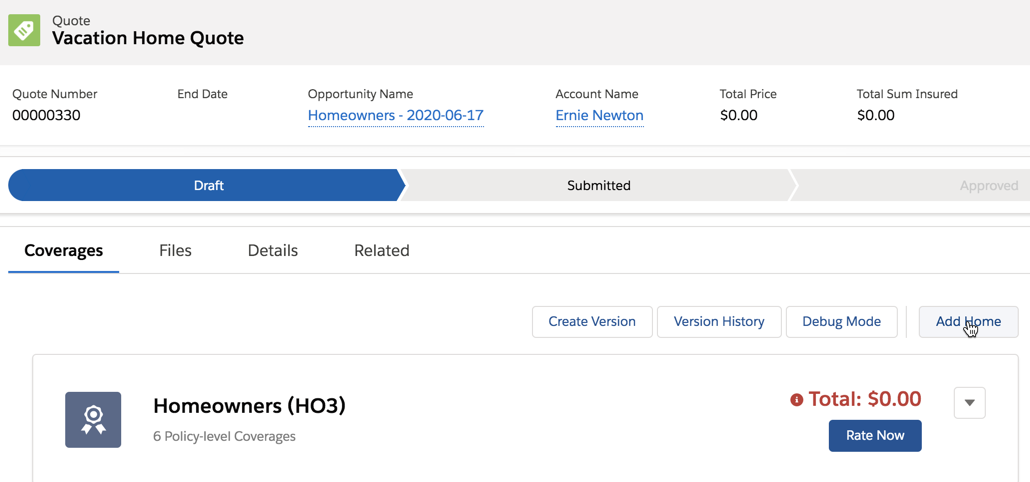
- The Homeowners insurance product appears on the Coverages tab. The premium Total is $0 and colored red because it hasn't been rated yet. But we're not rating this quote yet. First we need to add an insured item. Click Add Home.
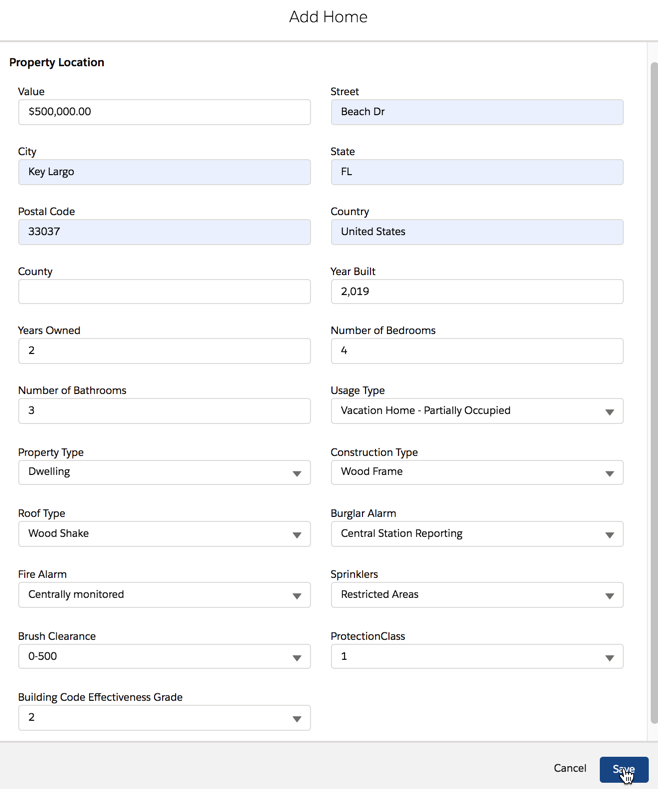
- Enter details of the property you want to insure and click Save.
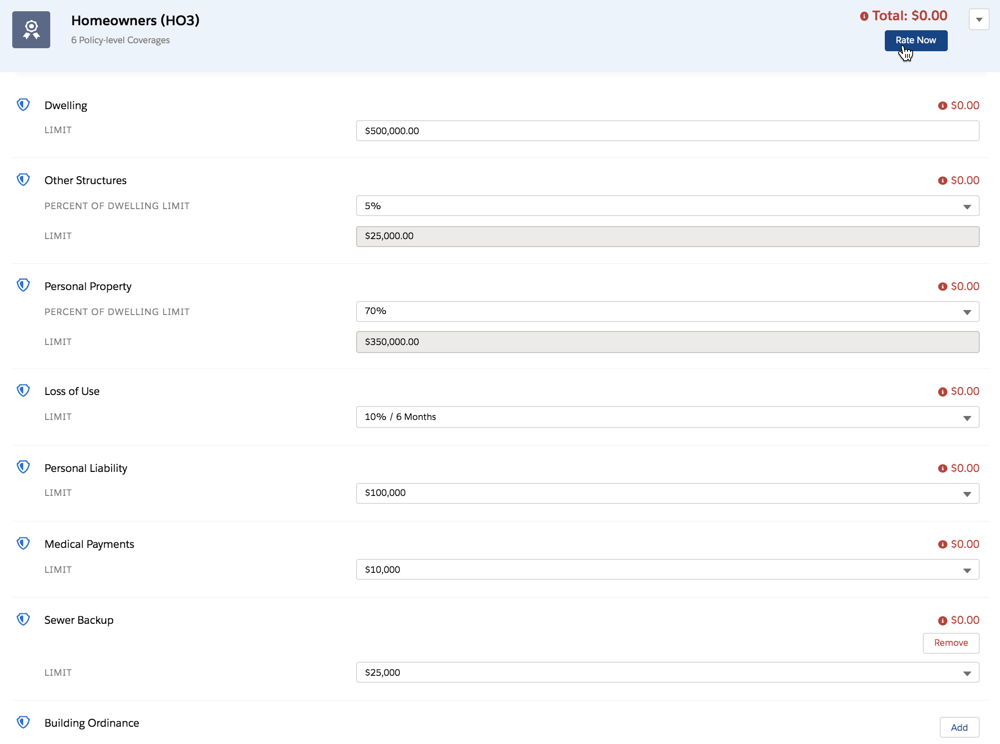
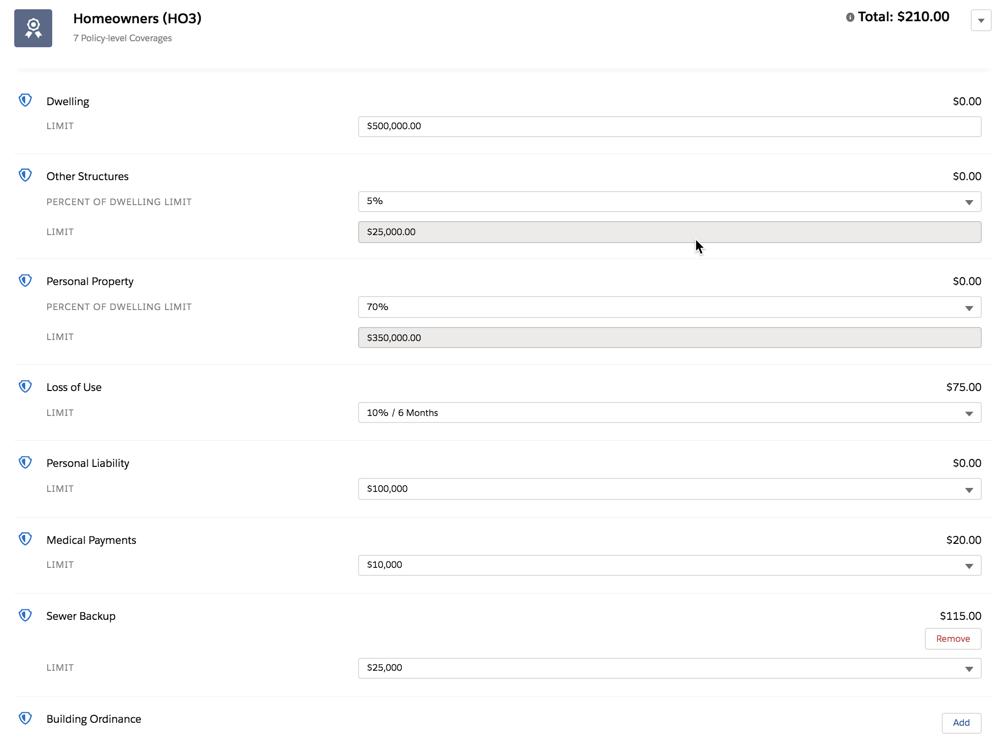
- The Home appears as a child of the Homeowners insurance product. Click the Homeowners (HO3) bar to open all the coverages for this property. You can change attribute values on required coverages, and select any available optional coverages by clicking Add.
- After you've configured coverages for the vehicle, you can click Rate Now.
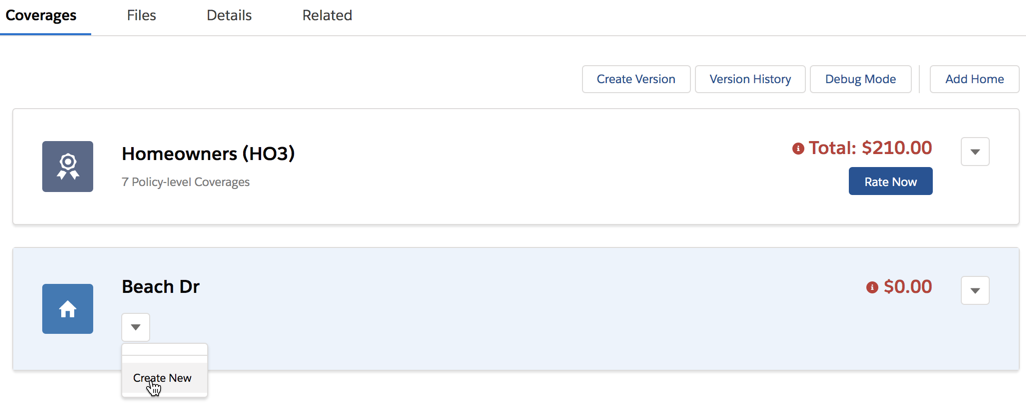
- Next, add Scheduled Items to the home. These are specific types of valuables, such as Art and Jewelry. Click the carat under the home and choose Create New.
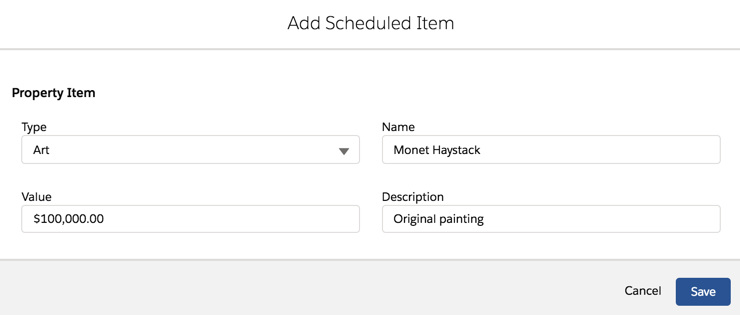
- The Add Scheduled Item form comes standard with the Vlocity Insurance Lightning Web Components.
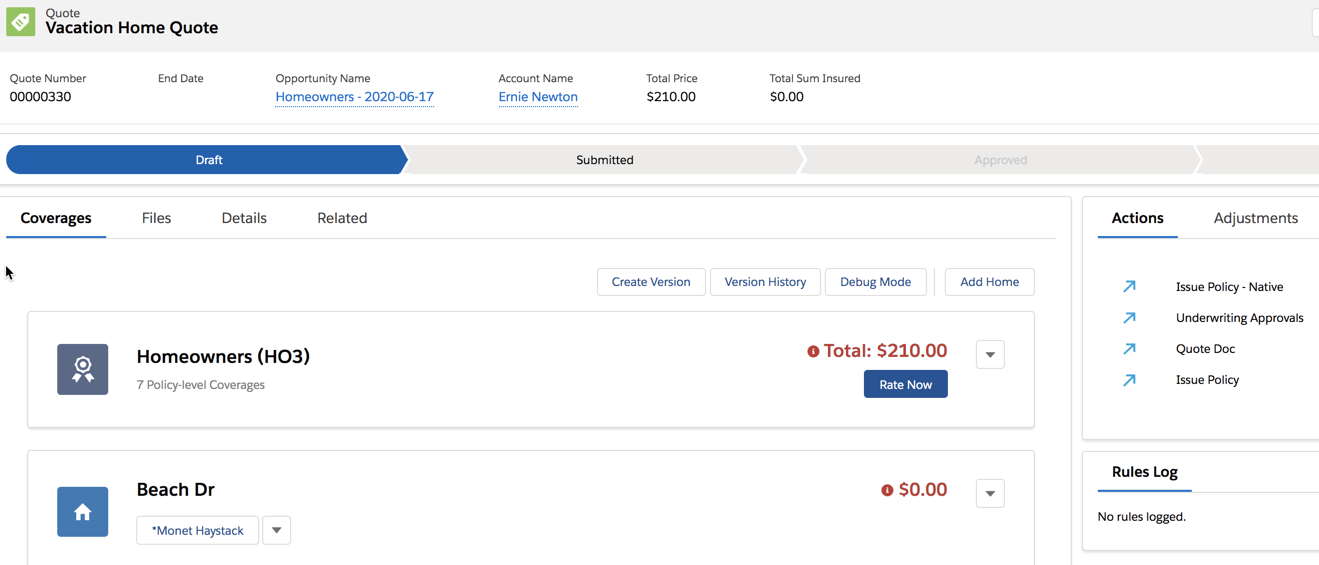
- Scheduled Items are added as children of the Home, and grandchildren of the Homewonwers insurance product.
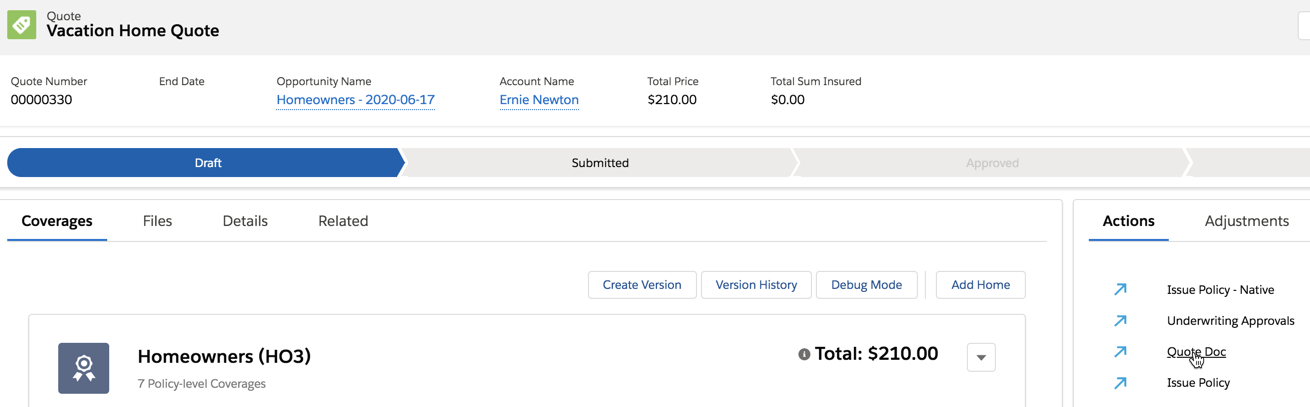
- The total premium is displayed for the quote. To email quote documents to the prospective customer, click Quote Doc on the Actions panel.

Did this article solve your issue?
Let us know so we can improve!
