You are here:
Replace a Customized LWC on an Experience Component
Some Experience components call Lightning Web Components (LWCs). If the LWC is actually part of another experience component you customized, you need to remove the old LWC and add the customized one to the FlexCard of the component you're working on.
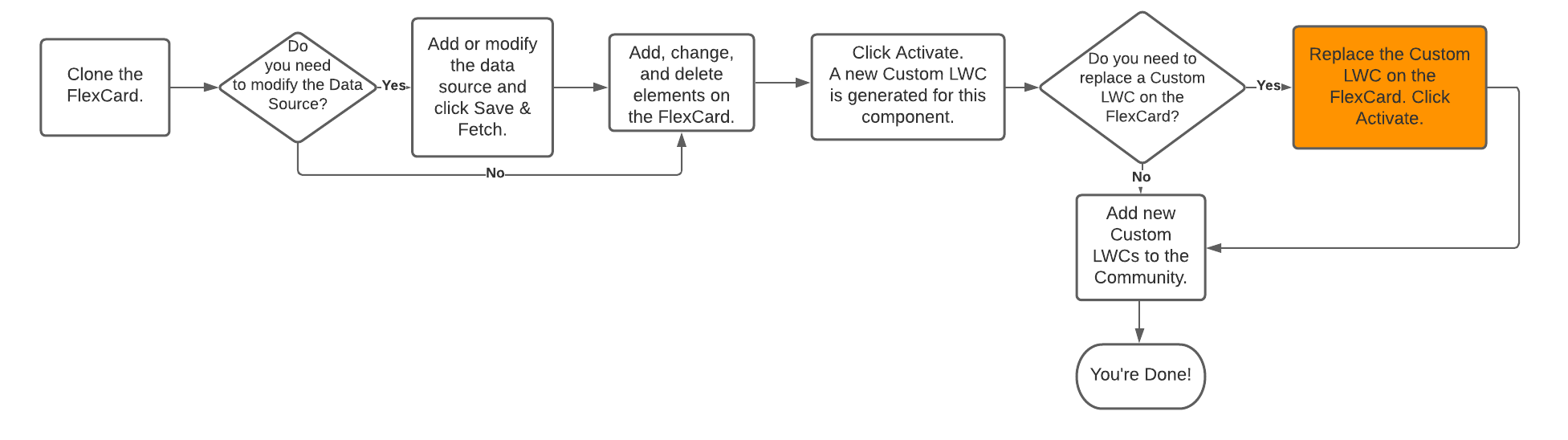
Here's where you are in the process of customizing your Experience component:
Before You Begin:
-
Deactivate and customize the FlexCard that corresponds to the Custom LWC you need. To learn how, see Customize a Component.
-
Reactivate the FlexCard so it generates a new Custom LWC.
- On the card you're working with, click Deactivate.
- On the left pane, select the Custom LWC element.
- In Custom LWC Name, click the dropdown arrow and select the LWC you want to use.
- Under Attributes, click + Add to add any key/value pairs for attributes the LWC will use.
- Click Activate.
Did this article solve your issue?
Let us know so we can improve!
