You are here:
Set Up Auto Pay
Policyholders, agents, and admin users can set up automatic payments from the Lex Console.
-
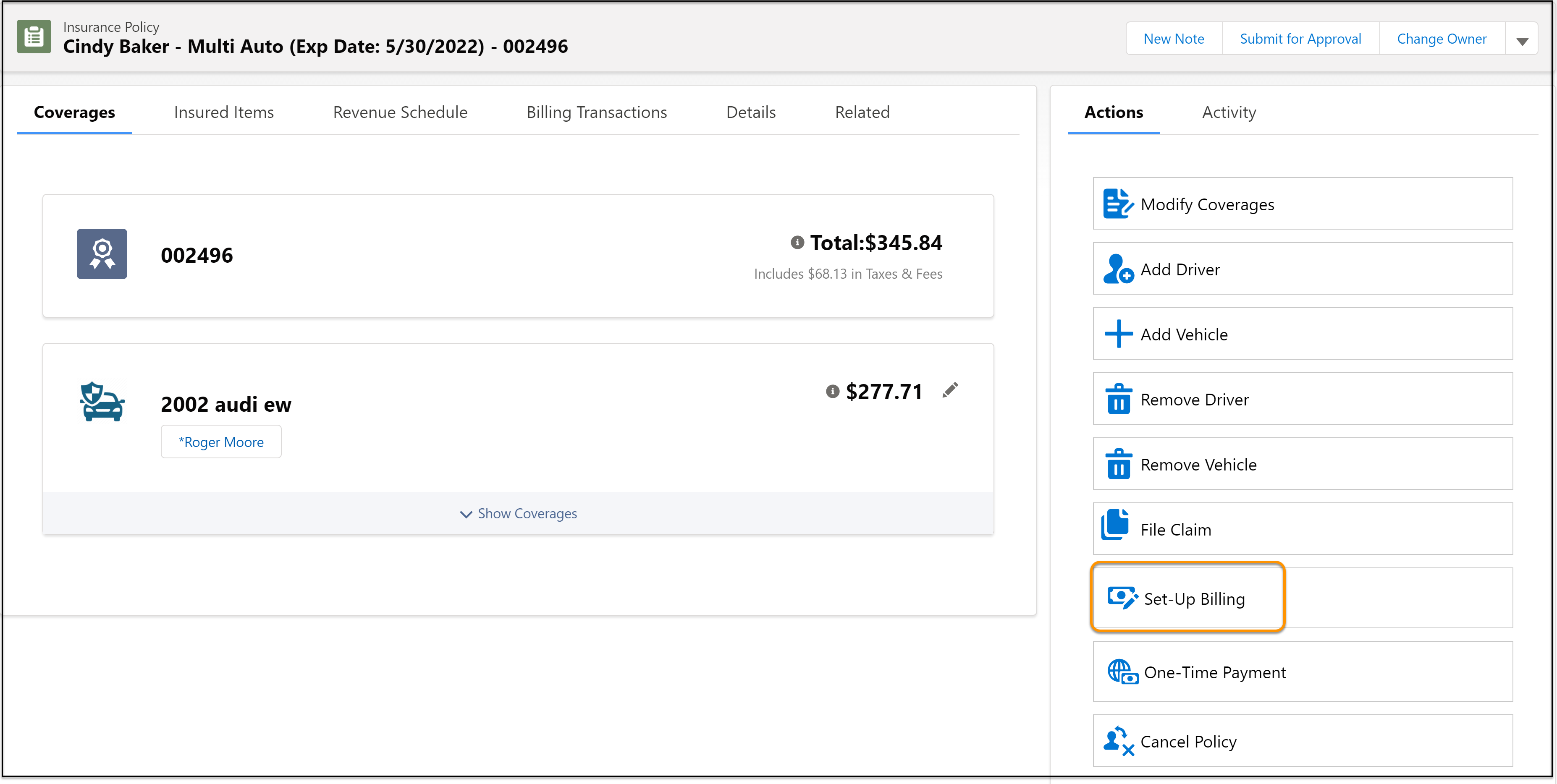
Open the policy that you want to set up direct billing for and from
Actions, click Set-Up
Billing.
-
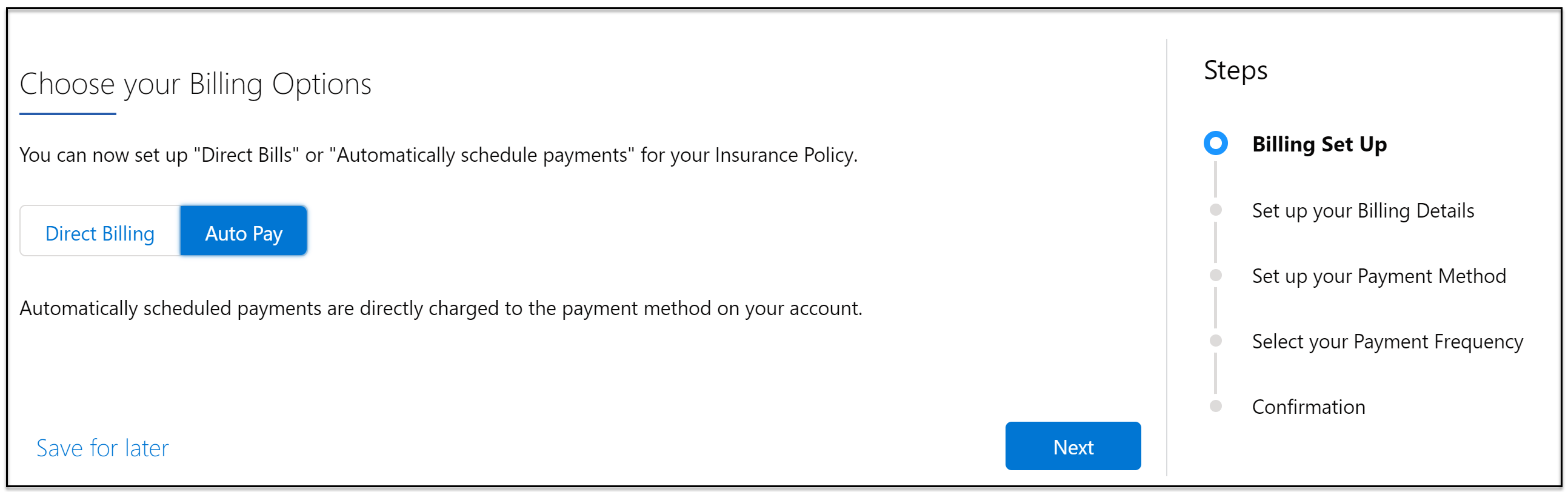
Select Auto Pay and click
Next.
-
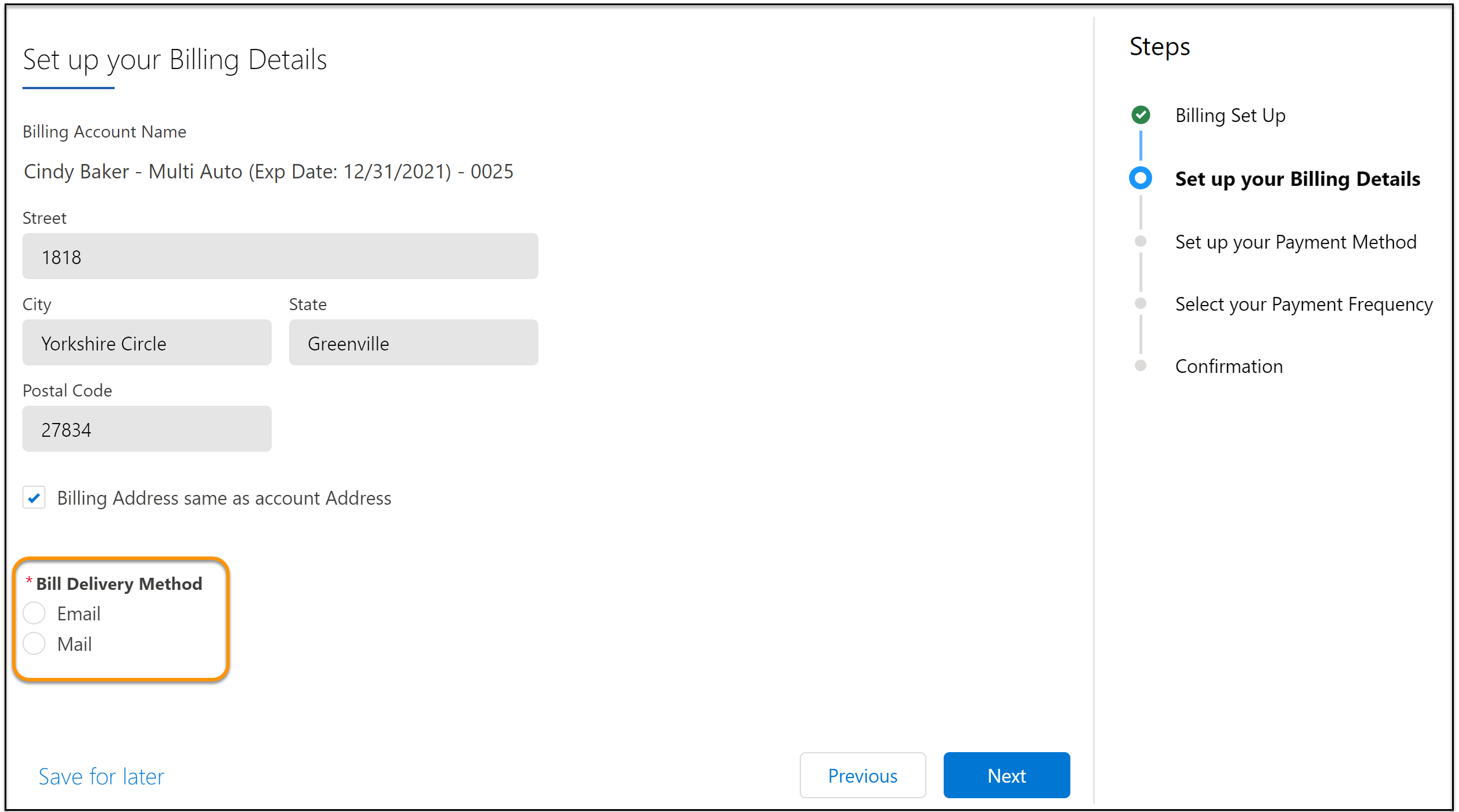
Select the bill delivery method and click
Next.
-
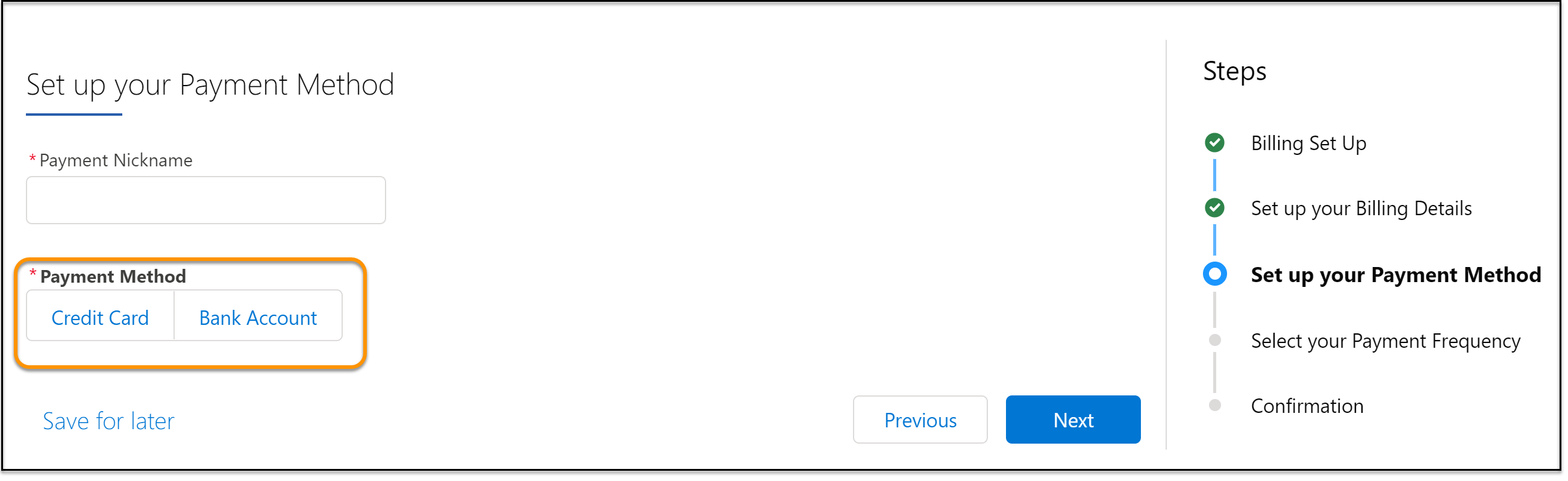
Now, select your payment method and click
Next.
-
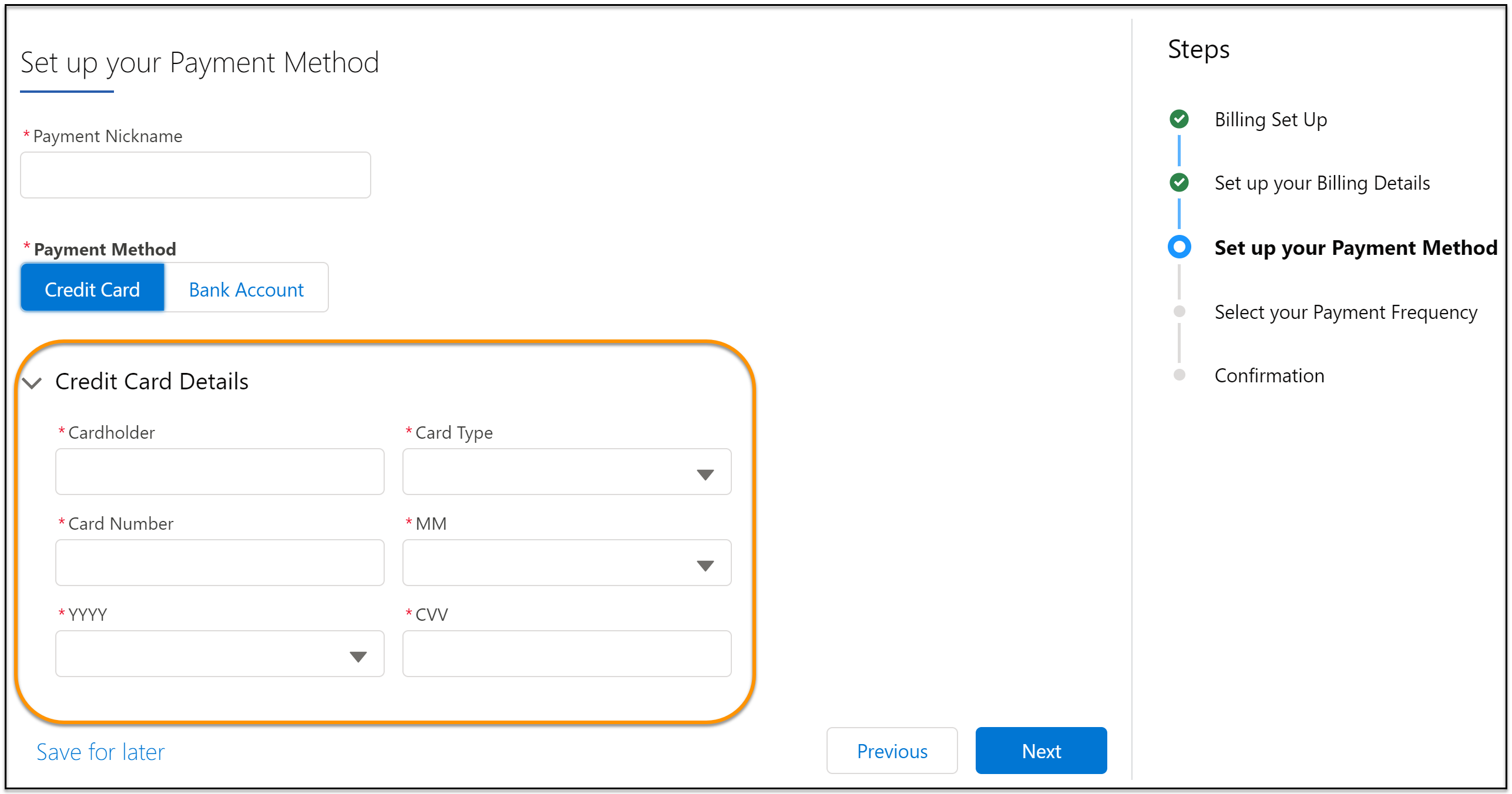
Depending on the option you selected, enter the payment details. For
this example, we've selected Credit Card.
-
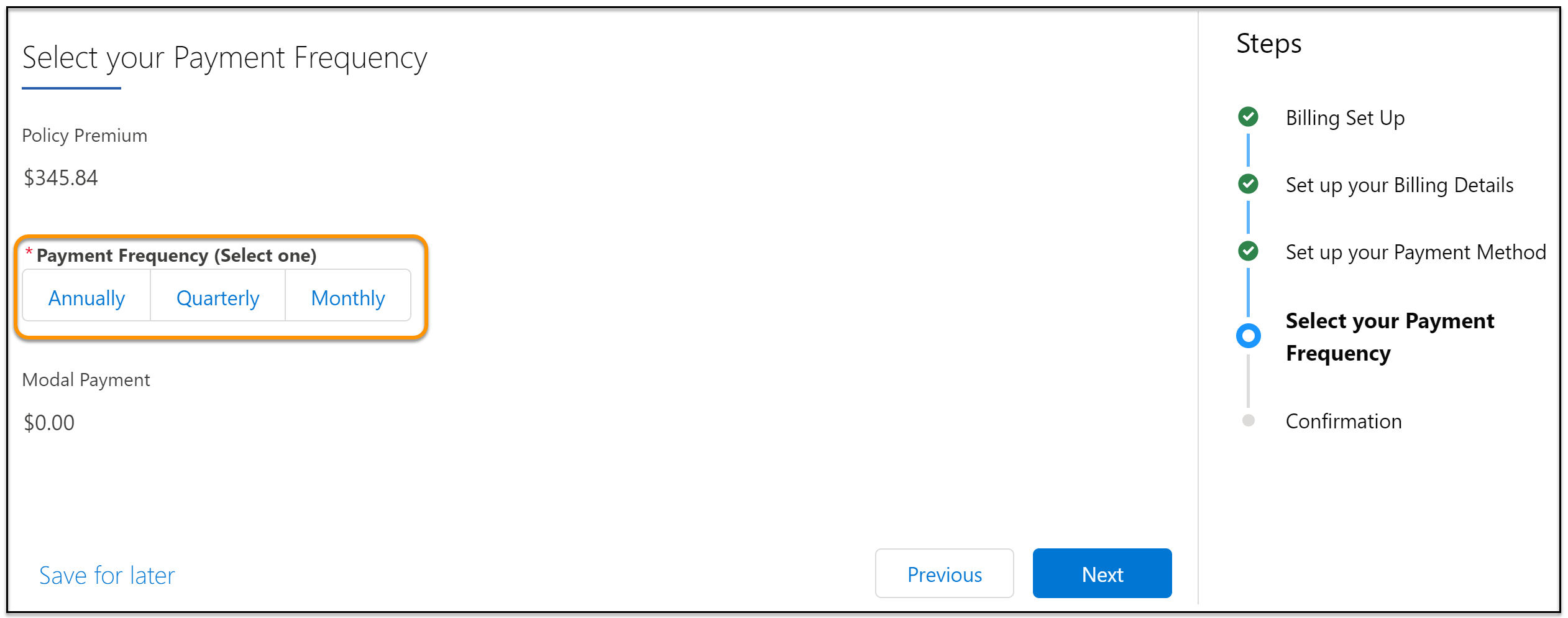
Select a payment frequency and click Next.
-
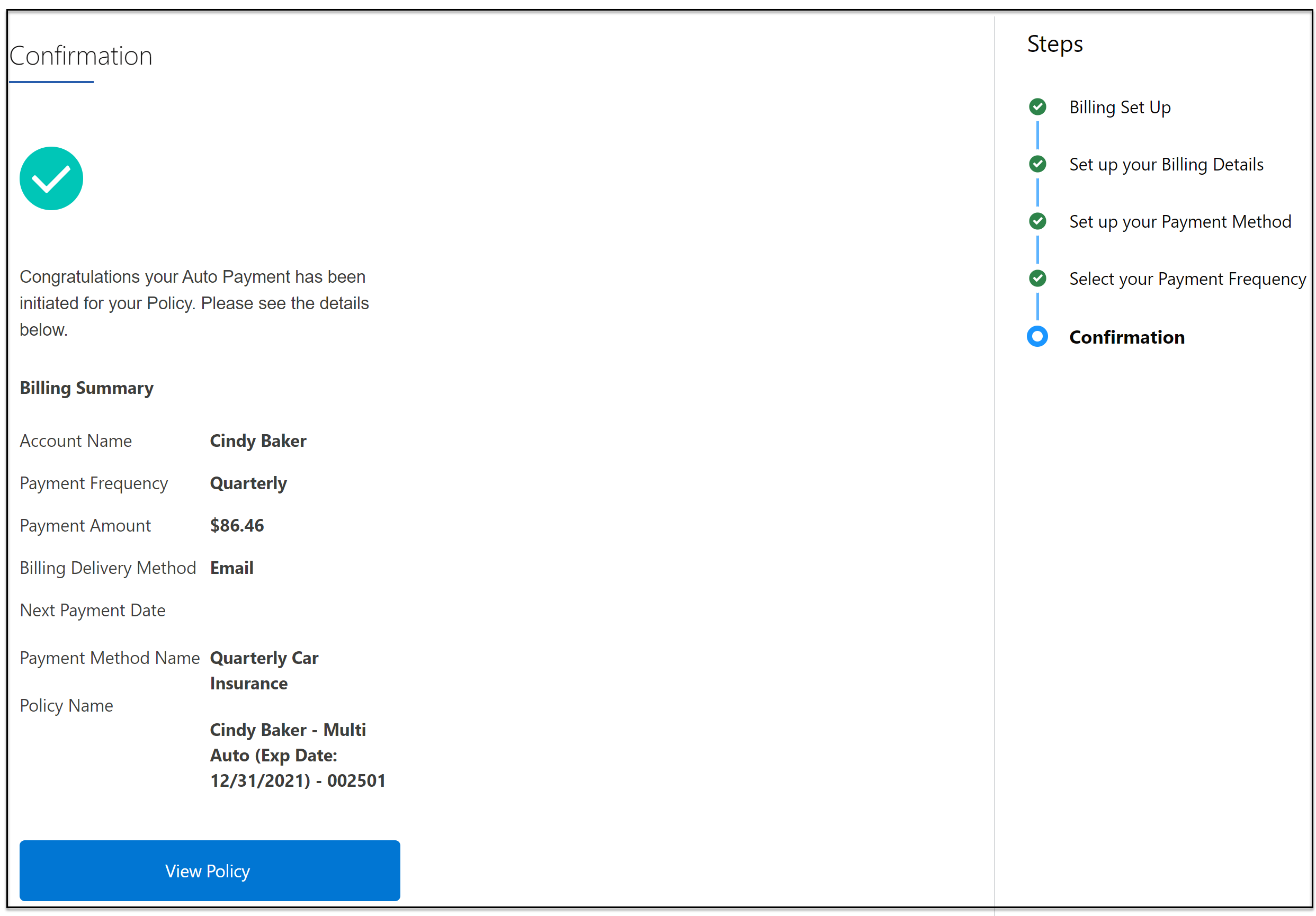
That's it! You see a confirmation that direct billing has been
approved. To see your policy, click View
Policy.
Did this article solve your issue?
Let us know so we can improve!
