You are here:
Customize a Component
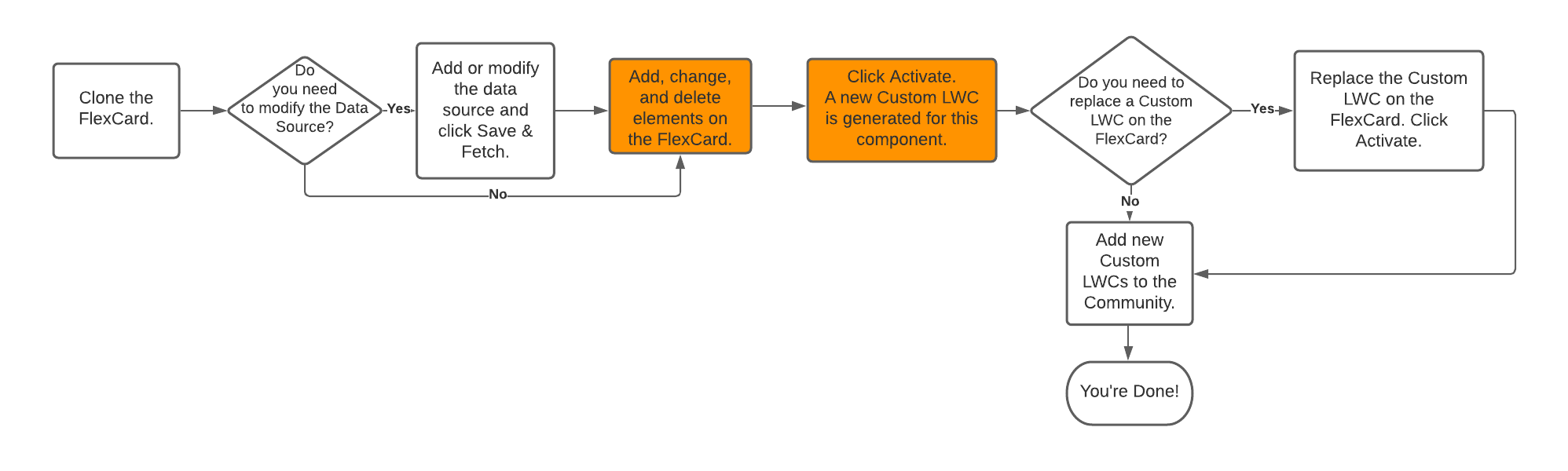
To customize an Experience component, you can make changes to the FlexCard for that component. Changes can include adding elements, making changes to the existing element, and removing elements.
The highlighted area in this flow shows where you are in the process of customizing Experience components:

Tip
This is a good way to brand the Experience site with your company fonts, colors, and logos.
- From the FlexCard Designer list view, open the card you want to customize if it's not already open.
-
If the card is set to Active along the top right above the card, click
Deactivate.
If the card is already deactivated, skip this step.
- Make whatever changes you need to the card.
- After you've made and reviewed all your changes, click Activate.
- Add Namespace to Images on Header Components
For components that include background images, such as Policyholder site Header components, you need to add your namespace to the FlexCard to make the images show up. Here's how:
Did this article solve your issue?
Let us know so we can improve!
