You are here:
Insurance Account Asset Record Header Component
This component shows brokers a snapshot of data about the asset-based policy they're looking at.
-
FlexCard: insAccountAssetHeader
-
LWC: cfInsAccountAssetHeader
-
Master Label: Insurance Account Asset Record Header
Here's what the Policy (Asset) Record Header component looks like when it's rendered in the Broker site:

-
Policy icon.
-
The name of this policy.
-
The account name attached to this policy.
-
The effective date of this policy.
-
The type of policy.
-
The total premium for this policy.
-
Weather information at the policyholder's location.
-
Status of this policy.
-
Map showing this policyholder's location.
FlexCard Structure
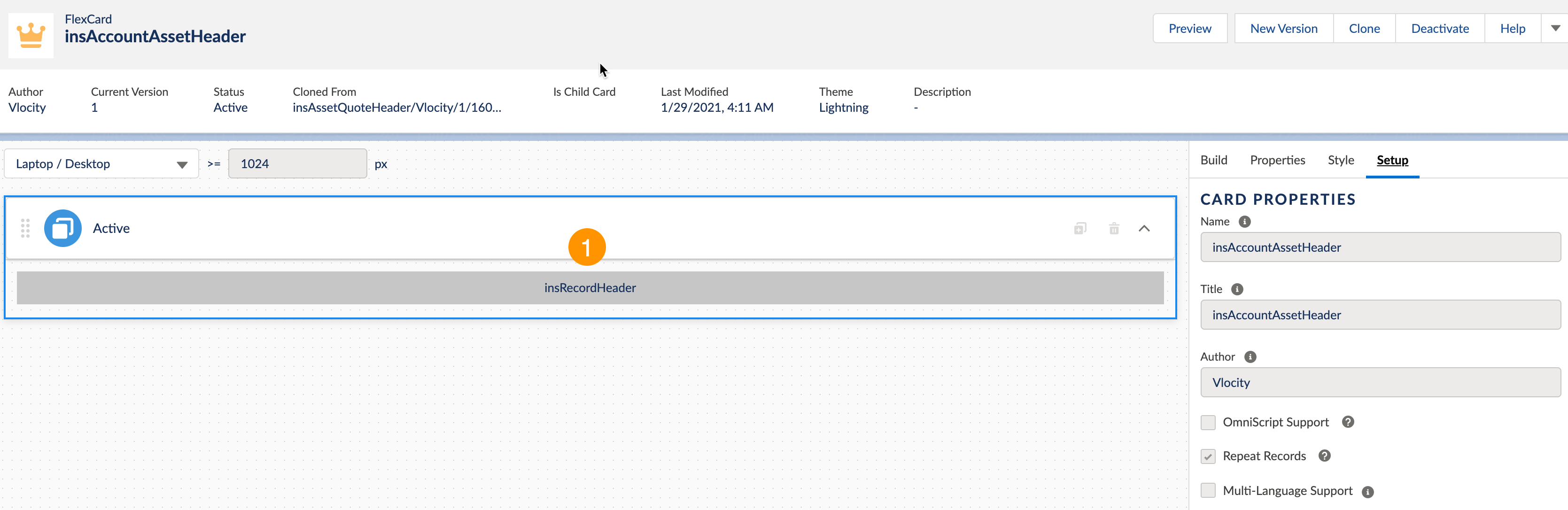
-
insRecordHeader Custom LWC
This LWC structures data pulled from the record by the data source and adds the weather component from Google.
Data Sources Called by this Component
This component calls an Integration Procedure named InsRecordHeaderAsset_getDetails as its data source.
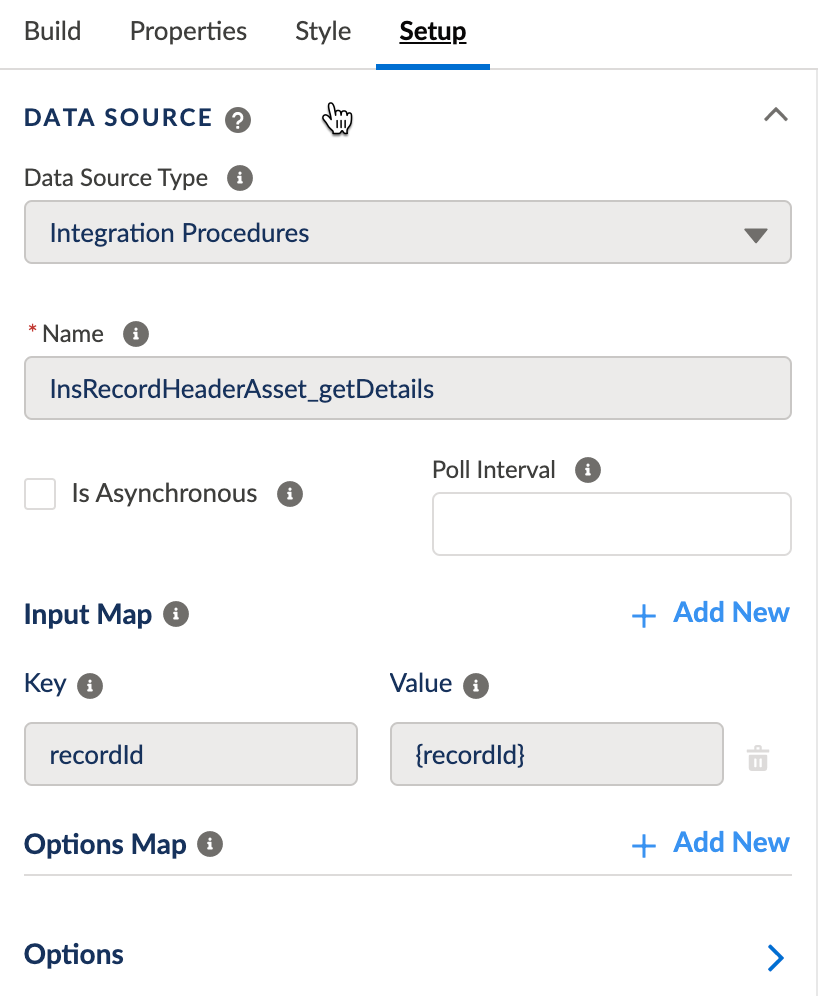
If you want to change what data is pulled into the Policy Record Header, you can open and make changes to this Integration Procedure.
The JSON output of this Integration Procedure looks like this:
{
    "recordImage": "https://url.to/companylogo.jpg",
    "recordName": "Edge Communications",
    "fallbackIcon": "standard:account",
    "backgroundImage": "https://maps.googleapis.com/maps/api/staticmap?center=Salesforce%20Tower&size=400x300&key=API_KEY",
    "fields": {
        "Address": "123 Front St. San Francisco, CA 94040",
        "Lead Agent": "Aaron Smith",
        "Client Phone": "(512) 757-6000",
        "Total Premium": "$3,100.00",
        "Total Commission": "$425.00"
    },

    "weather": {
        "icon": "http://openweathermap.org/img/wn/10d.png",
        "description": "Sunny",
        "temperature": 75
    },

    "status": {
        "value": "Active",
        "fontColor": "#0070d2",
        "backgroundColor": "#b0c4df"
    }
}
Customize this Component
To learn about how to customize this kind of component, see the Digital Experience Site Component Customization Overview
- Change the API Keys for Google Map
You'll probably need to change the API key for the Google Map and weather objects on this component. You do this in the Integration Procedure.
