You are here:
Take Action on Expense Payments
A claims adjuster can pay, edit, or delete expense payment details for a coverage.
- On a claim, click the Financials tab, and then expand the coverage with the expense item to edit.
-
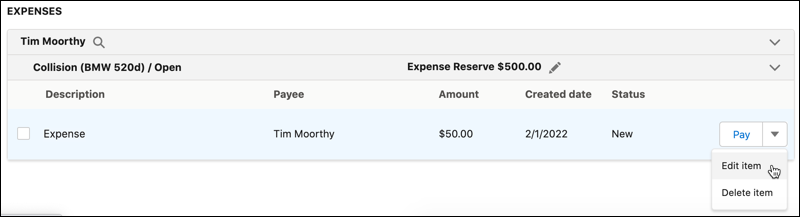
Take action on one or more expenses.
For a single item, click Pay to pay the expense.
Or click the action dropdown and:
-
Select Edit to change expense details.
-
Select Cancel to cancel the payment. After you cancel a payment, the only available action is Delete.
-
Select Delete to remove the expense from your org.
To pay many expenses at once, select them manually or click Select All Payable Items in the dropdown menu at the top of the tab. Make sure only expenses are selected, then click Pay from the same dropdown menu to pay them. Other actions available in the top dropdown menu are those that apply to all selected payment details based on status.
After you take action, the expense item status changes to reflect the next step in the financial workflow. For example, status can change from New to Pending Authority, or from Authority Approved to Paid.
-