You are here:
Take Action on Loss Payments
A claims adjuster can choose from a full slate of financial actions, from initial payments, through approval processes and payment issuance, to payment cancellations.
- On a claim, click the Financials tab, and then expand the coverage with the loss item to process.
-
Take action on one or more losses.
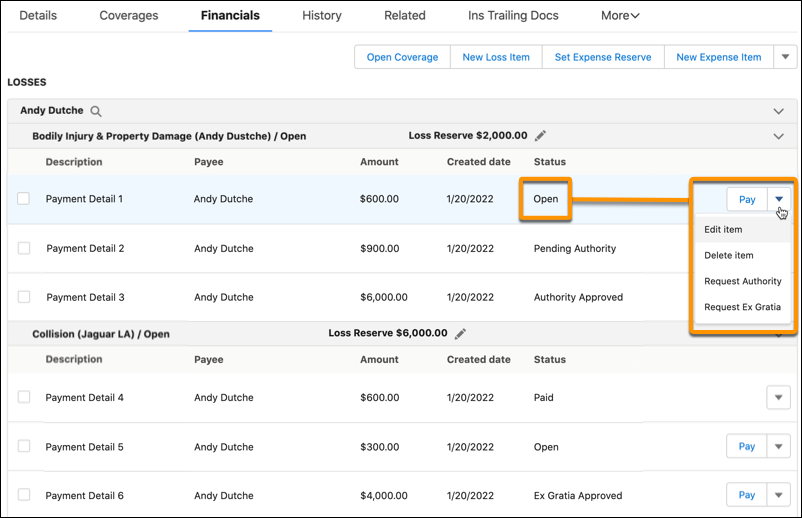
For a single item, click Pay or select a different action from the dropdown menu. You can choose from a list of payment actions tailored for each status. For payment cancellations, offsetting tracking entries effectively remove the payment from claim financials and policy term standings.
Don't edit the Coverage field if adjustments have already been made and saved, because this can corrupt the policy term data. To associate the loss item with a new coverage, delete the existing Claim Coverage Payment Detail (CCPD) record and create one.
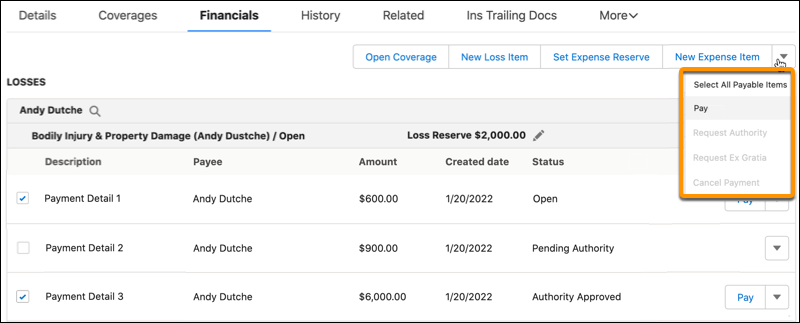
To pay many losses at once, select them manually or click Select All Payable Items in the dropdown menu at the top of the tab. Make sure only losses are selected, then click Pay from the same dropdown menu to pay them. Other actions available in the top dropdown menu are those that apply to all selected payment details based on status.
After you take action, the payment detail status changes to reflect the next step in the financial workflow. For example, status can change from Open to Pending Authority, or from Authority Approved to Paid.
 Note
NoteIf any coverage limit is exceeded without ex gratia approval, the page shows an error and none of the selected items get paid. For details about ex gratia configuration, see Configure the Request Ex Gratia Payment Action.