You are here:
Update the Experience Site CSS
Update the Experience site CSS to ensure that buttons and links display correctly.
The highlighted area in this flow shows where you are in the process of setting up your Experience site:

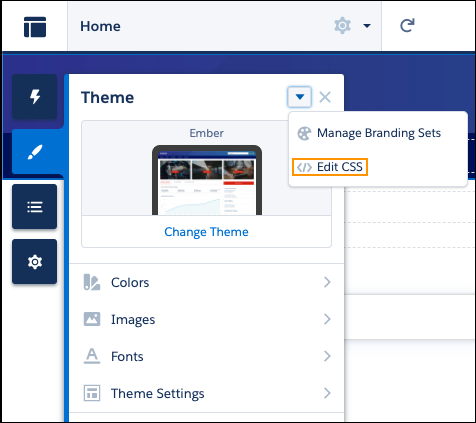
- On the Experience Builder page, click the Theme button on the left side of the screen.
- Select </> Edit CSS from the dropdown menu.
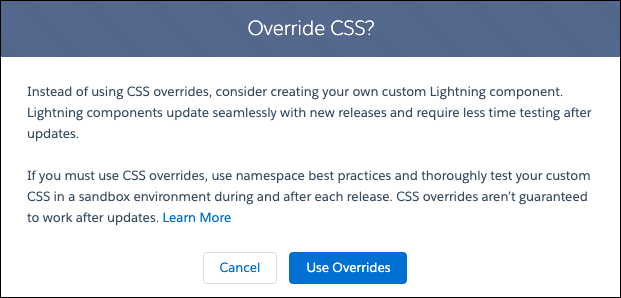
- Click Use Overrides in the Override CSS? window.
-
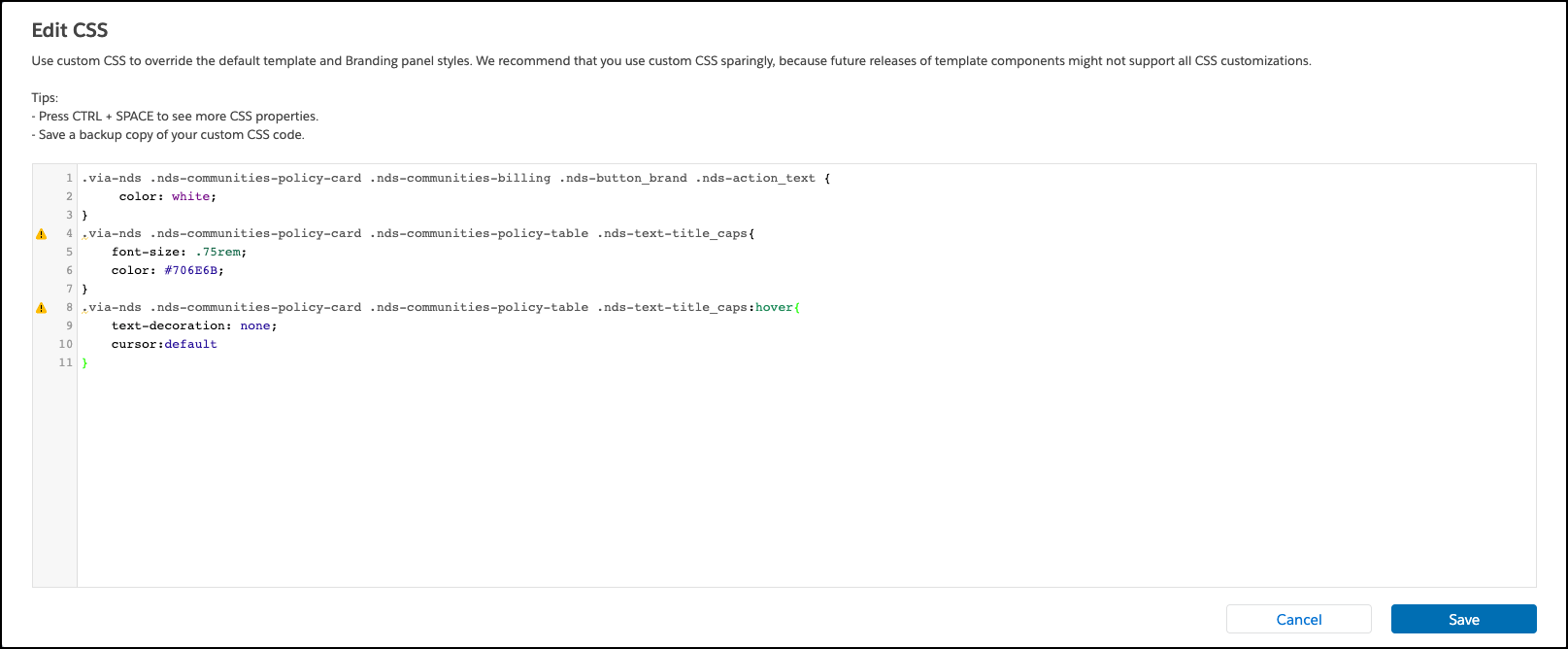
Paste this custom CSS into the Edit CSS window:
.via-nds .nds-communities-policy-card .nds-communities-billing .nds-button_brand .nds-action_text { color: white; } .via-nds .nds-communities-policy-card .nds-communities-policy-table .nds-text-title_caps{ font-size: .75rem; color: #706E6B; } .via-nds .nds-communities-policy-card .nds-communities-policy-table .nds-text-title_caps:hover{ text-decoration: none; cursor:default } - Click Save.
Did this article solve your issue?
Let us know so we can improve!
