You are here:
Record Count of a Data Processing Engine Node
Use the Data Processing Engine Debug app to plan where to add the debug nodes in a Data Processing Engine definition, to add the debug nodes, to download the modified definition, and to view the number of records that go through the nodes.
Required Editions
| Available in: Enterprise, Unlimited, and Developer Editions |
This example shows how you can use the Data Processing Engine Debug app.
Understand the Requirements
Acme Partners is a manufacturing company that uses rebate programs to incentivize partners for their repeat business with the company. It uses the Data Processing Engine (DPE) to aggregate transactions for rebate payouts. The admin at Acme Partners has cloned and customized the Aggregate by Member DPE template to create a definition. The DPE definition aggregates transaction data for each member by rebate type and payout period.
To verify if the transaction data is accurately processed by the DPE, the admin wants to verify the count of records in some nodes. They use the Data Processing Engine Debug app to track the count of records for different nodes.
Plan Where to Add Debug Nodes
To plan where to add the debug nodes in a DPE definition, the admin can view its visual representation or check its list of nodes. The admin decides to visualize the Acme Partners Aggregate by Member DPE definition.
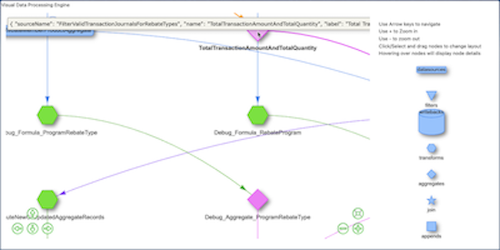
After the admin explores the nodes of the definition and their connections, they choose to add debug nodes to count the number of records that pass through these nodes:
- Transaction Journal (Data Source node type)
- Total Transaction Amount And Total Quantity (Group and Aggregate node type)
Add the Debug Nodes to the Data Processing Engine Definition
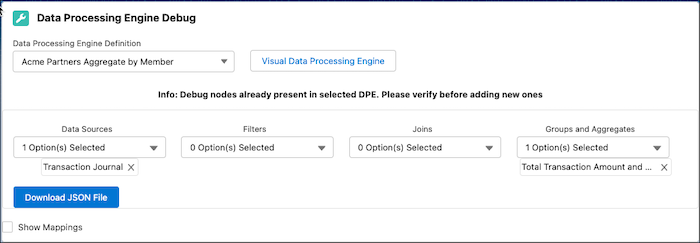
Here’s how the admin adds the debug nodes to the DPE definition and downloads the modified definition. On the Data Processing Engine Debug tab, they specify:
- Data Processing Engine Definition: Acme Partners Aggregate by Member
- Nodes to which they add a corresponding debug node:
- Transaction Journal (Data Sources node type)
- Total Transaction Amount And Total Quantity (Groups and Aggregates node type)
They download the JSON file of the modified DPE definition.
Upload the Data Processing Engine Definition and Run It
The admin uploads the modified JSON file of the DPE definition that contains the debug nodes in the DPE builder.
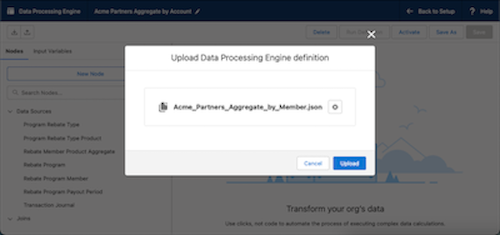
They activate the DPE definition and run it by using the Rebate Orchestration 2 flow.
View the Node Metrics
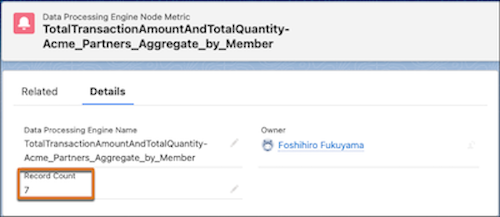
After the DPE definition is run, the admin can view the count of records that pass through the nodes that the debug nodes were associated with. They open the record for the Transaction Journal node and see that 25 records passed through it.
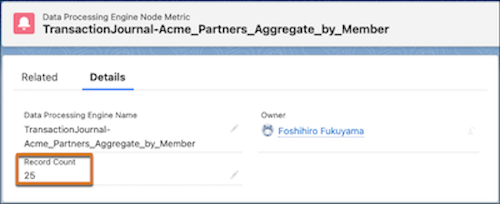
Then, they open the record for the Total Transaction Amount and Total Quantity node and see that seven records passed through it.