You are here:
Create a Connected App for Object Hierarchy Mapping
Create a connected app after you install the Object Hierarchy Mapping package.
Required Editions
| Available in: Enterprise, Unlimited, and Developer Editions. |
| User Permissions Needed | |
|---|---|
| To create a connected app: | Customize Application AND either Modify All Data OR Manage Connected Apps |

Note Connected apps creation is restricted as of Spring ‘26. You can continue to use existing
connected apps during and after Spring ‘26. However, we recommend using external client apps instead. If you must continue
creating connected apps, contact Salesforce Support.
See New connected apps can no longer be created in Spring ‘26 for more details.
- From Setup, enter External Client Apps in the Quick Find box, then select Settings in the External Client App section.
- Click New Connected App.
-
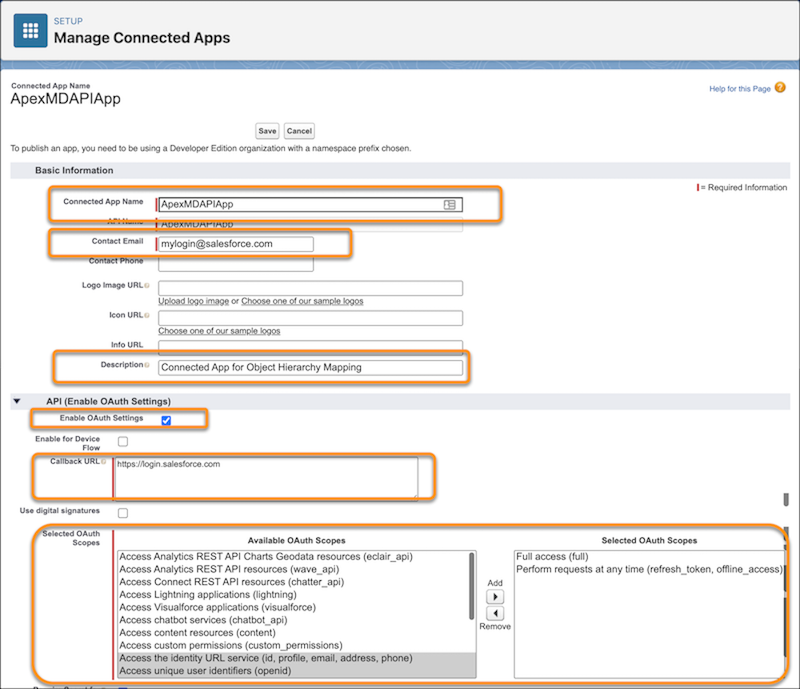
Create a connected app.
- For Connected App Name, enter ApexMDAPIApp.
- For API Name, press Tab to populate the name.
- For Contact Email, enter your email address.
- For Description, enter Connected App for Object Hierarchy Mapping.
- Select Enable OAuth Settings.
-
For Callback URL, enter https://login.salesforce.com as a
placeholder for now.
We’ll change this later.
- For Selected OAuth Scopes, select and add Full access (full) AND Perform requests at any time (refresh_token, offline_access).
- Click Save and Continue.
-
Click Manage Consumer Details.
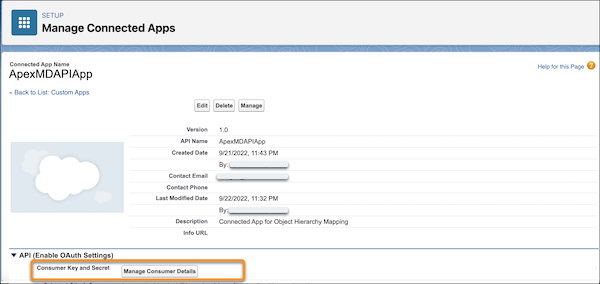
- Enter the verification code sent to your registered email address and click Verify.
- Make a note of the Consumer Key and Consumer Secret. These details are used to update the authentication provider for the connected app.
See Also
Did this article solve your issue?
Let us know so we can improve!
