Loading
 Experience Cloud – Feature Degradation on Lightning Web Runtime SitesRead More
The Trailblazer Community is now read-only Read More
Create an Action Plan Template for Distributor Visits

Create an Action Plan Template for Distributor Visits

An action plan contains a set of tasks to be performed during a visit. An action plan template is a reusable list of commonly or frequently performed tasks. Sales managers can create an action plan template that contains commonly performed tasks, and can use the template to create action plans for multiple visits. For example, you can create an action plan template for quarterly distributor visits and add a few typical tasks such as conducting a survey, reviewing the last quarter’s finances, and pitching the sale of a new product. Then, you create an action plan for distributor visit using the action plan template.
Required Editions

Available in: Enterprise, Unlimited, and Developer Editions
User Permissions Needed
To create action plans:
  • Partner Visit Management permission set
  • Create access on Action Plan Template
  1. From the App Launcher, find and select Action Plan Templates, and then click New.
  2. Enter a name and a description for the template.
  3. For Target Object, select Visit.
  4. For Action Plan Type, select Assessment Execution.
  5. Select the checkbox Let users add items to action plans if you want reps to add tasks while on a visit.
  6. Click Save.
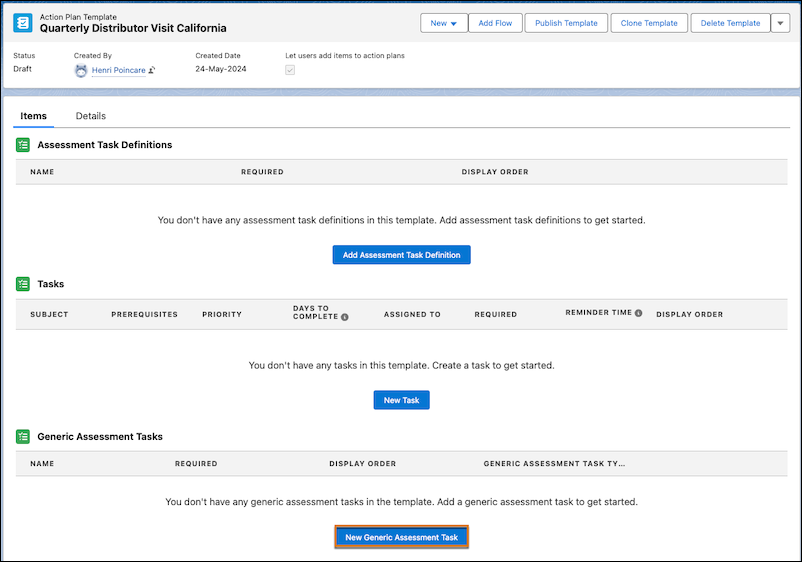
  7. Click New Generic Assessment Task.
    An action plan template
  8. Select Is Required if you want to make the task mandatory to perform.
  9. Enter a value for Display Order.
    Note
    Note The display order is the sequence to perform tasks in a visit. Each task gets a positive and unique value. When the action plan template is added to a visit, field reps assigned to the visit can see the tasks sequenced according to the display order. If the display order value isn’t entered, the tasks are sorted in alphabetical order. But if the display order is entered for only a few tasks, then the tasks with undefined display order are sorted in alphabetical order and appear at the top of the task list, followed by the defined tasks. If field reps create tasks while on a visit, then the newly created tasks are displayed at the end of the task list.
  10. Save your changes.
  11. Click Publish Template to activate it.

Create an action plan for a visit using the action plan template.

 
Loading
Salesforce Help | Article
