Compare Targets and Actuals with Generic Visit Key Performance Indicators
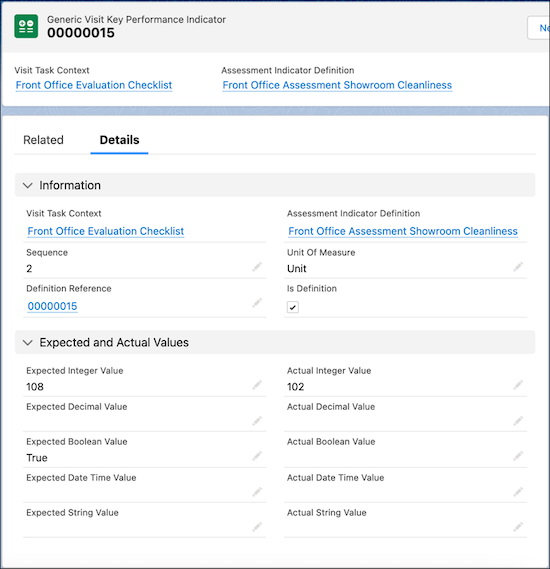
Create Generic Visit Key Performance Indicator records to associate an assessment
indicator definition to a visit task context. These records help sales managers compare expected
versus actual values for metrics captured for a particular task.
Required Editions
Available in: Enterprise, Unlimited, and Developer
Editions.
User Permissions Needed
To create generic key performance indicators:
Partner Visit Management permission set
Create access on Generic Visit Key Performance Indicator
For example, a visit task context Sales Agreement Renewals can be associated with an
assessment indicator definition Number of Sales Agreements to Renew. The sales manger can review
the sales agreements with a specific partner account that are expected to be renewed in the next
six months and define the expected value. During the visit, a field rep can check with the
distributor and capture the actual value based on how many the dealer wants to actually renew.
The sales manger can find this information for both expected and actual values on a Generic
Visit Key Performance Indicator record and take next steps.
From the App Launcher, find and select Generic Visit Key Performance
Indicators, and then click New.
Search for and select a Visit Task Context record.
Search for and select an Assessment Indicator Definition
record.
Based on the field type of the assessment indicator, define the Expected
Value.
Save your changes.
After a visit task is completed, the actual value for the assessment indicator is
populated.
Did this article solve your issue?
Let us know so we can improve!
Loading
Salesforce Help | Article
Cookie Consent Manager
Cookie Consent Manager
General Information
Required Cookies
Functional Cookies
Advertising Cookies
General Information
We use three kinds of cookies on our websites: required, functional, and advertising. You can choose whether functional and advertising cookies apply. Click on the different cookie categories to find out more about each category and to change the default settings.
Privacy Statement
Required Cookies
Always Active
Required cookies are necessary for basic website functionality. Some examples include: session cookies needed to transmit the website, authentication cookies, and security cookies.
Functional Cookies
Functional cookies enhance functions, performance, and services on the website. Some examples include: cookies used to analyze site traffic, cookies used for market research, and cookies used to display advertising that is not directed to a particular individual.
Advertising Cookies
Advertising cookies track activity across websites in order to understand a viewer’s interests, and direct them specific marketing. Some examples include: cookies used for remarketing, or interest-based advertising.