You are here:
Add Sample Products
After creating the sample request, add the sample items that are needed.
Required Editions
Available in: Lightning Experience Available in: Enterprise, Unlimited, and Developer Editions |
| User Permissions Needed | |
|---|---|
| To add sample products: | Manufacturing Sample Management User |
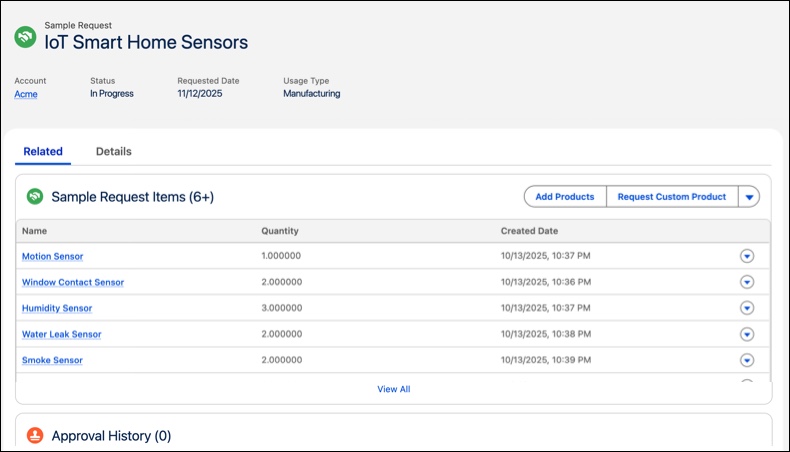
- Open a Sample Request record.
-
On the Sample Request Items related list of the Related tab, click Add
Products.
The Add Products page appears where you can see a list of products that can be added to the sample requests. You can only see active products configured with the "Sample" specification type.
-
Select the required product and click Next.
Once you save the sample request item, the selected product or custom specification cannot be changed.
- Enter the required quantity.
-
Set Pricing (Optional):
- If the sample is free, leave the price fields as blank.
- If the sample is billable, you need to select the price book in the sample request. The sales price will be populated from the list price corresponding to the price book and sample product. Note: If a cost book entry is used, the Sample Request's Requested Date must fall within that cost book entry's effective date range.
- Click Save to add the products to the sample request.
Did this article solve your issue?
Let us know so we can improve!
