Loading
Connect in real time with the Trailblazer Community in Slack Open BetaRead More
Work with the Service Console for Manufacturing

Work with the Service Console for Manufacturing

The Service Console for Manufacturing gives you a holistic picture of the customer and ties together the tools that you need to resolve their queries and provide proactive service. For example, when a B2B customer calls your service center, as a customer service representative (CSR), you can use the console to multitask without losing the context of the interaction. On a single screen, track upcoming engagements, check order delivery status and asset performance, upsell an extended warranty, escalate a case, and more.
Required Editions

Available in: Lightning Experience

Available in: Enterprise, Unlimited, and Developer Editions

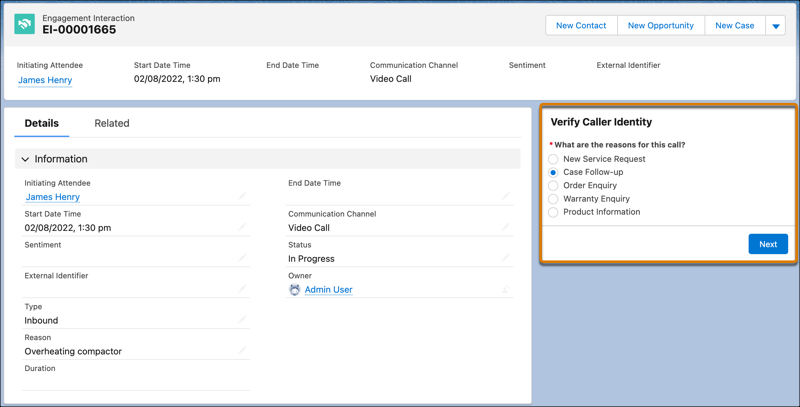
An identity verification flow on an Enagement Interaction record.

When a customer calls your service center, as a CSR, you can create an engagement interaction record and verify the customer’s details with the Identity Verification flow. After the flow verifies the customer, you are directed to the contact’s record page in the Service Console for Manufacturing app. You’re able to see all the information related to the verified customer. If your company isn’t using flows, you can open a contact’s record directly from a contact list view.

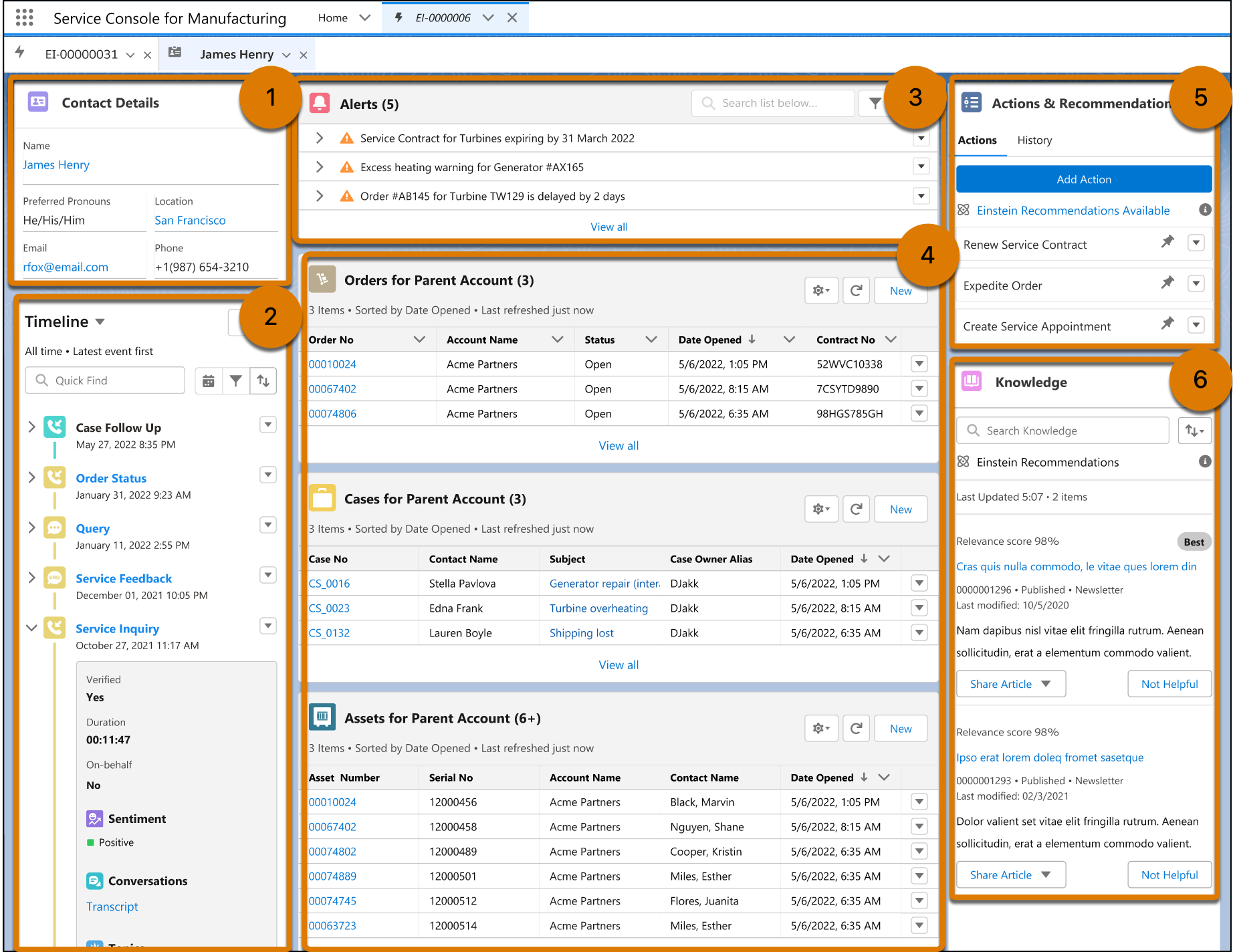
Service Console for Manufacturing with a Contact Details card, a Timeline card, an Alerts card, snapshots of order, case, and asset records, an Action and Recommendations card, and a Knowledge card.

Here’s what you can do from the console page.

  • In the Contact Details card, you can find the customer’s contact details (1).
  • In the Timeline card, you can view a chronological, searchable timeline of interactions with the customer (2).
  • In the Alerts card, you can check if there are any alerts configured for your business context that need attention, such as alerts on the expiration of a warranty, performance of an asset, or status of a case (3). Accordingly, you can proactively address the issues and take the required actions.
  • You can also view, open, and edit the related orders, cases, and assets of the account on the relevant snapshots (4).
  • In the Actions & Recommendations card, you can check the recommended actions configured for your use case and launch the relevant ones, such as escalating a case, scheduling a service appointment, or buying an extended warranty (5).
  • In the Knowledge card, you can search and open the relevant Knowledge articles to answer the customer’s queries (6).
 
Loading
Salesforce Help | Article
