
You are here:
User Interface Changes During Synchronization Process
The Sync screen enables you to view the progress of different synchronization types step by step. After the synchronization process is initiated, user interaction is blocked until the synchronization completes.
Required Editions
| Available in: Lightning Experience in Professional, Unlimited, and Enterprise Editions that have Consumer Goods Cloud enabled. |
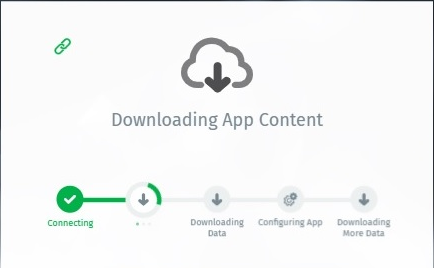
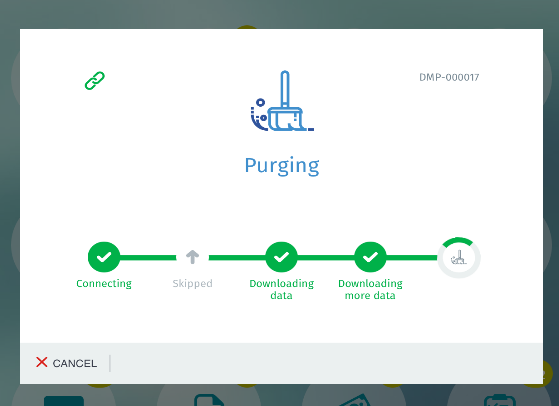
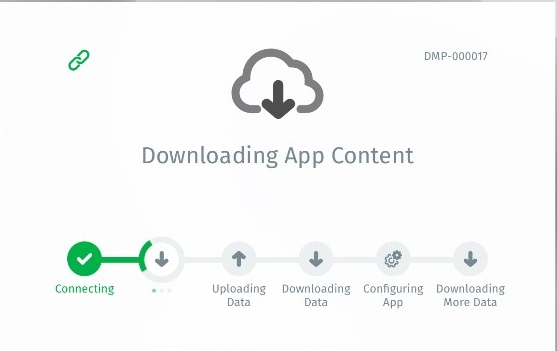
The various steps and substeps that are involved in each synchronization type are defined in the table.
| Synchronization Type | Description | Steps | Example |
|---|---|---|---|
| Initial Sync | The first synchronization after the app is downloaded and installed. |
|
|
| First-Sync-of-Day | Cleans up the client database. |
|
|
| Synchronization at Application Start | The synchronization that is initiated every time the app is restarted. |
|
|
If a step within a synchronization process has substeps, then as each substep progresses, the dots under the sync icon change from gray to green. If there’s an error in a substep, the dots and the circle on the icon become red.
The UI also displays a connectivity icon near the synchronization screen to represent the network connectivity between the mobile device and the server. The table describes the different states of the connectivity icon.
| Connectivity Icon | Description |
|---|---|

|
Indicates that the mobile device is connected to a network and the Salesforce backend is accessible. |

|
Indicates that the mobile device is offline and there’s no network connectivity. |

|
Indicates that the mobile device is connected to a network and you either have a session timeout or the Salesforce backend isn’t accessible because of weak network connectivity. |
Error Messages During Synchronization
A red error message is displayed on the screen if there are errors during the synchronization process. For Initial Sync and Synchronization at Application Start, click OK to continue syncing. For First Sync of the Day, after you click OK, the screen closes and you return to the Dashboard.
Cancel Synchronization
The Cancel option is displayed in the First Sync of Day screen and allows you to cancel the initiated synchronization process.
Errors While Uploading or Downloading Files During Synchronization
During the First Sync of the Day or the Initial Sync synchronization process, if an issue occurs while uploading or downloading files, a red exclamation mark is displayed. The mark continues to display even when the synchronization completes. An error message is also displayed on the sync screen on completion of the synchronization process. Click OK to close the sync screen.
Sync Progress Messages
During Initial Synchronization, Application Start, and First Sync of the Day (FSOD), on the Sync Progress or Blocking screen, the mobile app performs data-intensive download operations. These operations are based on the project's data landscape and can take long. You can keep the mobile app users engaged during the sync progress by displaying entertaining sync progress messages. An admin for the sync backend can configure these sync progress messages. The changes to the sync message configurations are downloaded and become effective only during the Consumer Goods Cloud offline mobile app restart. The configured sync progress messages are displayed only during the Downloading data and Downloading more data steps.
Framework validates the sync progress messages received from the backend and determines their display on the sync progress screen at relevant steps. The first sync progress message is displayed if the synchronization is performed for more than 10 seconds. The sync progress message displayed changes every 10–20 seconds. No sync progress messages are displayed if they aren’t defined in the backend.
The table describes the categories of sync messages displayed by the mobile app.
| Sync Message Category | Description |
|---|---|
| Core sync messages | Represent all labels such as, Connecting, Downloading App Content, Configuring app, Downloading data, Downloading more data, and Purging and feedback messages such as errors and warning messages. These labels are displayed to the mobile app user within the blocking screen. The names of the labels are predefined and can’t be changed. These messages can be localized in the backend. |
| Static sync messages | Entertaining messages that correspond to a fixed message that is displayed exactly the way it’s configured. These messages can be created, edited, and localized in the backend. |
| Dynamic sync messages | Entertaining messages that display information about the total number of records that have already been downloaded. These messages can be created, edited, and localized in the backend. Framework determines and displays the downloaded record count at runtime. If the record count is zero, the dynamic message is ignored and isn’t displayed. |
Sync Screen Background
If a mobile theme is selected, the Sync screen uses the background image of the theme. This theme is used for the Initial Sync and the Synchronization at Application Start processes in tablets. The background image is scaled to fit best to the screen and is anchored horizontally centered. The background image can change during the Initial Sync and the Synchronization at Application Start processes if any of these conditions are true:
- A new mobile theme is selected by a mobile app user.
- The mobile theme chosen by the mobile application user is no longer available on the mobile device.
If a user hasn’t selected a mobile theme or if the theme chosen isn’t available on the mobile, the Sync screen uses a theme-independent gray background. This background is used for the Initial Sync and the Synchronization at Application Start processes in tablets.
Deployment Package
Deployment packages are used to expedite the deployment of platform customization changes, resulting in a deployment.zip file, to all or specific Consumer Goods Cloud offline mobile app users. After a deployment mobile package becomes available in the Consumer Goods Cloud offline mobile app, the package is downloaded. This package is downloaded by the Consumer Goods Cloud offline mobile app during synchronization, which includes the background sync, and is applied during mobile app start.
The name of the deployment package, for example, DMP-000017, installed on a mobile device is displayed in the sync progress (blocking) screen. It’s also displayed in the Version Information section within the About dialog that is available when a mobile app user taps the About button in the Consumer Goods Cloud offline mobile app.

- When the mobile app is newly installed, there’s no stored information about the previously downloaded deployment packages.
- During Initial Synchronization process, the available deployment mobility packages in the Sync Management app is recognized and installed in the mobile app. The name of the deployment package is shown during the Configuring app step.
- During the Regular Sync or the First Sync of the Day (FSOD) processes, the name of the existing deployment package is shown during the Configuring app step.
- When the mobile app is relaunched and the deployment mobile package isn’t updated, the name of the existing package is shown during the Connecting synchronization step.
- When the mobile app is relaunched, the name of the existing deployment mobile package is displayed during the Connecting synchronization step. If the deployment package is updated in the Sync Management app, the name of the package is shown during the Configuring app synchronization step.
