
You are here:
Business Object Contracts
Use a business object contract to show and control data from Salesforce by using custom business logic. You can create business objects by using the business object contract and datasource contract.
Required Editions
| Available in: Enterprise, Performance, and Unlimited Editions |
A business object combines and contains data of a single business object from Salesforce, such as a product, an order, or a visit for use in the Consumer Goods Cloud offline mobile app. The data for a business object resides in database tables. You can access the data for business objects using the datasource contract. The data source attributes are mapped to the attributes of the corresponding business object.
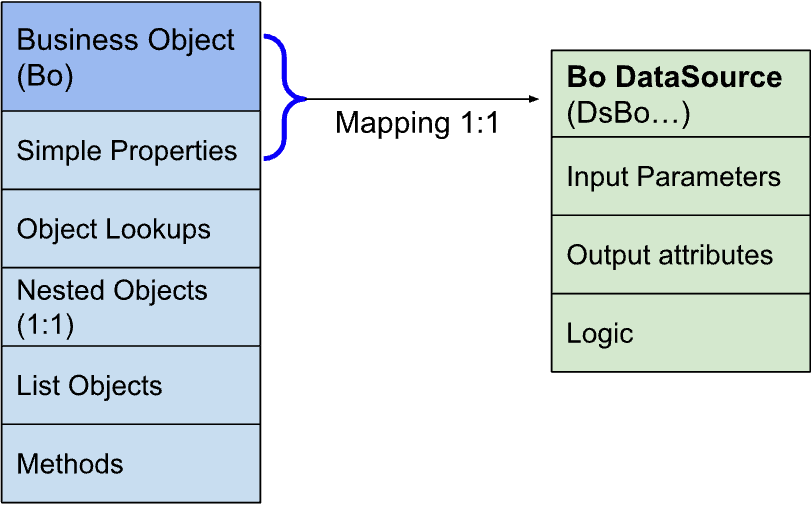
Business objects contain these properties:
- Simple Properties. The values of the simple properties come from the datasource used by the business object.
- List Objects
- Lookup Objects
- Nested Objects
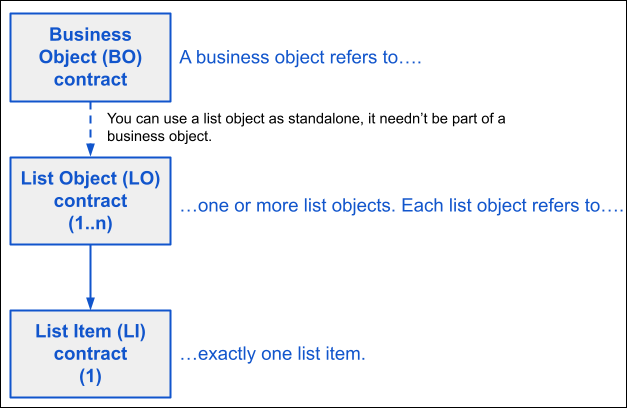
A business object can also refer list objects. Each list object refers to its own datasource
and contains a list of objects of the List Item type. In the Workflow module, for example,
there are list objects and lookup objects in the business object (BO) container folder. The DS
folder contains the datasource contracts corresponding to the business objects, list objects
and lookup objects defined for the Workflow module. The Mv2 folder contains the method files
for the BoWfeFlyoutNextStateByType business object.
Methods
All business objects have both standard methods and customized methods. The standard methods are automatically available to all objects. It’s possible to create, modify, or customize the methods for a business object.
When you create a new business object, list object, or lookup object by using the sf modeler workspace add CLI command, the methods for the new
object are created automatically. For example, LoadAsync and DoValidateAsync. LoadAsync
loads the simple properties of an object from the database whereas ValidateAsync validates
the consistency of an object before it’s saved. Other generated methods are CreateAsync,
SaveAsync, and Initialize. You can explicitly activate or deactivate the automatic
generation of load and create methods for an object using the generateLoadMethod and
generateCreateMethod attributes in a business object declaration.
To add method files to an existing business object, list object, or lookup object, you can manually copy the required template method files for the object from $workspace/contractSnippets. For example, the method files for a business object (BO) reside at $workspace/contractSnippets/BO_BusinessObject/businessobject/Bo${NAME}/Mv2.
Business Objects, List Objects, and List Items
Business objects, list objects, and list items are related. A list object consists of list items and a business object can consist of multiple list objects.

BoWfeFlyoutNextStateByType business
contract:<BusinessObject name="BoWfeFlyoutNextStateByType" generateLoadMethod="true" generateCreateMethod="true" schemaVersion="1.1">
<DataSource name="DsBoWfeFlyoutNextStateByType" />
<SimpleProperties>
<SimpleProperty name="pKey" type="DomPKey" />
<SimpleProperty name="actualStatePKey" type="DomPKey" />
<SimpleProperty name="nextStateCount" type="DomInteger" />
</SimpleProperties>
<NestedObjects>
<NestedObject name="boWorkflow" objectClass="BoWorkflow" dataSourceProperty="pKey" nestingProperty="pKey" loadMode="LoadImmediate" />
</NestedObjects>
<ObjectLookups></ObjectLookups>
<ListObjects>
<ListObject name="nextStateList" objectClass="LoWfeState" dataSourceProperty="pKey" listProperty="wfeWorkflowPKey" loadMode="LoadImmediate" />
</ListObjects>
<Methods>
<Method name="beforeSaveAsync" />
<Method name="afterSaveAsync" />
<Method name="afterLoadAsync" />
<Method name="beforeLoadAsync" />
<Method name="afterInitialize" />
<Method name="beforeInitialize" />
<Method name="afterDoValidateAsync" />
<Method name="beforeDoValidateAsync" />
<Method name="afterCreateAsync" />
<Method name="beforeCreateAsync" />
<Method name="loadAsync" />
<Method name="createAsync" />
<Method name="getStateTypeByState" />
<Method name="getFirstNextStatePKey" />
</Methods>
<Validations></Validations>
</BusinessObject>
- Business Object Contract Definition
Use the elements and attributes of the Business Object contract to model and define a custom object. - Simple Properties
To associate the properties of a business object to the user interface elements, bind simple properties. You can manipulate simple properties by using the getter and setter functions. - Lookup Objects and How They Work
A lookup object is a lightweight version of a regular business object. Use lookup objects to get access to a limited set of properties from another business object from another module, without loading the business object. - Additional Attributes in Business Objects
This topic describes the additional attributes in business objects. - Create a Business Object Contract
Create a BO for a new object record. - Automate Adding of Methods
The framework calls some methods automatically when the state of BusinessObjects changes.
