
You are here:
Add Display Module and List Object
Create the Display module and add the resources related to the Display functionality to the module, such as list object, data source, and processes.
Required Editions
| User Permissions Needed | |
|---|---|
| To customize CG Cloud offline mobile app: | Customizer, Developer |
-
Create a module named Display by running the
sf modeler
            workspace add
command in your workspace.? Select the resource you want to add. module ? Specify a name for the module: Display ? Do you really want to create the module 'Display'? Yes Successfully created module 'MyDisplay'. -
Add a list object by running the
sf modeler workspace
            add
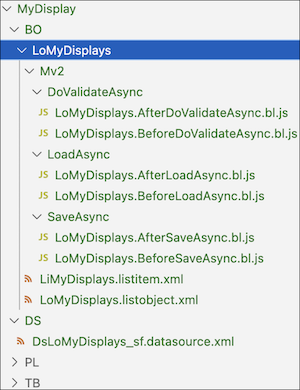
command in your workspace.? Select the resource you want to add. listobject ? Specify a name for the listobject: Displays ? Select the module to which listobject 'Displays' should be added. MyDisplay ? Do you really want to create the listobject 'Displays'? Yes Successfully created listobject 'LoMyDisplays'.The application creates the structure of the list object with default functions, list object and list item files, and with a related data source.
-
Define the fields of list items. Use LiMyDisplays.listitem.xml to configure the
structure and fields of the list items.
 Tip You can refer to the code snippet available at $workspace/contractSnippets/YourModule Section/BO/LO_ListObject/_snippets. The contractSnippets directory contains templates or code snippets which illustrate the structure of different Modeler components.
<SimpleProperty name="${#Name#}" type="${#Domain#}" dataSourceProperty="${#DataSourceProperty#}" />-
To load the display name, use
DomText.<SimpleProperty name="description" type="DomLongDescription" dataSourceProperty="description" /> -
To load the display description, use
DomLongDescription.<SimpleProperty name="competitorDisplay" type="DomBool" dataSourceProperty="competitorDisplay" /> -
To load the competitor checkbox for a display, use
DomBool.
<ListItem name="LiMyDisplays"> <SimpleProperties> <SimpleProperty id="true" name="pKey" type="DomPKey" dataSourceProperty="pKey" /> <SimpleProperty name="name" type="DomText" dataSourceProperty="name" /> <SimpleProperty name="description" type="DomLongDescription" dataSourceProperty="description" /> <SimpleProperty name="competitorDisplay" type="DomBool" dataSourceProperty="competitorDisplay" /> <SimpleProperties> </ListItem> -
To load the display name, use
-
To generate SQL Statement, define the SQL Statement definition in a meta language in
the DsLoMyDisplays_sf.datasource.xml data source file. Specify the tables and their
selected attributes to query, and the idAttribute of the table.
<DataSource name="DsLoMyDisplays" backendSystem="sf" businessObjectClass="LoMyDisplays" external="false" editableEntity="Display__c" schemaVersion="2.0"> <Attributes> <Attribute name="pKey" table="Display__c" column="Id" /> <Attribute name="name" table="Display__c" column="Name" /> <Attribute name="description" table="Display__c" column="Description__c" /> <Attribute name="competitorDisplay" table="Display__c" column="Competitor_Display__c" /> </Attributes> <Entities> <Entity name="Display__c" alias="" idAttribute="Id" /> </Entities> <QueryCondition/> <OrderCriteria /> <Parameters/> </DataSource> - Save your changes.
-
Build the contracts by running the command
sf modeler
            workspace build
or the alias commandsf mdl ws buildin your workspace. - To test the changes, restart the simulator app.
Did this article solve your issue?
Let us know so we can improve!
