
You are here:
Debug an Issue in the Display of a Custom Card
Debug an issue in the display of a CustomerPOS card added to the store cockpit.
Required Editions
| Available in Lightning Experience in Professional, Unlimited, and Enterprise Editions that have Consumer Goods Cloud enabled |
| User Permissions Needed | |
|---|---|
| To debug an issue: | CGCloud Business Admin, Customizer |
You create a customized CustomerPOS display card and add the card to the store cockpit in the Modeler app. The CustomerPOSCard uses the getCustomerPOSForCard function on the LoCustomerPOSCard list object to show the various POS values.
- Open the Modeler app, and then go to the Store Cockpit in the Modeler simulator.
- Open Google Chrome, and from the Source tab of Chrome DevTools, go to the console section.
-
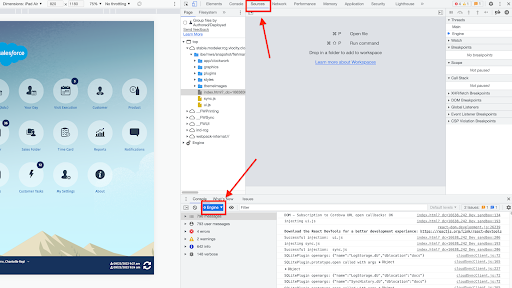
To debug the framework, select the thread as Engine in the
console section of the Source Tab.
The image shows the Engine thread on the console section of the Source tab.
- Go to the Customer POS card in the Store Cockpit in the Modeler app.
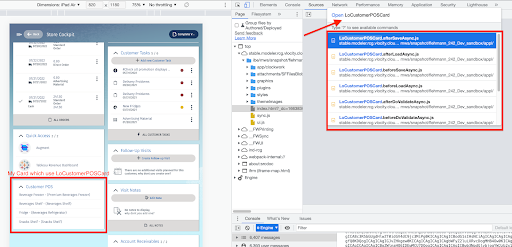
- To examine the list object (LoCustomerPOSCard), from the Source tab’s menu, select Open File, or press Command+P (macOS) or Control+P (Windows).
-
Enter this command:
Open LoCustomerPOSCardThe image shows the function files of the LoCustomerPOSCard object.
- To open the function file, find and double-click the LoCustomerPOSCard.getCustomerPOSForCard.js file.
-
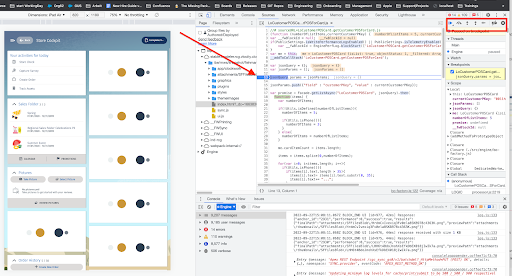
To debug the issue, add breakpoints to the appropriate line numbers.
The image shows the breakpoints in the getCustomerPOSForCard function file of the LoCustomerPOSCard object.
- Reload the app in the simulator, and then go to the store cockpit.
The simulator stops the business flow at the breakpoints specified so that you can debug the issue.
Use the navigation buttons, such as play, step over, step in, or step out during debugging. You can enter a validation command to the source object in the console wherever needed.
