
You are here:
Indicate Competitor Displays
Configure the Display card to indicate competitor displays with an icon.
Required Editions
| User Permissions Needed | |
|---|---|
| To customize CG Cloud offline mobile app: | Customizer, Developer |
You can use icons that are shipped in the app or upload new icons. In this exercise, we use an existing image.
-
To find out the available icons in the current mode, build the contracts by running the
command
sf modeler workspace buildor the alias commandsf mdl ws buildin your workspace. - Open the appl/build/app/clockwork folder in a file explorer.
- Select Shelf_Dark_Orange.svg for competitor displays and Shelf_Lime.svg for non-competitor displays.
-
To set the image ID based on the competitor flag, add a derived attribute statement to
DsLoMyDisplays_sf.datasource.xml. To use SQL function, use derived attributes. To determine the
correct icon ID, use a CASE WHEN construct .
-
Add a simple property
iconIdto the list item in LiMyDisplays.listitem.xml. - To show the icon, add a column to the page layout of the cockpit list .
-
To load the
iconId, define an image type binding and link it to the new icon column.
<DataSource name="DsLoMyDisplays" backendSystem="sf" businessObjectClass="LoMyDisplays" external="false" editableEntity="Display_c" schemaVersion="2.0"> <Attributes> <Attribute name="pKey" table="Display__c" column="Id" /> <Attribute name="name" table="Display__c" column="Name" /> <Attribute name="description" table="Display__c" column="Description__c" /> <Attribute name="competitorDisplay" table="Display__c" column="Competitor_Display__c" /> <DerivedAttribute name="iconId" value="CASE Competitor_Display__c WHEN '0' THEN 'Shelf_Lime' ELSE 'Shelf_Dark_Orange' END" /> </Attributes> <Entities> <Entity name="Display__c" alias="" idAttribute="Id" /> </Entities> <QueryCondition /> <OrderCriteria> <OrderCriterion entity="Display__c" attribute="Name" direction="ASC" /> </OrderCriteria> <Parameters /> </DataSource> -
Add a simple property
-
Add a simple property to the
LoMyDisplaylist item linked to the new derived attribute.<ListItem name="LiMyDisplays"> <SimpleProperties> <SimpleProperty id="true" name="pKey" type="DomPKey" dataSourceProperty="pKey" /> <SimpleProperty name="name" type="DomText" dataSourceProperty="name" /> <SimpleProperty name="description" type="DomLongDescription" dataSourceProperty="description" /> <SimplePropertv name="competitorDisplav" tvDe="DomBool" dataSourcePropertv="competitorDisplay" /> <SimpleProperty name="iconId" type="DomString" dataSourceProperty="iconId" /> </SimpleProperties> </ListItem> -
Modify the Application_CockpitUI.userinterface.xml UI contract to add a binding of type
Image and a new list layout column.
<CockpitList name="Display" hasBorder="false" dataSource="ProcessContext::CardDisplay_DisplayList.Items []"> <Items name="Items" itemPattern="CardDisplayItems"> <ItemListLayout> <Tablet> <Default> <Col width="1em" layoutType="Image" bindingId="Icon" /> <Row layoutType="itemIdentifierCockpit" bindingId="Row_Name" /> <Row layoutType="itemSecondaryCockpit" bindingId="Row_Description" /> </Col> </Default> </Tablet> <Phone> <Default> <Col width="1em" layoutType="Image" bindingId="Icon" /> <Row layoutType="itemIdentifierCockpit" bindingId="Row_Name" /> </Col> </Default> </Phone> </ItemListLayout> <Bindings> <Binding target="Row_Name" type="Text" binding="name" bindingMode="ONE_WAY" /> <Binding target="Row Description" tvpe="Text" binding="description" bindingMode="ONE_WAY" /> <Binding target="Icon" type="Image" binding="iconId" bindingMode="ONE_WAY" /> </Bindings> </Items> </CockpitList> - Save your changes.
-
Build the contracts by running the command
sf modeler workspace
      build
or the alias commandsf mdl ws buildin your workspace. - To test the changes, restart the simulator app.
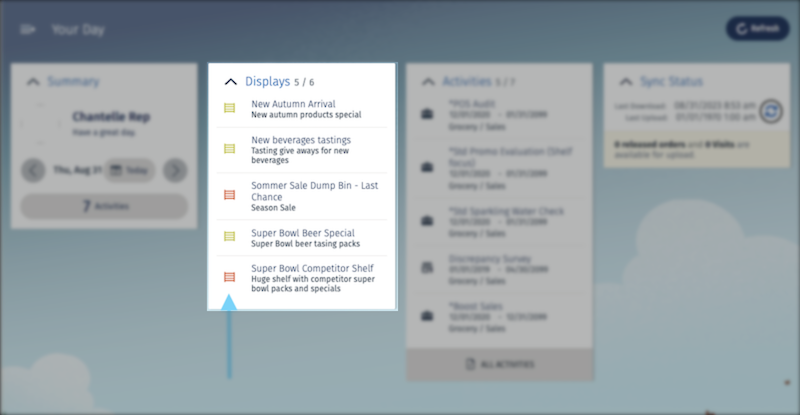
You can see the icons with the list items on the Display card.
Did this article solve your issue?
Let us know so we can improve!
