
You are here:
Show Error for Empty Display Name Value
Use Visual Studio Code based Modeler to add a validation in the offline mobile app to check that the display name field isn’t empty.
Required Editions
| Available in: Enterprise and Unlimited Editions where Consumer Goods Cloud is enabled |
| User Permissions Needed | |
|---|---|
| To add validation check in VS Code Modeler | Customizer, Developer |
-
To manually create a
ValidationMessagescontract for BoMyDisplay.businessobject.xml, in VS Code Modeler, right-click the BoMyDisplay folder at $workspace/src/MyDisplay/Bo, and click New File.- Name the file MyBoMyDisplayMessages.validationmessages.xml.
-
Add this snippet to the
ValidationMessagescontract.This sample code snippet creates a set of validation messages for the BoMyDisplay business object. The code includes the DisplayNameEmpty validation message that prompts the user to enter a value if the name is empty.<ValidationMessages name="MyBoMyDisplayMessages" businessObject="BoMyDisplay" schemaVersion="0.0.0.5"> <ValidationMessage name="DisplayNameEmpty" defaultMessage="Please enter a name." comment="validates entered work times" /> </ValidationMessages> - Save your changes.
-
To add a validation method to the
BoMyDisplaybusiness object, open the VS Code terminal, runsf mdl add, and enter these details.?Select the resource you want to add. businesslogic ?Specify a name for the businesslogic: ValidateNameEmpty ?Select the module to which businesslogic 'ValidateNameEmpty' should be added. MyDisplay ?Select a suitable option for businesslogic 'ValidateNameEmpty'. method ?Select the reference object to which you want to add the businesslogic method. BoMyDisplayThe CLI creates the BoMyDisplay.MyValidateNameEmpty.bl.js method and adds a reference to this method in the list object of the BoMyDisplay.businessobject.xml contract. -
In BoMyDisplay.MyValidateNameEmpty.bl.js, add a parameter called
messageCollectorto the method.* @param {messageCollector} messageCollector */ function myValidateNameEmpty(messageCollector){ var me = this; -
In BoMyDisplay.MyValidateNameEmpty.bl.js, add this code.
var newError; if(Utils.isEmptyString(me.getName())){ newError = {"level": "error", "objectClass": "BoMyDisplay", "messageID": "DisplayNameEmpty"}; messageCollector.add(newError); } -
To specify the method as validation method, in
BoMyDisplay.businessobject.xml, move the method to the validations
section of the contract.
<Validations> <Validation name="myValidateNameEmpty"/> </Validations> -
Refresh locales to populate the validation message. To make the new message available
in the locale file the locale file has to be refreshed.
-
Build the contracts by running this command.
sf modeler workspace
                build
. -
Run the command:
sf modeler workspace refreshLocales - Save your changes.
The framework collects the label snippets from the different contracts and refreshes the locale file. -
Build the contracts by running this command.
-
To verify that that validation is executed in the process:
- Refresh the simulator app in the browser.
- In the Display master-detail page, clear the value of the name field for any one of the display records.
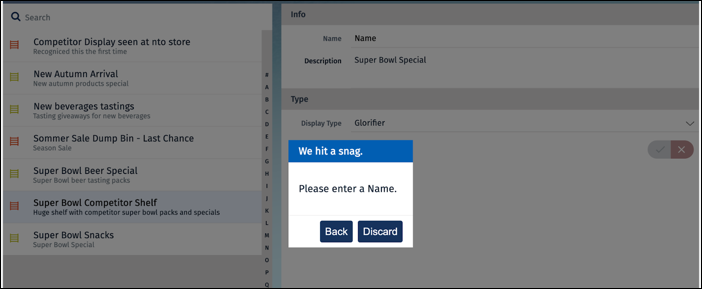
- Click another row in the master list to trigger a save action. A warning appears as shown here.
Did this article solve your issue?
Let us know so we can improve!
