
You are here:
Configure Keyword Suggestions in Contracts
Create or customize well-formed and accurate keywords in contracts by setting up the auto-completion feature in your VS Code based Modeler.
Required Editions
| Available in: Enterprise, Performance, and Unlimited Editions that have Consumer Goods Cloud enabled |
| User Permissions Needed | |
|---|---|
| To configure keyword auto-completion: | Customizer, admin |
Starting Summer’24, VS Code Modeler supports automatic completion of the actionType keyword in the process contract and the pagePattern and bindingMode
keywords in the UI contract. The auto-completion of keyword values works with the support of the
VS Code extension XML Language Support by Red Hat.
Prerequisites:
- VS Code extension XML Language Support by Red Hat is installed in your VS Code Modeler.
- You’ve generated a successful build of the Modeler design contracts in your workspace.
-
To activate the
USE_LATEST_XSD_VALIDATIONSconfiguration in your workspace, upgrade your workspace by running this command:sf modeler workspace upgrade -
In $workspace/branch.config.json, set the
USE_LATEST_XSD_VALIDATIONSconfiguration totrue. -
For the XSD validations to take effect, upgrade your workspace again by running this
command:
sf modeler workspace upgrade -
To build the contracts in your workspace, run this command:
sf
      modeler workspace build
The build action fails if the workspace includes contracts that don’t satisfy the validation rules. In the CLI console, the generator returns a log of the ill-formed contracts with validation error details.
- To open a contract, command+click the file link in the error log.
-
To invoke the prompt, hover over the erroneous keyword value and view the possible valid
values for the keyword.
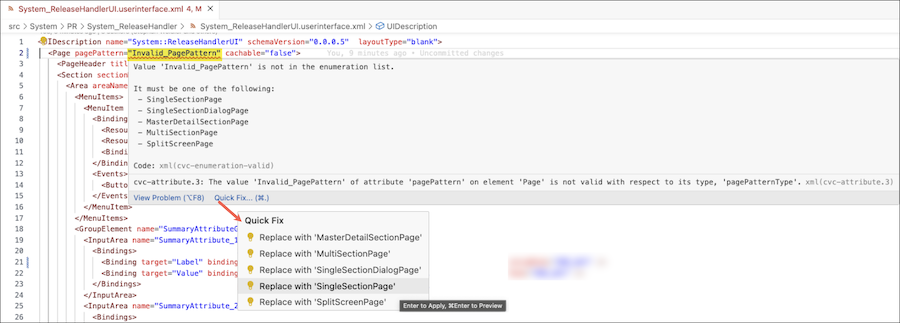
- Click Quick Fix and select the correct value that you want to replace in the keyword.
- To add a value to a blank keyword, press control+Space in Mac or CTRL+Space in Windows to launch a list of values allowed for the keyword.
- Select the appropriate value and save the contract.
-
To verify that the modified keyword values satisfy the XSD validations, build the contracts
in your workspace by running this command:
sf modeler workspace build -
To test the changes, start the simulator app by running this command:
sf modeler workspace server start
Did this article solve your issue?
Let us know so we can improve!
