
You are here:
Add a Counter to the Display List
Add a counter to show the number of display records that are visible on the card and the total number of display records.
Required Editions
| User Permissions Needed | |
|---|---|
| To customize CG Cloud offline mobile app: | Customizer, Developer |
Define a new function to determines the counter information.
-
To create a business logic, run the command in your workspace:
sf modeler workspace add -
Select
businesslogicas the resource type. Provide the required inputs to add the businesslogic contract as per the instructions in the command. -
Enter a name for the businesslogic function and add the function to
LoMyDisplays. For example,GetInfoForDisplayCard.? Select the resource you want to add. businesslogic ? Specify a name for the businesslogic: GetInfoForDisplayCard ? Select the module to which businesslogic 'GetInfoForDisplayCard' should be added. MyDisplay ? Select a suitable option for businesslogic 'GetInfoForDisplayCard'. method ? Select the reference object to which you want to add the businesslogic method. LoMyDisplays ? Do you really want to create the businesslogic 'GetInfoForDisplayCard'? YesThe
addcommand creates a new function and registers it in the list object:<ListObject name="LoMyDisplays" generateLoadMethod="true" schemaVersion="1.1"> <DataSource name="DsLoMyDisplays"/> <Item objectClass="LiMyDisplays"/> <Methods> <Method name="beforeSaveAsync"/> <Method name="afterSaveAsync"/> <Method name="afterLoadAsync"/> <Method name="beforeLoadAsync"/> <Method name="afterDoValidateAsync"/> <Method name="beforeDoValidateAsync"/> <Method name="myGetInfoForDisplayCard"/></Methods> </ListObject>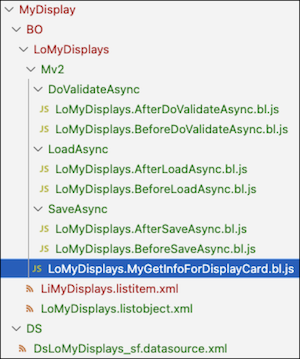
The
myGetInfoForDisplayCardfunction determines the count of the list items to show in the card depending on the form factor and the overall count. ThemyGetInfoForDisplayCardfunction returns a string that you can use to bind to the card.* @function myGetInfoForDisplayCard * @this LoMyDisplays * @kind listobject * gamespace CUSTOM * @returns info */ function myGetInfoForDisplayCard(){ var me = this; ////////////////////////////////////////////////////////////// // Add your customizing javaScript code below.. // ////////////////////////////////////////////////////////////// // determine the max number of list items to show in card (depending on form factor) var limitDueToFormFactor = Utils.isPhone() ? 3 : 5; // number of loaded list items var numberOfListItems = me.getCount(); // info text to show in card var info; // if you have less then 3/5 items show less number otherwise show 3/5 // e.g. tablet mode and there are loaded 12 records --> 5 / 12 // e.g. tablet mode and there are loaded 2 records --> 2 / 2 var shownItems = numberOfListItems > limitDueToFormFactor ? limitDueToFormFactor : numberOfListItems; if (numberOfListItems > 0) { info = shownItems + " / " + numberOfListItems; } else { info = " " }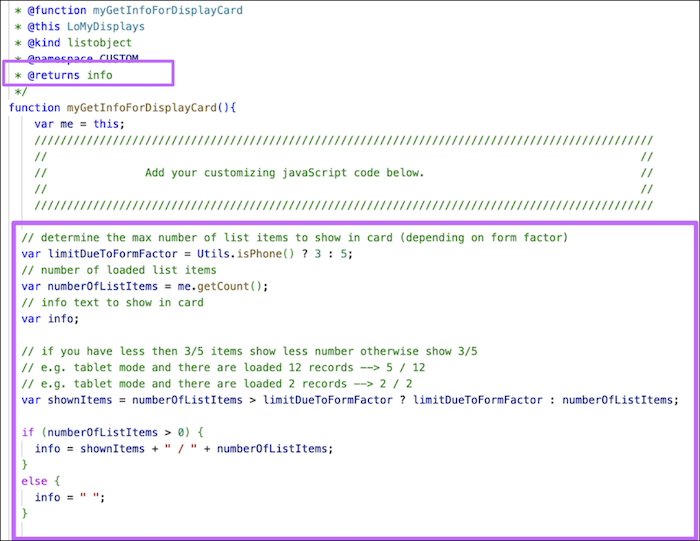
-
Integrate the function call into the process flow. Create a process variable to store
the counter text.
<!-- Card: Display --> <Declaration name="CardDisplay_DataLoaded" type="DomBool"/> <Declaration name="CardDisplay_SubComponentName" type="String"/> <Declaration name="CardDisplay_DisplayList" type="LoMyDisplays"/> <Declaration name="CardDisplay_InformationText" type="String" /> -
Add an action on the
loadDataaction that calls the new function. Use theLOGICaction type and ensure that the new function is defined on theLoMyDisplayslist (CardDisplay_DisplayList).<!-- Card: Display START--> <Action name="CardDisplay_loadData" actionType="LOAD" type="LoMyDisplays" <Return name="ProcessContext::CardDisplay_DisplayList" /> <TransitionTo action="CardDisplay_loadInformationText"/> </Action> <Action name="CardDisplay_loadInformationText" actionType="LOGIC" call="ProcessContext::CardDisplay_DisplayList.myGetInfoForDisplayCard"> <Parameters> <Input name="loItems" value="ProcessContext::CardDisplay_DisplayList"/> <Input name="type" value="Display" type="Literal" /> </Parameters> <Return name="ProcessContext: :CardDisplay_InformationText" /> <TransitionTo action="CardDisplay_setSubcomponentName"/> -
To point to the new process variable filled by the newly created function, modify the
card binding in the UI contract.
<!-- Title and counter --> <Resource target="Title" type="Label" id="DisplayCardTitle" defaultLabel="Displays" /> <Binding target="Information" type="Text" binding="ProcessContext::CardDisplay_InformationText" bindingMode="ONE_WAY" /> -
Build the contracts by running the command
sf modeler
            workspace build
or the alias commandsf mdl ws buildin your workspace. - To test the changes, restart the simulator app.
Did this article solve your issue?
Let us know so we can improve!
