Loading
Connect in real time with the Trailblazer Community in Slack Open BetaRead More
Report and Reduce Your Carbon Footprint with Net Zero Cloud
Analyze the Answers with Einstein Generative AI

Analyze the Answers with Einstein Generative AI

Improve environment, social, and governance (ESG) report accuracy by using the generative AI capabilities of the Salesforce Disclosure and Compliance Hub for Microsoft 365 Word Word add-in or the Salesforce Disclosure and Compliance Hub Connector add-on. Generative AI compares the question, guidance for the question, and the response to identify distinct guidelines to evaluate the response. It then compares the answer with the identified guidelines to evaluate the response. Generative AI identifies the shortcomings and provides feedback on how to improve the response. To evaluate the validity and correctness of a response, an accuracy percentage score is shown by considering criteria such as the completeness of the answer and the syntax.
Required Editions

Available in: Lightning Experience
Available in: Enterprise, Performance, Unlimited, and Developer Editions with the Net Zero Cloud Growth license or the Net Zero Cloud User add-on license and the Agentforce for Net Zero Cloud add-on license. Einstein generative AI is available in Lightning Experience. To edit Word documents, you need a Microsoft 365 license. To edit Google documents, you need a Google account
Available with the Salesforce Foundations license.
To purchase the Agentforce for Net Zero Cloud add-on, contact your Salesforce account executive
User Permissions
To generate disclosure reports with the Salesforce Disclosure and Compliance Hub for Microsoft 365 Word add-in: Disclosure and Compliance Hub plugin for Microsoft 365
To generate disclosure reports by using the Salesforce Disclosure and Compliance Hub Connector add-on for Google Docs: Disclosure and Compliance Hub plugin for Google Docs
To check for disclosure accuracy using generative AI: Use Einstein to Check Response Accuracy
To manage prompt templates using Prompt Builder and run them using generative AI features: Prompt Template Manager
To run prompt templates using generative AI features: Prompt Template User

Ensure that you added guidance for the active assessment question version. See Create Disclosure Questions and Guidance.

Confirm that your Salesforce admin set up Einstein Generative AI for Net Zero Cloud. See ESG Report Generation by Using Einstein Generative AI.

To use Prompt Builder for disclosure authoring, make sure you have the Prompt Template User permission set license.

  1. From the App Launcher, find and select Disclosure and Compliance Hub.
  2. From the Disclosures and Compliance Hub menu, select Disclosures and Compliance Hub.
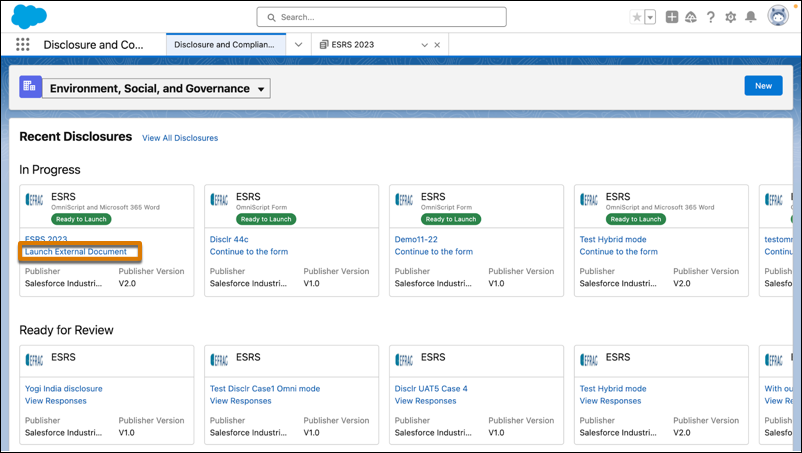
  3. In the In Progress section, for a disclosure, click Launch External Document.
    To analyze responses, open the disclosure document from the In Progress section in Disclosures and Compliance Hub.
  4. On the document Home tab, select Salesforce Disclosure and Compliance Hub for Microsoft 365 Word or the Disclosure and Compliance Hub Connector for Google Docs.
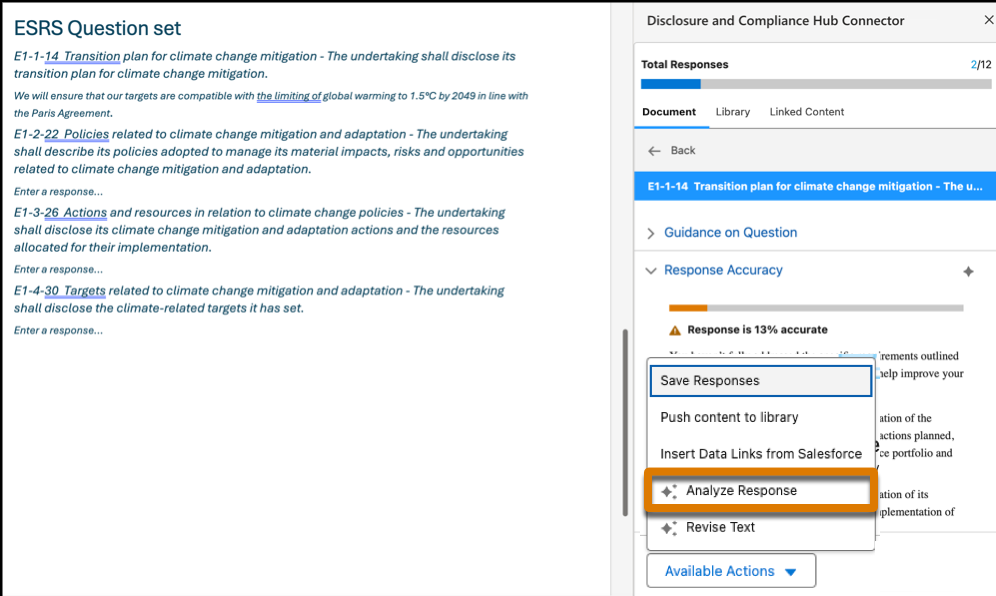
  5. Select the question on the add-in Document tab, and from the question’s actions menu, select Analyze Response.
  6. In the question details in the add-in, and from the available actions, select Analyze Response.
    To check response accuracy, go to the question details in the add-in, and select Analyze Response from the available actions.
    Generative AI compares the question, guidance for the question, and the response to evaluate the response and provides feedback on how to improve the response.
 
Loading
Salesforce Help | Article
