Design Document Templates in Microsoft 365 Word
Quickly and efficiently maintain document templates by using the Disclosure and Compliance Hub for Microsoft 365 Word add-in. Use the template designer to generate documents with a structure that the Disclosure and Compliance Hub can comprehend and offer an intelligent authoring experience to end users. Create and edit template documents, and simplify the search for elements, such as questions within the templates. The embedded Word features help prevent syntax errors, and provide a smooth editing and saving experience.
Required Editions
| Available in: Lightning Experience |
| Available in: Enterprise, Performance, Unlimited, and Developer Editions with the Net Zero Cloud Growth license. To edit Word documents, you need a Microsoft 365 license |
Complete the Prerequisites
Before you design a document template by using Microsoft 365 Word, complete the prerequisites.
- To access an external system from Salesforce, configure your authentication settings.
- To add disclosure questions, create disclosure questions.
- To use the Salesforce Disclosure and Compliance Hub to author disclosures in Word, link your Microsoft Azure account with your Salesforce account.
- To author disclosures by using Microsoft 365 Word, add the Salesforce Disclosure and Compliance Hub for Microsoft 365 Word add-in.
Create Disclosure Questions and Guidance
Use Discovery Framework to create, import, and export disclosure questions. Then, use the questions to generate a document template in Microsoft 365 Word. Use the guidance from an active assessment question version when you check for the guidance in the disclosure document.
Required Editions
| User Permissions Needed | |
|---|---|
| To create questions and guidance: | Disclosure and Compliance Hub User |
- From the App Launcher, find and select Assessment Questions.
- Click New.
- Provide a name for the question.
- Select a Text or Text Area question data type.
- Select a question category.
-
To make the question the active version, select Active.
 Note Salesforce derives the question label on a form based on the question text field from the active version of the question.
- Save your changes.
- On the Related tab, in the Assessment Question Versions section, click the active version.
-
Enter the guidance for the assessment question version. If you don't see the Guidance
Information field, ask your Salesforce admin to add it in the page layout.
The text from the active assessment question version appears as guidance for the question when you create a document template.
See Search for Disclosure Guidance and Analyze the Answers with Einstein Generative AI.
-
Assign questions to the assessment question set.
Question sets make it easier for you to reuse questions across contexts, such as to search for questions and then add the question sets to a document template.
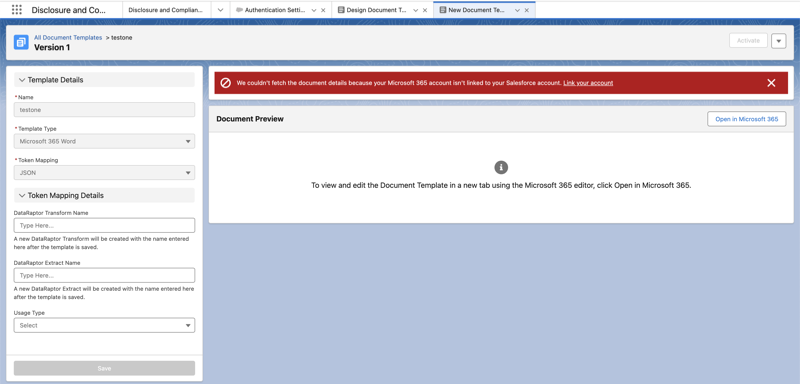
Link Your Microsoft Azure and Salesforce Accounts by Using Design Document Template
To use the Salesforce Disclosure and Compliance Hub to author disclosures in Word, link your Microsoft Azure account with your Salesforce account.
- From the App Launcher, find and select Design Document Template.
-
Click Link your account.
Create Document Templates in Design Document Template
Save time by creating a document template in the design document template.
Required Editions
| User Permissions Needed | |
|---|---|
| To create disclosure report templates by using the Disclosure and Compliance Hub for Microsoft 365 Word add-in: | Disclosure and Compliance Hub plugin for Microsoft 365 for Designer |
- From the App Launcher, find and select Design Document Template.
- Click Create Template.
- Enter a name for the template.
- Select the Microsoft 365 Word template type.
- To use the document to design a disclosure template, make sure that the usage type field is empty.
- To create a document template by using the editor, click Open in Microsoft 365.
- On the document Home tab, select Salesforce Disclosure and Compliance Hub for Microsoft 365 Word.
- Save your changes.
- Update the blank document.
- To upload the document to the template designer, from the quick actions in the add-in, select Save as Document Template to Salesforce.
- Close the document.
- Save and activate the template.
Manage Sections in Disclosure Document Template
Organize and structure the disclosure content into distinct and coherent sections or blocks within a document template to easily navigate to and understand the content. Define specific formatting and properties for various parts of the document. Add specific questions and question sets.
Required Editions
| User Permissions Needed | |
|---|---|
| To create disclosure report templates by using the Disclosure and Compliance Hub for Microsoft 365 Word add-in: | Disclosure and Compliance Hub plugin for Microsoft 365 for Designer |
- From the App Launcher, find and select Design Document Template.
- Expand the document template and select the document version in the Draft status.
- To create the document template by using the editor, click Open in Microsoft 365.
- On the document Home tab, select Salesforce Disclosure and Compliance Hub for Microsoft 365 Word.
- On the Document tab, click Insert Section.
- Enter the section header.
-
To insert a subsection, in the section region, click Insert
Section.
You can quickly navigate to specific sections and include the appropriate questions and question sets within each section. You can add up to two levels of subsections.
-
To delete a section, from quick actions for the section on the Document tab, select
Delete.
Deleting the section header text doesn’t delete the section in the add-in pane.
- From the quick actions in the add-in, select Save as Document Template to Salesforce.
- Close the document.
- Save and activate the template.
Manage Questions and Question Sets in a Disclosure Document Template
Search for question sets while you design disclosure document templates by using the Salesforce Disclosure and Compliance Hub for Microsoft 365 Word add-in. The search results show a count of assessment questions of the type text and text area of the question sets based on the search term. When you insert a question set in the document, the related questions are inserted in the document.
Required Editions
| User Permissions Needed | |
|---|---|
| To create disclosure report templates by using the Disclosure and Compliance Hub for Microsoft 365 Word add-in: | Disclosure and Compliance Hub plugin for Microsoft 365 for Designer |
- From the App Launcher, find and select Design Document Template.
- Expand the document template and select the document version in the Draft status.
- To create the document template by using the editor, click Open in Microsoft 365.
- On the document Home tab, select Salesforce Disclosure and Compliance Hub for Microsoft 365 Word.
- On the Document tab, click Insert Questions.
- On the Question Framework tab, to view question sets, search with a related keyword.
-
Select a question set, select a position in the document, and then click Insert
Question Set.
The question set and its related questions are added in the document. The related question set in the add-in pane is updated only when you exit a question set in the document.
- To delete a question set, from the quick actions for the question set on the Document tab, select Delete.
- To delete a question, select the question in the document and delete.
- From the quick actions in the add-in, select Save as Document Template to Salesforce.
- Close the document.
- Save and activate the template.
Retrieve the global key for the document template and add the key in the document definition version. Use this document definition version to create a disclosure record. See Retrieve a Document Template Global Key.
