
You are here:
Open Display Record Detail From Cockpit Card
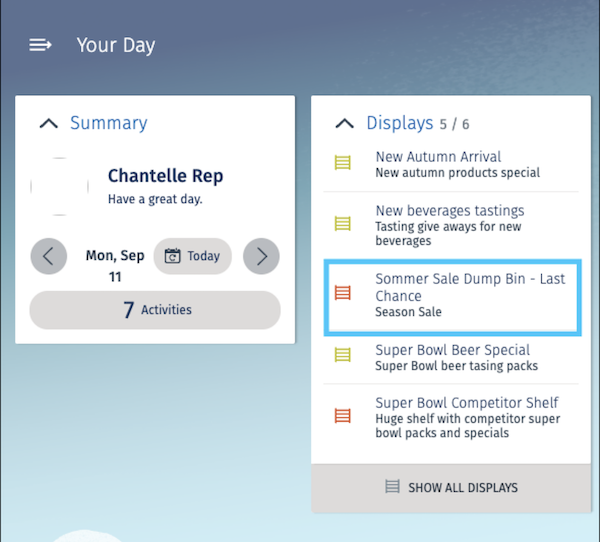
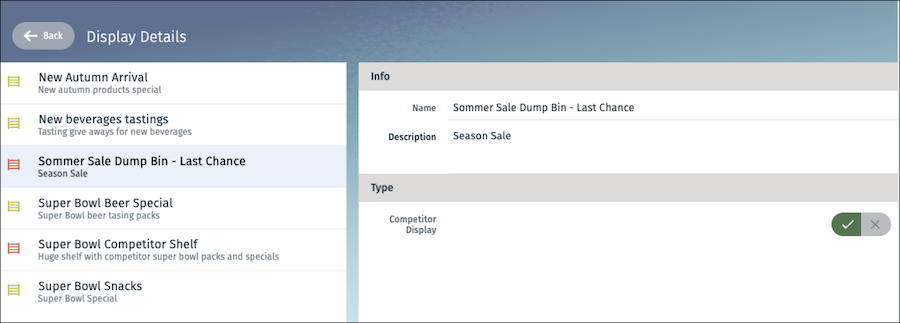
Sales reps can tap a display record on the cockpit card and launch the display detail page directly on a master detail screen. For example, when you tap the Summer Sale Dump Bin display on the Display cockpit card, the app opens the matching record in the master list and shows its details.
Required Editions
| Available in: Enterprise and Unlimited Editions where Consumer Goods Cloud is enabled |
| User Permissions Needed | |
|---|---|
| To add and configure a master-detail page | Customizer, Developer |
-
In your VS Code Modeler workspace, add an
ItemSelectedEventevent for the cockpit card in Application_CockpitUI.userinterface.xml by using these details.event CardDisplay_itemSelected Param name pKey Param value .pKey The ItemSelectedEvent event configuration in Application_CockpitUI.userinterface.xml looks this:<Binding target="Icon" type="Image" binding=".iconId" bindingMode="ONE_WAY" /> </Bindings> </Items> <Events> <ItemSelectedEvent event="CardDisplay_itemSelected"> <Params> <Param name="pKey" value=".pKey" /> </Params> </ItemSelectedEvent> </Events> </CockpitList> <LinkBar> <ImageButton name="ShowAllDisplaysButton"> -
Register the
ItemSelectedEventin theVIEWaction in the Application_CockpitProcess.processflow.xml process contract.<!-- Card: Display --> <Event name="CardDisplay_loadData" action="CardDisplay_loadData" /> <Event name="CardDisplay_showAllDisplays" action="CardDisplay_loadDisplayDetails" /> <Event name="CardDisplay_itemSelected" action="CardDisplay_showSelectedDisplayDetails" /› <! -- Card: Activities --> -
To invoke the detail page, add the
CardDisplay_showSelectedDisplayDetailsaction through theItemSelectedEvent. Hand over a string calledMode, which a type of decision flag in the detail process.This action calls the new display detail process and hands over the pKey of the selected item (through the item selected event). This is needed to select the item in the master list.name CardDisplay_ShowSelectedDisplayDetails actionType PROCESS process MyDisplay::DisplayDetailsProcess Param input name and value DisplayPKey
andEvent.pKey
Param input name, value, and type Mode
,Cockpit
, andLiteral
The action configuration looks like this:<Action name="CardDisplay_showSelectedDisplayDetails" actionType="PROCESS" process="MyDisplay::DisplayDetailsProcess"> <Parameters> <Input name="DisplayPKey" value="Event.pKey" /> <Input name="Mode" type="Literal" value="Cockpit" /> </Parameters> </Action> <!-- Card: Display END--> -
To invoke the new master detail page through the item selected event, configure the new
display detail process in the
MyDisplay_DisplayDetailsProcess.processflow.xml process contract by
using these instructions.
-
To enable selection of an item from the master list, define the input parameters
transferred from the cockpit process in the
MyDisplay::DisplayDetailsProcess.processflow.xml by using these
details.
The
<Declarations> <Declaration name="DisplayList" type="LoMyDisplays" /> <Declaration name="CurrentDisplay" type="BoMyDisplay" /> </Declarations> -
In the Input parameter, enter Mode as the decision flag in
the detail process.
<Parameters>
    <Input name="DisplayPKey" type="DomPKey" />
    <Input name="Mode" type="String" />
</Parameters>
The configuration of Declaration and Parameter nodes looks like this:
<ProcessContext> <Declarations> <Declaration name="DisplayList" type="LoMyDisplays" /> <Declaration name="CurrentDisplay" type="BoMyDisplay" /> </Declarations> <Parameters> <Input name="DisplayPKey" type="DomPKey" /> <Input name="Mode" type="String" /> </Parameters> </ProcessContext> -
To change the flow, add the default action called
SelectItemFromCockpit_Decision.<Process name="MyDisplay::DisplayDetailsProcess" defaultAction="SelectItemFromCockpit_Decision" schemaVersion="0.0.0.5"> -
To ensure that the item detail page is launched from the Display cockpit card,
define the decision action of DECISION action type.
The system checks the input param Mode. If the mode is not Cockpit, the framework calls the VIEW action. If the mode is Cockpit, the framework calls the new action
SelectItemFromCockpit.name SelectItemFromCockpit_Decision actionType DECISION parameter ProcessContext::Mode Case value and action Cockpit SelectItemFromCockpit
CaseElse action ShowDisplayDetails The configuration of decision action looks like this:<!-- Check whether the process is called directly from cockpit--> <Action name="SelectItemFromCockpit_Decision" actionType="DECISION" parameter="ProcessContext::Mode"> <Case value="Cockpit" action="SelectItemFromCockpit" /> <CaseElse action="ShowDisplayDetails" /> </Action>
-
To enable selection of an item from the master list, define the input parameters
transferred from the cockpit process in the
MyDisplay::DisplayDetailsProcess.processflow.xml by using these
details.
-
To set the current item of the list to the display primary key (pKey) as input
parameter, define a new action.
name SelectItemFromCockpit actionType LOGIC call ProcessContext::DisplayList.setCurrentByPKey Parameters Input name and value pkey ProcessContext::DisplayPKey
Parameters Input name, value, and type selected, true
, andLiteral
The master detail handler loads the appropriate detail business object based on the pKey.<!-- If directly called from cockpit set the current item of the master list to the given pkey (selected in cockpit card)--> <Action name="SelectItemFromCockpit" actionType="LOGIC" call="ProcessContext::DisplayList.setCurrentByPKey"> <Parameters> <Input name="pKey" value="ProcessContext: :DisplayPKey" /> <Input name="selected" type="Literal" value="true" /> </Parameters> <TransitionTo action="ShowDisplayDetails" /> </Action> <!-- View Action --> <Action name="ShowDisplayDetails" actionType="VIEW"> - Save your changes.
-
To test the changes, build the contracts by running this command.
sf modeler workspace build - Refresh the simulator app.
- On the Displays cockpit card, click the Summer Sale Dump Bin item. The details page of Summer Sale Dump Bin opens on the master detail page.
Did this article solve your issue?
Let us know so we can improve!
