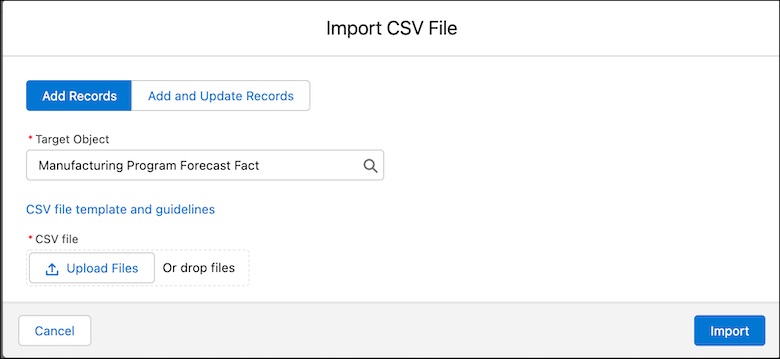
Import data from a .csv file into a target object. Use this data to calculate supplier
component forecasts, but only after you run data processing engine templates.
Required Editions
Available in: Lightning Experience
Available in: Enterprise, Unlimited, and Developer
Editions
User Permissions Needed
To import a CSV file into a manufacturing program:
Program Based Business permission set
From the App Launcher, in the Quick Find box, enter Manufacturing
Program and then select Manufacturing Program.
To create a manufacturing program, click New .
To import data from a .csv file into a target object (either Manufacturing Program Forecast
Fact or Manufacturing Program Variant Forecast Fact), on the Manufacturing Program tab, click
Import CSV File.
Create or update forecast records for program forecasts, and for product variant forecasts,
by using either the Add Records or Add and Update Records option.
Warning Ensure that the CSV files you're uploading for the manufacturing program
and manufacturing program variants don't contain duplicate period IDs for the same set of
dimension hierarchy records. For example, for a manufacturer FastCars, for Chennai location
and AutoX product, you can’t have more than one record with the same period ID.
Save your work.
View the Import Status of a .CSV File CSV file upload is an asynchronous process. Whenever a user uploads a .csv file, the system creates a Received Document record. By default, the name of the Received Document is same as the name of the file that the user uploaded.
Did this article solve your issue?
Let us know so we can improve!
Loading
Salesforce Help | Article
Cookie Consent Manager
Cookie Consent Manager
General Information
Required Cookies
Functional Cookies
Advertising Cookies
General Information
We use three kinds of cookies on our websites: required, functional, and advertising. You can choose whether functional and advertising cookies apply. Click on the different cookie categories to find out more about each category and to change the default settings.
Privacy Statement
Required Cookies
Always Active
Required cookies are necessary for basic website functionality. Some examples include: session cookies needed to transmit the website, authentication cookies, and security cookies.
Functional Cookies
Functional cookies enhance functions, performance, and services on the website. Some examples include: cookies used to analyze site traffic, cookies used for market research, and cookies used to display advertising that is not directed to a particular individual.
Advertising Cookies
Advertising cookies track activity across websites in order to understand a viewer’s interests, and direct them specific marketing. Some examples include: cookies used for remarketing, or interest-based advertising.