You are here:
Calculate Component Forecasts with Data Processing Engine Templates for Program Based Business
Program Based Business uses Data Processing Engines to generate component forecasts. You can customize jobs, generate or recalculate data, or schedule the Data Processing Engine job to run during rollover at the end of a period.
Required Editions
| Available in: Lightning Experience |
| Available in: Enterprise, Unlimited, and Developer Editions |
| User Permissions Needed | |
|---|---|
| To create forecast sets: | Manufacturing Advanced Account Forecast permission set |
These data processing engine job templates are provided with Program Based Business.
| Data Processing Engine Job | Purpose | Result |
|---|---|---|
| Generate Program Component Forecast | Generates component forecasts for a given manufacturing program. | - |
| Regenerate Program Component Forecast | Regenerates the component forecasts for a given manufacturing program. Use this job when you make any changes to the frequency, dimensions, or start period in the forecast set for component forecasts. | Expires the existing forecast data and then regenerates forecasts for the given manufacturing program. |
| Recalculate Program Component Forecast | Recalculates the component forecasts for a given manufacturing program. Use this job when you add or remove components, or make any changes to product related materials. | - |
| Rollover Program Component Forecast | Generates component forecasts for new periods during rollover for a given manufacturing program and then invalidates the forecast for the oldest period. | Generates component forecasts for new periods during rollover. |
To use an out-of-the-box Data Processing Engine template:
- Ensure that Data Pipelines is enabled. For information on how to enable Data Pipelines, see Enable Features for Manufacturing Cloud.
-
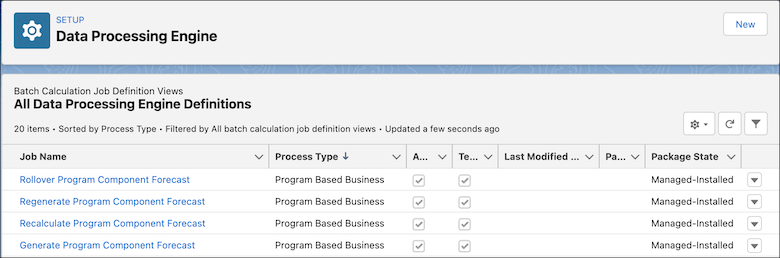
From Setup, in the Quick Find box, enter Data Processing Engine, and
then select Data Processing Engine.
-
Open an out-of-the-box Data Processing Engine definition.
Data Processing Engines with the Program Based Business process type can be used for generating manufacturing program component forecasts and are available for selection when generating component forecasts.
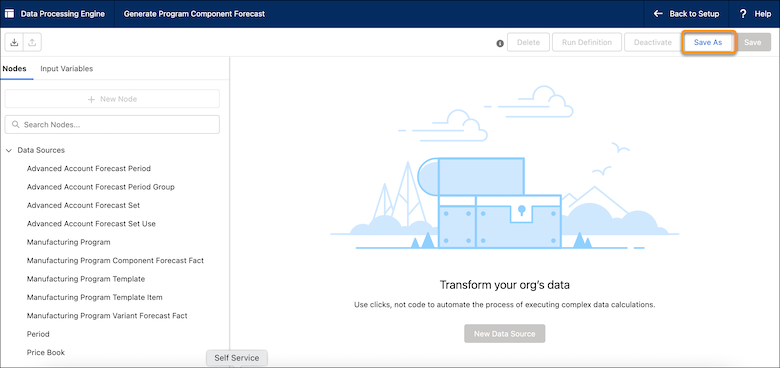
- Click Save As.
-
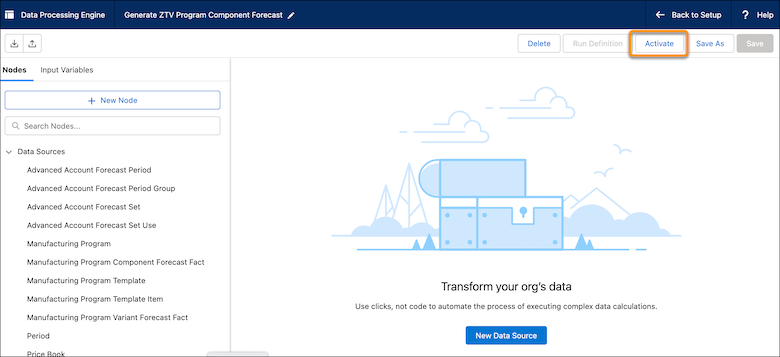
Enter a name and description for the Data Processing Engine. Retain the same API name and
process type, and then click Activate.
Make sure that the source objects used in the job are available in the org. Also, ensure that the required Setup objects are enabled. For example, from Setup in Order Settings, the Order object must be enabled. You must have read and create permissions on the objects.
The Data Processing Engine definition is now ready to be run by a custom flow. Important
- When you run a Data Processing Engine definition, ensure that the parameters—Manufacturing Program Id, Program Component Template Item Name and Program Variant Template Item Name—are correctly mapped to the template associated with the manufacturing program. Incorrect mappings can lead to errors in the generated manufacturing program component forecasts.
- The out-of-the-box Data Processing Engine templates for Program Based Business work only for manufacturing programs in Active status.
- To calculate the forecasted revenue for components, ensure that the pricebook contains the prices of all the components that you plan to sell. The forecasted revenue for a component is calculated during a Data Processing Engine run by multiplying the price of the component with the forecasted quantity. The price of the component is derived from the pricebook for product components.
 Note
When you run a Data Processing Engine definition, the job status is shown as completed in Monitor Workflow Services, even when records fail due to batch job failures, database space constraints, or writeback issues. The failed records are shown on the Tasks tab for a job run. To view the details of failed records, use this request with the batch job ID using an API tool such as Postman.
/services/data/v53.0/jobs/ingest/<job ID>/failedResults/Where, v53.0 is the API version.
